Common problems: coaching
A coach works from the learner app, never from the back office, and the coach role is granted group by group. Those two characteristics explain most of the blocks you will meet: when a screen or an action is missing, the cause is almost always in the group configuration or in the app menu.
On this page
- The two conditions for the Coaching tab to appear
- What the My learners list actually contains
- The size of the list is decided when the group is built
- The template panel that comes before the milestone form
- The fields that unlock the Create button
- Four skills at most per milestone
- Assessment waits for the required tips
- A confirmed assessment is final
- A milestone belongs to the coach-learner pair
- A deactivated skill disappears from milestones
- Going further
Common problems: coaching
A coach works from the learner app, never from the back office, and the coach role is granted group by group. Those two characteristics explain most of the blocks you will meet: when a screen or an action is missing, the cause is almost always in the group configuration or in the app menu.
This article gathers the coaching rules that surprise administrators most often, with what to check in each case and the expected behaviour.
ℹ️ Good to know. Levels, the three averages in the statistics and the skill certificate are covered in Common problems: skills.
The two conditions for the Coaching tab to appear
Two conditions must be met at the same time. If either one is missing, the tab stays invisible in the app.
The person must be set as a coach in an active group. Open the group in edit mode, then the Roles tab and the Define the coach(es) block.
Being a coach is not a back-office right but a role granted inside a group. This distinction is the most common source of confusion: even a complete administrator profile does not open coaching, and no permission-model setting replaces it. See Assigning roles in a group.
The Coaching entry must be in the app menu. You add it under Configuration > Customization > Menu, with Add a new item to the menu.
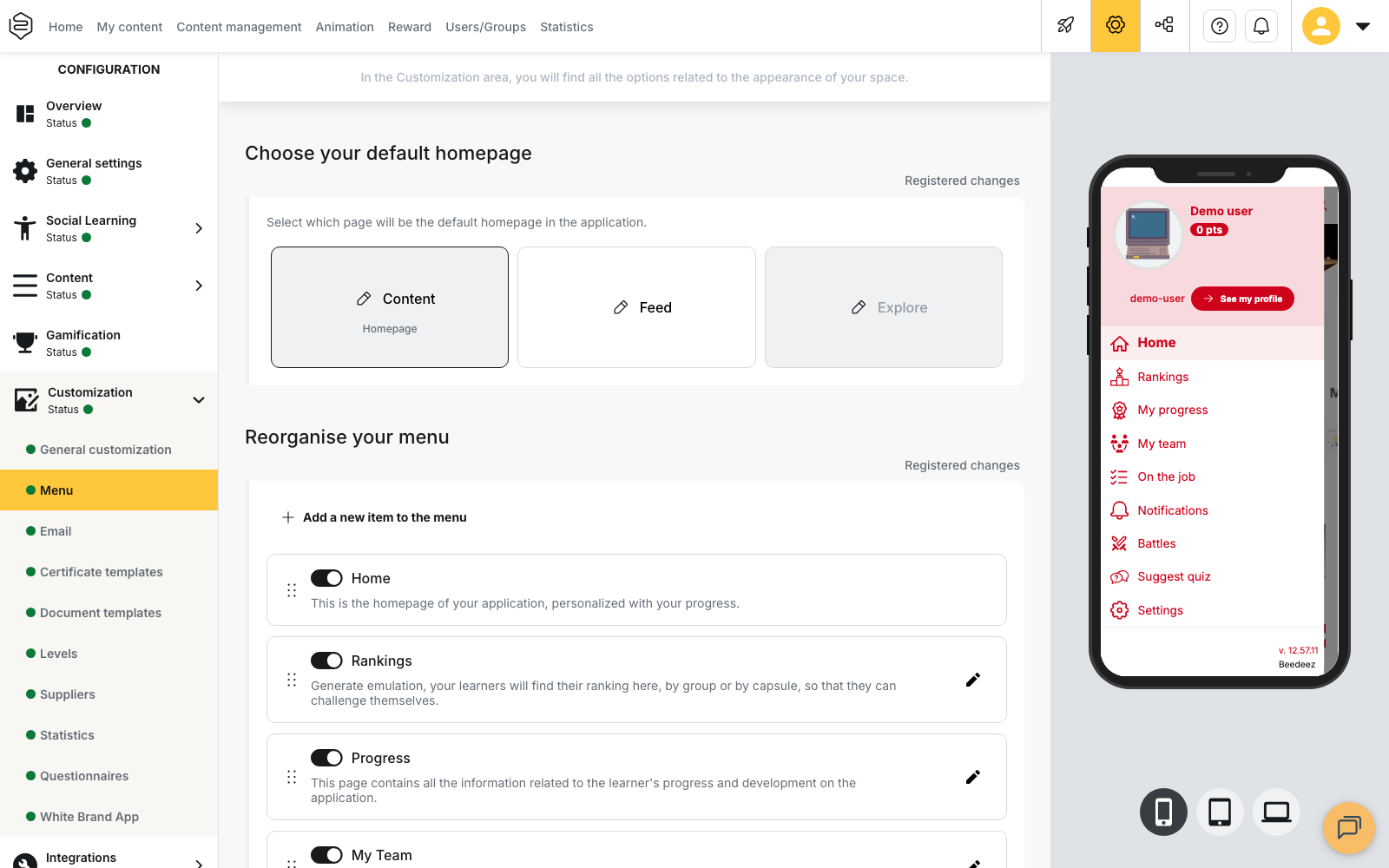
As long as that entry is missing or hidden, the role exists in the group but has no visible effect: the coach has no way to reach their space. See Customising the learner platform.
What the My learners list actually contains
Four rules explain the people missing from that list.
The list shows one group at a time. A coach who follows several groups moves between them with Filter by group. Groups never add up into a single list, so a coach looking for all their learners on one screen will not find them.
The other coaches of the group are not in it. Anyone set as a coach is removed from the learner list of their own group. To follow a coach, add them as a learner in another group where they do not hold that role.
A disabled group disappears entirely, learners and milestones included. The Roles tab is no longer offered on a disabled group either. Re-enable the group and everything comes back: nothing is lost when a group is disabled.
An academy only shows its own groups. Coaching lists follow the selected universe. Go back to the parent account to find the groups of the other universes. See Switching between universes.
The size of the list is decided when the group is built
A coach’s list is the whole group, minus the coaches of that group. Coaching offers no filter to narrow it, and there is no way to split the members of a group between several coaches.
The number of learners followed is therefore set upstream, when the group is created. If a coach should follow twenty people, create a group of twenty people. This choice is hard to correct once the programme is running: milestones already created stay attached to their original group.
The template panel that comes before the milestone form
When milestone templates exist on your platform, the creation button first opens the Pick a milestone template panel. It lists the available templates with their skills and the target level of each one.
Two paths follow from there:
- select a template: the form carries its name and its skills, and you fill in the Milestone date, the From and To times, then Where is the milestone happening?. The Link field stays optional;
- choose Create from scratch, at the bottom of the panel, to open the empty form and build the milestone yourself.
A milestone created from a template does not show the skill picker: its skills and their target levels come from the template. When no template exists, the creation button opens the empty form directly, without this panel.
The fields that unlock the Create button
The creation panel is titled New milestone and is confirmed with the Create button at the bottom. That button only becomes active once four mandatory fields are filled in: Milestone date, From, To and Where is the milestone happening?, plus at least one skill.
Go through the form from top to bottom: the missing field is almost always the location or the skill, which are easier to overlook than the dates.
⚠️ The location stays mandatory for a remote milestone. The field cannot be left empty. Type Offline in it, as the example displayed in the field suggests.
The Link and Learner’s goals for this milestone fields are optional and never block creation.
When you reopen an existing milestone with Edit, the same form appears and the confirmation button reads Save updates.
Four skills at most per milestone
Skills are chosen with the Add skills button. A milestone takes four skills at most. Once you reach that number, the remaining rows of the picker can no longer be ticked: this is not a temporary block.
The text below the title of the picker announces one mandatory skill plus four additional ones, which suggests five. The real ceiling is four. If you are preparing standard milestones for your team, build them around four skills.
Assessment waits for the required tips
When a milestone was created with the Tips are required option, assessment stays closed until the learner publishes their tips. The Evaluate Milestone button does not appear and the area shows Waiting for the required tips on the coach side.
Tips saved as a draft do not count: the learner has to publish them. They create them from the milestone card and choose between Video tips and Information tips.
If the wait is not justified, ask the learner to publish their tips. The option cannot be removed from a milestone that already exists.
💡 Tip: that evidence does not reach the feed. A milestone tip stays attached to its milestone, so the rest of the group cannot see it.
A confirmed assessment is final
This is the most important consequence to understand before opening coaching: an assessment that was too generous cannot be corrected.
A coach cannot bring a level back down. The Assign a level window states it: “You can assign the current level or a higher one”. Below the level the learner already holds, the Apply button stays inactive.
Confirming closes the milestone. The Milestone evaluation screen warns you: “Once confirmed, milestone validation cannot be changed. Remember to proofread.” Reading the assessment again before confirming is the last moment where a mistake can still be caught.
An assessed milestone moves to Completed. The assessment offers no negative outcome: the coach assigns a level per skill, with no option to close the milestone on a failure. When the result deserves a nuance, write it in the Feedback (max 1000 characters) field, which the learner then opens with Read evaluation.
💡 Tip: you do not have to assess every skill of the milestone to confirm. A single assessed skill is enough to validate it, and the skills left aside are not recorded. Read the list again before confirming: a forgotten skill cannot be caught up on that milestone.
A milestone belongs to the coach-learner pair
A second coach of the same group does see the learner in their list, but not the milestones created by a colleague. This is the intended behaviour.
The Milestone options menu offers a single action, Edit, reserved for the coach who created the milestone. It disappears as soon as the milestone is assessed. No milestone can be deleted: one created by mistake stays in the learner’s list.
Plan for this when a coach leaves their role or changes team: their ongoing milestones cannot be taken over by another coach.
A deactivated skill disappears from milestones
A skill deactivated in the framework disappears from milestones already created and from the assessment screen, without any warning for the coach.
⚠️ If every skill of a milestone is deactivated, that milestone can no longer be assessed. The confirmation stays inactive and the milestone remains Ongoing. Reactivate the skill in the framework, then run the assessment.
Before deactivating a skill, check that no ongoing milestone relies on it alone.
Going further
- Configuring coaching: the setup steps, and what to check before opening the programme.
- Milestone templates: what the form asks for, and what a template fills in for you.
- Assessing and following skills: the three routes that move a level, and the only one that keeps a history.
- Skills and coaches: the report columns, and what the period filter changes there.