Milestone templates
Prerequisite: you must be a coach of at least one group and have the Coaching tab in the app menu.
Milestone templates
Prerequisite: you must be a coach of at least one group and have the Coaching tab in the app menu.
There are no milestone templates in Beedeez. No screen lets you prepare one, neither in the back office nor in the app, and an existing milestone cannot be duplicated. Every milestone is filled in from an empty form.
This article describes what the form actually asks for, what can still be changed afterwards, and how to keep milestones comparable between coaches without templates.
Opening the form
- In the app, open Coaching, then My learners.
- Select the learner, then open the Milestones tab.
- Click Create milestone, at the top of the Ongoing section.
The New milestone panel opens. Its subtitle states its purpose: “Schedule a coaching session to help your learner develop new skills, giving them all the information they need to reach this milestone successfully.”
As long as no milestone is scheduled, the Ongoing section shows “No upcoming milestones at the moment”. The creation button is shown only to the coach, in that section.
What the form asks for
The fields appear in this order.
- Milestone date: the day of the appointment. This field is required.
- From and To: the start time and the end time, both required. When you pick the date, the end time is set one hour after the start time. You can then adjust both times.
- Where is the milestone happening?: free text, required, for example “remote”, a meeting room or an address.
- Link: optional, with the hint “Paste the link here”. Use it for the connection address of a remote milestone.
- Learner’s goals for this milestone: optional, 600 characters maximum.
- Tips are required: optional. When this option is on, the milestone can only be evaluated once a tip has been published for it. A tip left as a draft is not enough, and the milestone keeps showing “Waiting for the required tips”.
- Add skills: at least one skill from your framework. The selector offers a search field, Search a skill here, and shows “No skills found” when nothing matches.
The Create button stays inactive until the date, both times, the location and at least one skill are filled in.
Cancel closes the panel. If you have already entered something, the Unsaved changes window asks you to confirm: what you entered is not kept.
The limit on the number of skills
The skill selector accepts four skills per milestone at most, while its help text announces “At least 1 skill is mandatory, with the option to include up to 4 additional skills for your learner to validate”. Build your standard milestones around four skills at most.
What can still be changed afterwards
The milestone options menu offers a single action: Edit. It reopens the form, this time titled Edit milestone, and its confirmation button becomes Save updates.
This action is offered only to the coach who created the milestone, and it disappears as soon as the milestone is evaluated. No delete is offered: a milestone created by mistake stays in the learner’s Ongoing list, then moves to Completed once evaluated.
⚠️ An evaluation makes the milestone permanently uneditable. Editing is therefore the last moment at which a mistake can still be corrected.
Keeping milestones comparable without templates
Four levers make milestones consistent, all of them upstream of the form.
A short skills framework. This is the most effective one: two coaches cannot diverge on skills that do not exist. The framework is built in the back office, under Content management > Skills.
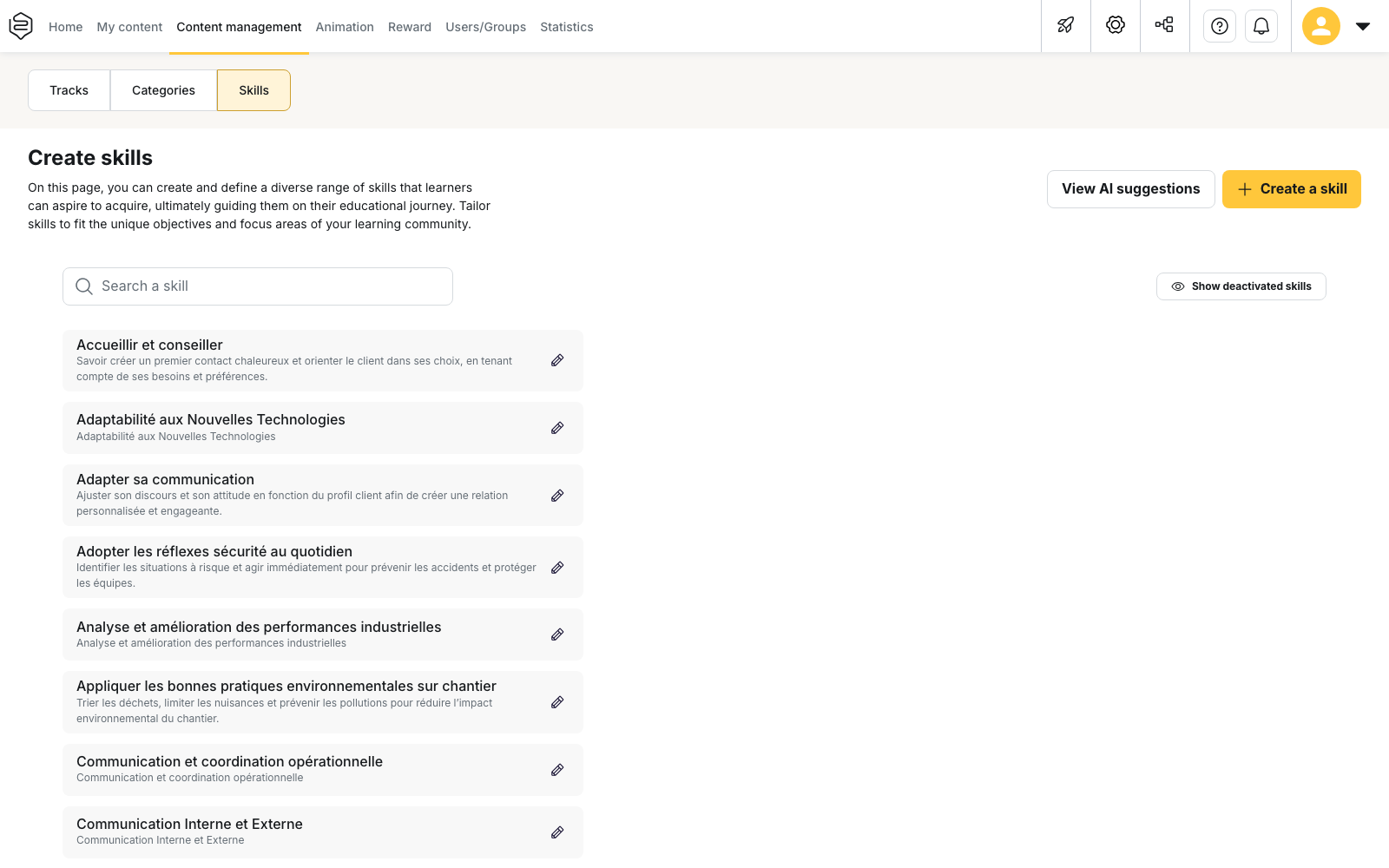
Stabilise the framework before launching a milestone campaign. To build it, see Building the skills framework.
A reference wording for goals. Write the two or three standard formulations of your programme outside Beedeez, and ask coaches to paste them into Learner’s goals for this milestone. It is the only field free enough to carry a team convention.
A shared rule on Tips are required. Decide once whether your programme requires a tip, instead of leaving the choice to each coach. Milestones in the same programme then follow the same evaluation condition.
A limited number of coaches. Variation comes from the number of people interpreting the programme, not from the number of milestones. Coaches are named group by group, under Define the coach(es).
What milestones do not allow
- No templates, no library of standard milestones, no duplication of an existing milestone.
- No bulk creation: one milestone targets one learner and one only.
- No recurring milestone: a quarterly appointment is retyped every quarter.
- No deletion: a milestone created by mistake can only be edited, as long as it has not been evaluated.
- No creation and no evaluation from the back office: these actions happen in the app.
- No lowered level: during the evaluation, the coach assigns the learner’s current level or a higher one.
Going further
- The coach and their role: what a coach does, and from where
- Configuring coaching: showing the tab and naming coaches
- Building the skills framework: the main lever for consistency
- Mastery levels: the scale used during evaluation
- Skills and coaches analytics: the milestone metrics