HRIS synchronisation and provisioning
Prerequisites: the HRIS synchronisation option, activated by the Beedeez team on your account. Rights required: access to Configuration from the parent account, and to IT integrations.
HRIS synchronisation and provisioning
Prerequisites: the HRIS synchronisation option, activated by the Beedeez team on your account. Rights required: access to Configuration from the parent account, and to IT integrations.
HRIS synchronisation automates the management of your learners:
- Hires: the learner’s account is created automatically in Beedeez.
- Internal moves: the learner’s account is updated in Beedeez.
- Departures: the learner’s account is deactivated automatically.
Setting up the file transfer (file location, access, format) is done with the Beedeez team. The screens described here are then used to review what has been configured and to understand what happened when an account does not look the way you expected.
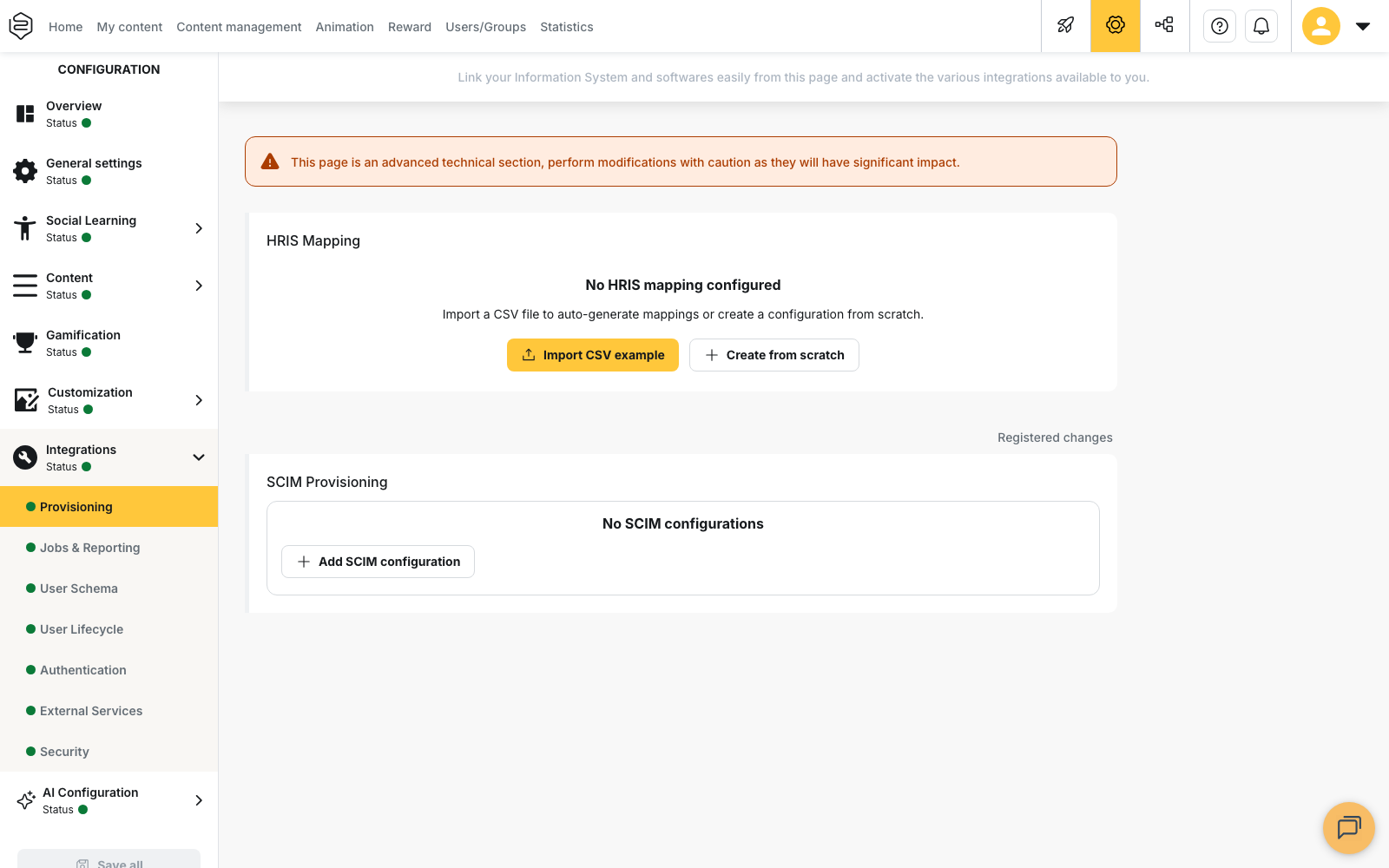
The three tabs to know
Open Configuration > Integrations. Three tabs relate to the synchronisation:
- Provisioning: this is where you find everything related to the HRIS import.
- Jobs & Reporting: the Scheduled jobs, including SIRH synchronisation of user lists. You can see when the synchronisation runs, its result and the number of users created, updated and users deactivated.
- User Schema: the list of information available on your learners (job, region, store…). This information is what dynamic groups use as criteria.
⚠️ A banner reminds you that these screens are an advanced technical section: a change can affect all of your learners’ accounts. If in doubt, make changes with the Beedeez team.
When to check these tabs
These screens are mainly used to understand an unexpected situation on an account. Here is where to look depending on what you notice.
A new learner does not appear in Beedeez. Open Jobs & Reporting and check that the last SIRH synchronisation of user lists ran correctly. If it did, check with your HR team that the person is in the file sent and that their identifier (for example their staff number) is filled in: a line without an identifier does not create an account. Also look for the person among the deactivated accounts in Users/Groups.
A learner was deactivated although they still work for the company. In Jobs & Reporting, look at the number of users deactivated in the last run. An unusually high number almost always points to an incomplete file (see below).
A learner has two accounts. Their identifier has probably changed in the HRIS, or they appear under two different identifiers. See the section “Each learner’s identifier”.
Some information is wrong or missing (store, job, region), or a learner is not in the right dynamic group. First check the value in the file that was sent to us, from the Jobs & Reporting tab: click the latest job and download the file.
A correction made by hand in Beedeez has disappeared. If you changed a learner’s criterion by hand, that change is overwritten when this line is processed again during a synchronisation, that is, when another of their criteria changes. Make the change in the HRIS instead.
You are not warned when the synchronisation fails. In Jobs & Reporting, click Configure on SIRH synchronisation of user lists to turn on the error notification by email. Also tick Consider the absence of a file as an error: without this option, a run that finds no file is displayed as Succeed.
Each learner’s identifier
The synchronisation recognises each person through an identifier that must be unique and must never change. This identifier is what lets users be recognised from one file to the next, and by your SSO where applicable.
⚠️ If this identifier changes in your HRIS, Beedeez does not recognise the person and creates a second account. The learner ends up with two accounts and two separate progressions. Choose a stable identifier: neither the email address nor the name.
When several sources refer to the same person differently (for example the HRIS and single sign-on), Beedeez can look for an existing account using other identifiers. This setting is prepared with the Beedeez team.
How a departure is handled
The file describes the list of active employees at the time it is sent. Beedeez compares it with the previous file: a person present in the previous file and absent from the new one is treated as having left, and their account is deactivated. No specific column is needed to report a departure.
⚠️ An incomplete file therefore deactivates every account missing from it. If your HRIS one day sends a partial list (a filtered or interrupted export), the missing people are deactivated. After each run, compare the number of users deactivated shown in Jobs & Reporting with your actual departures: a spike usually signals a file problem, not a wave of departures.
What the synchronisation does not do
It sends no invitation email. Accounts are created without notifying learners: this lets you set up the HRIS integration before your launch, and send your communication when you are ready.
Assigning automatically with dynamic groups
The information sent by the HRIS becomes the criteria of your dynamic groups: every hire and every change of role places the person in the right groups, with no manual addition. Without dynamic groups, accounts are created automatically but group assignment remains manual.
This information is also used in statistics: the Segmentation fields tab determines which information from the file appears in your dashboards and exports. Choose the useful columns with your IT department before finalising the file format.
Going further
- Dynamic groups: automatic membership criteria: automatic assignment built on the synchronised information.
- Monitoring your synchronisations: reading the run history, the counts and the causes of failure.
- Authentication and SSO (SAML / OAuth): sign-in, the other half of the integration with your IT stack.
- Deactivating and reactivating a user: what a manual reactivation becomes when the HRIS drives the accounts.