Monitoring your synchronisations
A synchronisation that stops running does not announce itself: accounts simply stop changing, and a single job is able to email you when it fails. The Scheduled jobs block lists each automated job, its run history and the detail of what every run processed. This article explains how to read that screen and what to check when a run does not produce the expected result.
Monitoring your synchronisations
A synchronisation that stops running does not announce itself: accounts simply stop changing, and a single job is able to email you when it fails. The Scheduled jobs block lists each automated job, its run history and the detail of what every run processed. This article explains how to read that screen and what to check when a run does not produce the expected result.
⚠️ Prerequisites: the run history is an account option. Without it, the jobs and their Configure button are still listed, but no history rows appear underneath. Ask your support contact to have it enabled.
If you are not sure yet which route your accounts arrive by, start with which brick for which need.
Where to find the job history
Open Configuration > Integrations > Jobs & Reporting, then go to the Scheduled jobs block.
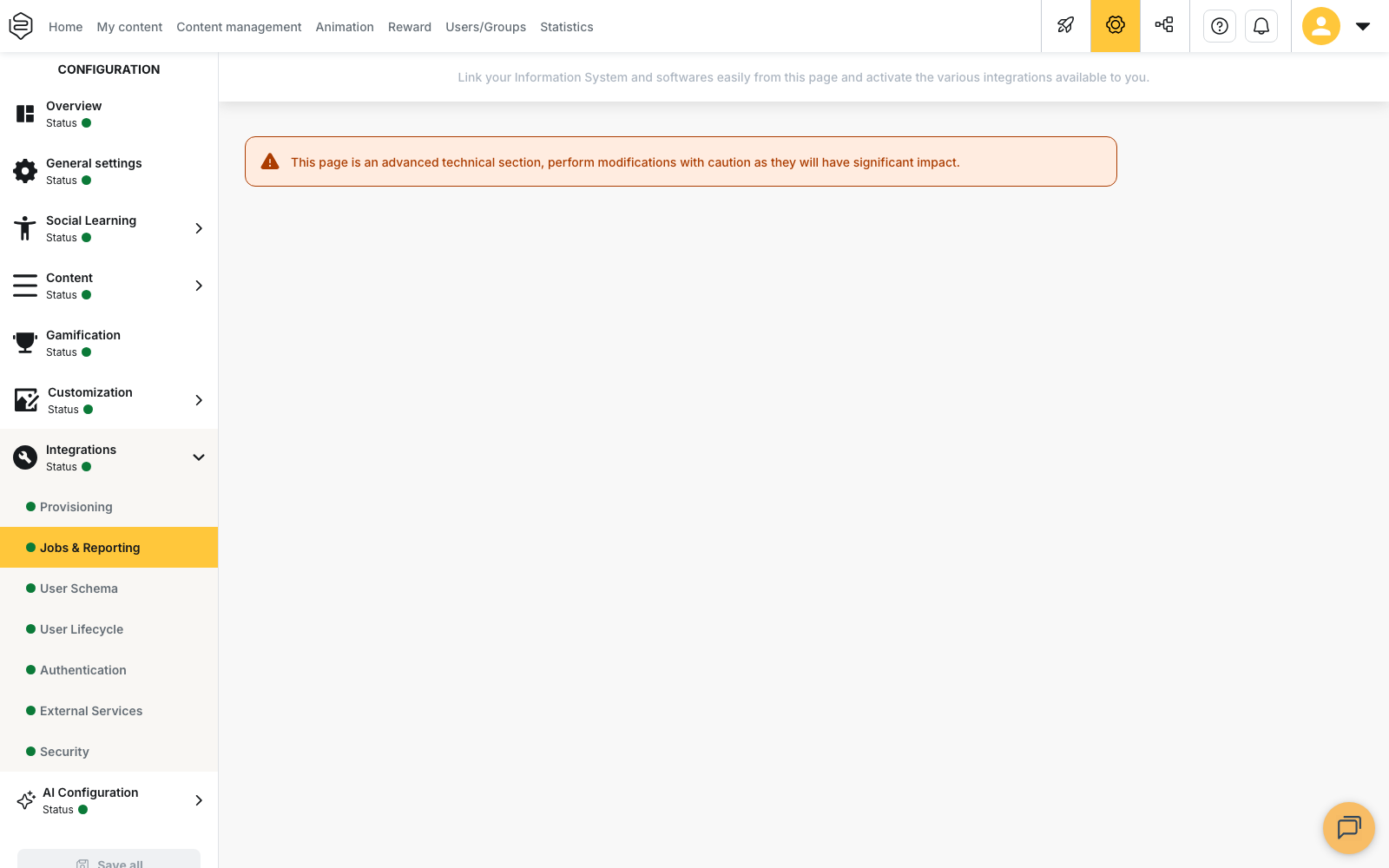
Each job takes one line, and its history is displayed directly underneath. There is no separate history screen.
The jobs that can appear are:
- SIRH synchronisation of user lists
- SFTP reporting of user activity, listed when activity reporting is configured on your account
- Synchronization of learning contents in Scorm
- Synchronization of external learning resources
- Synchronization of external learning resources sessions
The last three require the LMS option.
The history of SIRH synchronisation of user lists is also repeated under Configuration > Integrations > Provisioning.
Reading the run table
The table has three columns: Run date, Status and Files, which counts the files attached to the run.
Runs are listed with the most recent first. Above them, one line describes the run to come rather than a past one:
- Pending with a date: the job is scheduled, and the date shown is that of its next run.
- Not programmed with dashes: no recurrence is set on the job.
While a run is still in progress, this upcoming line is not displayed.
Past runs carry Succeed, Failed, In progress or Canceled. A run that stays at In progress long after its date generally means the job never reported its outcome. Report it to support.
Only the most recent run is shown at first. See more unfolds the rest of the history and See less folds it back. The link appears only when the job has more than one run behind it.
Checking what a run actually did
The status alone does not tell you whether accounts changed. Click a past run to open the Advanced information window.
Depending on the job, and only when the value is above zero, it shows:
- the number of files processed and files generated, each file listed by name, with a download button next to the files that can be retrieved
- the number of lines read
- the counts of users created, users updated and users deactivated
An empty window, or the message There is no information about this task, means the run recorded nothing. Rows that are still Pending or Not programmed do not open this window.
💡 Tip: compare users deactivated with what you expect from your export. An unusually high count is worth checking against the source file before you treat the run as correct.
Checking the files in the SFTP drop
On the SIRH synchronisation of user lists line, View files opens the Files window and lists what is currently in the drop, folder by folder, with the size and date of each file. This is what settles the question “did the file arrive” when your HRIS states that it sent one.
From this window you can:
- download a file to check its content
- delete a file: it is moved to the Trash folder, from which it can then be deleted permanently
- upload a file into a folder, in
.csvor.xlsxformat, up to 50 MB
The upload button is unavailable while the folder already contains a file, and its tooltip then reads This folder already has files. A file whose name already exists in the folder is refused.
When there is nothing to process, the window displays No files to be processed in uploads, tests or uploads/preprocess.
Being warned when a run fails
Only SIRH synchronisation of user lists can send an email when it fails. The option is off by default.
- Click Configure on the SIRH synchronisation of user lists line.
- Turn on Notify errors by email.
- Enter an address under Add new email address and confirm it. Repeat for each recipient.
- Turn on Consider the absence of a file as an error if a run that finds no file must be reported as an error rather than end without processing anything.
- Confirm the window to save your changes.
At least one address is required: saving stays unavailable while the notification is on without a recipient. Consider the absence of a file as an error is displayed only once Notify errors by email is on.
For the reporting, SCORM and external resources jobs, no email alert exists. Their result is visible only on this screen.
What this screen does not let you do
No button runs a job immediately. Configure only changes when the job runs, with four choices: Never, Weekly, Once and The first day of each month.
Once replaces the recurrence instead of adding a run: a weekly or monthly schedule is lost when you save. Set the recurrence back afterwards if you used Once to obtain a run at a chosen time. Never removes the schedule, and the job then shows Not programmed.
⚠️ The recurrence time is converted using your time zone as it stands at the moment you save it. After a change to or from daylight saving time, reopen Schedule your task and check that the hour displayed is still the one you want.
Understanding a failure
The Advanced information window of a failed run names the cause under Task failure explanation.
These causes are handled on your side, in the drop, the export or the mapping:
- No file to process
- Unsupported file type (files must be of type .csv or .xml)
- The file does not contain any users
- The column corresponding to the user’s login is missing
These ones are for support:
- Error while splitting the file into subfiles
- Unknown error
- a run frozen at In progress
- a job missing from the list
If a download ends with The file you requested is not available or you don’t have access rights, the file could not be retrieved. Contact support and give the date of the run.
Going further
- Which brick for which need: the route your accounts arrive by decides what is listed here.
- Automating activity export to your SFTP: the reporting job, which sends no alert.
- Automated SCORM delivery to SFTP: the SCORM job.
- Importing activity completed outside Beedeez: the two external-resources jobs.
- Common problems: integrations: the classic integration failures and where they come from.