Scheduling automatic SCORM package delivery to an SFTP
Beedeez can build the SCORM packages for your capsules and drop them on an SFTP server on a schedule, with no manual export. One thing only is set from the back office: how often the job runs. To confirm this is the right way to connect your LMS, see Delivering your Beedeez content to an external LMS.
Scheduling automatic SCORM package delivery to an SFTP
Beedeez can build the SCORM packages for your capsules and drop them on an SFTP server on a schedule, with no manual export. One thing only is set from the back office: how often the job runs. To confirm this is the right way to connect your LMS, see Delivering your Beedeez content to an external LMS.
⚠️ Prerequisites: your account needs the LMS option, and the delivery itself has to be set up beforehand with your support team. Without that setup, scheduling the job delivers nothing. The Scheduled jobs block is also hidden while a department is selected: switch back to the parent account before you start.
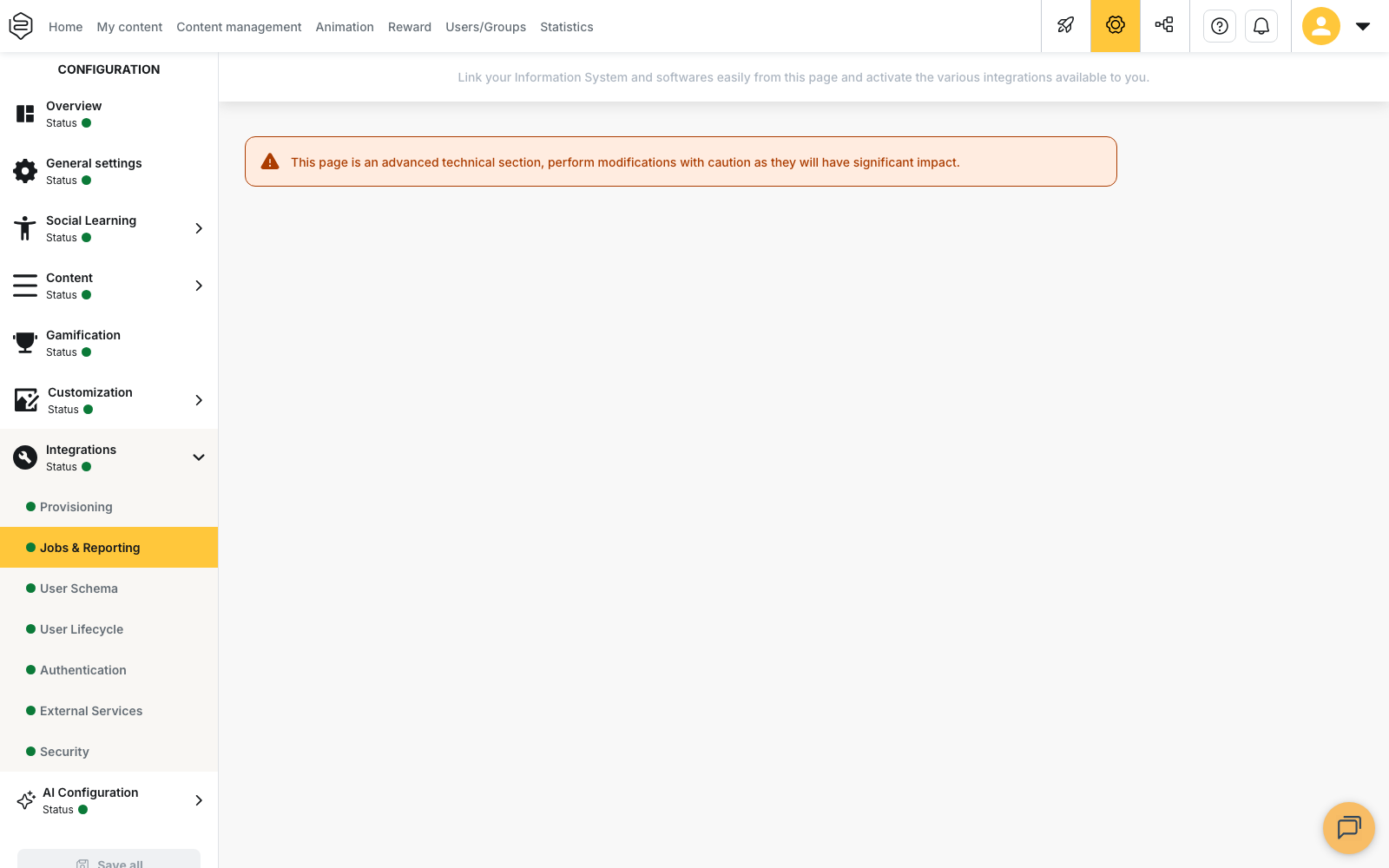
Scheduling the job
- Open the Configuration menu, then the Integrations section, then the Jobs & Reporting page.
- In the Scheduled jobs block, find the line named Synchronization of learning contents in Scorm.
- Click Configure. The Schedule your task dialog opens.
- Choose the recurrence:
- Never: the job will not run again;
- Weekly: select the days under Choose which days of the week, then the Hour;
- Once: select the day under Choose a date, then the Hour;
- The first day of each month: select the Hour.
- Click Save.
The dialog holds nothing beyond this recurrence. The hour you enter is read in the time zone of the computer you are using when you save, then stored and run in universal time. When your region moves to or from daylight saving time, the run therefore shifts by one hour until you open the dialog and save the schedule again.
🔧 Everything else is set with your support team. Which capsules go out, which server they go to, the file name prefix and the listing format are not editable from the back office. The File name prefix field you may have seen on other scheduled jobs is not offered for this one.
What lands on the drop
One capsule delivered produces one ZIP file. Its name does not change between runs, so a fresh delivery of the same capsule overwrites the previous one on the drop.
A listing file accompanies each drop and describes what was just delivered. Its columns come from your configuration. Because its name carries the date and time of the run, it accumulates instead of overwriting the previous one.
⚠️ A run that delivers no capsule still drops a listing file, down to its header row alone. One more file on the drop is not proof that any content went out.
⚠️ The ZIP does not contain your content. As with the manual export, it holds a launcher that fetches the capsule from Beedeez when the learner opens it, so the package freezes nothing.
What the job does not do
It does not deliver paths. Only capsules are delivered.
It does not produce SCORM 2004. Automatic delivery always produces SCORM 1.2, where the manual export lets you choose between the two versions.
It does not delete anything. A capsule that falls out of scope is not removed from the drop: its ZIP stays there and your LMS keeps seeing it. Removing it is yours to do.
It does not explain its failures. This job produces no readable error code, so when it fails the Task failure explanation reads Unknown error. Go through your support team.
Only capsules modified since the last run
The job does not start from scratch on each run. It examines the capsules modified since the previous run, then compares their version against the one already delivered. Only the very first run sweeps the whole scope.
⚠️ Widening the scope does not backfill. A capsule that enters the scope without having been modified since the last run stays invisible until it is modified again.
Following the runs
Monitoring sits on the same page, directly below the job line: a table gives the Run date, Status and Files of each run, along with the Next run date. See more unfolds the whole history. Click a row to open Advanced information, which lists the generated files, each one downloadable, and the failure reason.
This table is not part of every account setup. If it does not appear below the line, raise the subject with your support team.
Nothing is retried. A run that ends Failed is not picked up again; the job simply restarts at its next scheduled time. Nothing is lost either: a capsule counts as delivered only after a successful drop, so it goes out on the following run.
Going further
- Delivering your Beedeez content to an external LMS: the map of every route out, to confirm this one is the one you want.
- SCORM export, from the LMS angle: what the package holds, and what it does not report back.
- Launching from the LMS: the alternative when SCORM is too thin for what you need.
- Configured with your support team: what to prepare before raising the subject.