Authentication and SSO (SAML / OAuth)
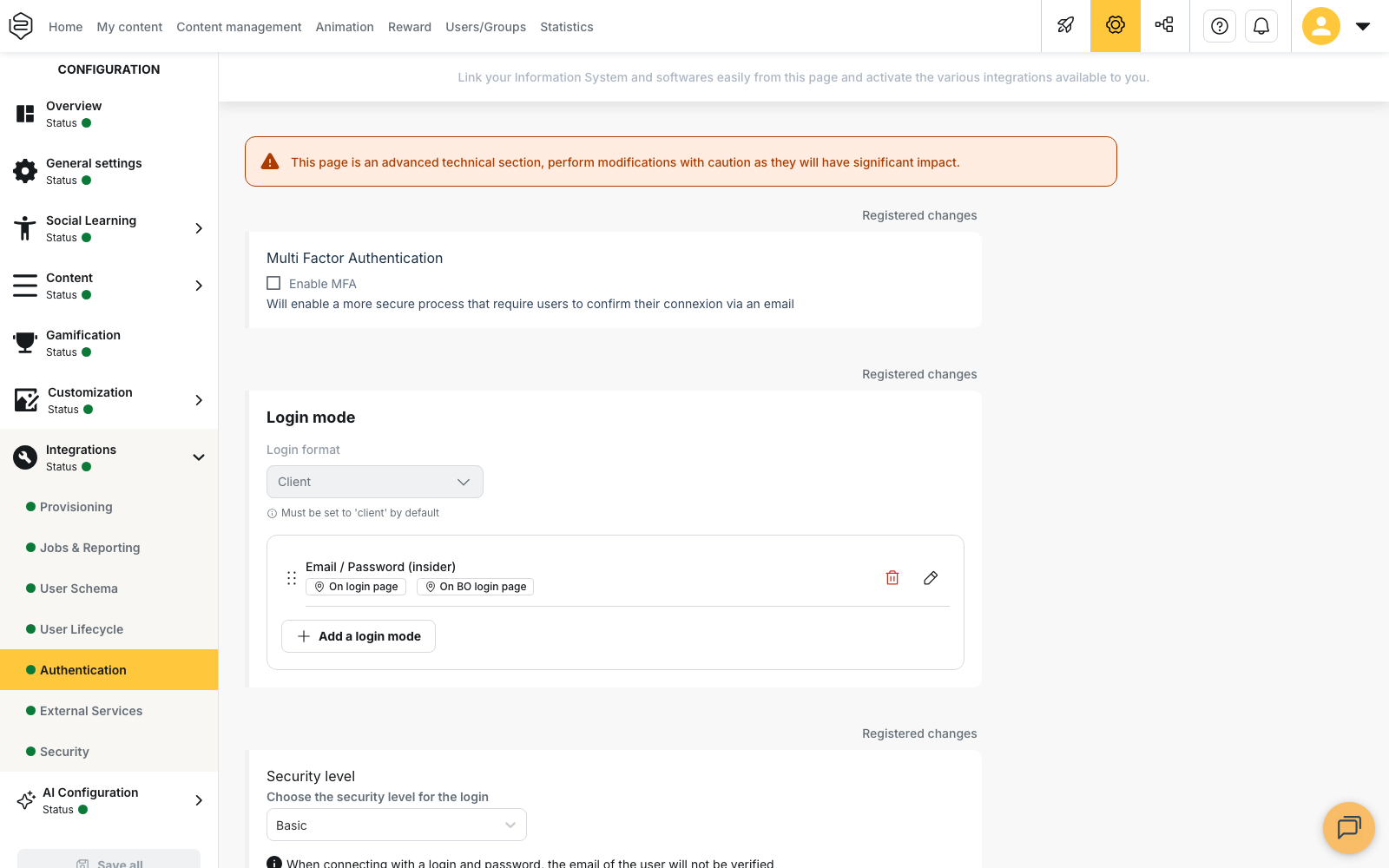
Single sign-on lets your learners sign in with the credentials they already have in your company, without a Beedeez-specific password. You set it up in Configuration > Integrations > Authentication, in the Login mode section. Your IT department runs the identity provider, so the setup is always a joint effort with them.
Authentication and SSO (SAML / OAuth)
Single sign-on lets your learners sign in with the credentials they already have in your company, without a Beedeez-specific password. You set it up in Configuration > Integrations > Authentication, in the Login mode section. Your IT department runs the identity provider, so the setup is always a joint effort with them.
⚠️ Rights required: access to Configuration.
The page opens on a warning: it is an advanced technical section, and the changes made there have a significant impact. Prepare the values with your IT department before editing anything.
What changes for learners and administrators
For learners, the sign-in page shows one button per login mode, with the label you define. They sign in with their company credentials, so there is no Beedeez password to remember or reset.
For administrators, users are no longer recognised by their email address but by the identifier your identity provider returns. This is the change with the most practical consequences, detailed further down.
Choosing a login mode
The Login mode section lists the modes offered on the sign-in page. The Add a login mode button creates a new one, and each existing mode can be edited or deleted from the list.
Two mode types serve single sign-on: SAML and OAuth / OIDC. The choice depends on the identity provider your IT department runs, not on Beedeez.
Each mode carries a name and the button label shown on the sign-in page. That label can be translated into each of your platform’s languages. A mode can also be shown on the back-office sign-in page, so that administrators use the same credentials.
What Beedeez provides and what your IT department provides
Beedeez provides the service provider metadata, through the Download SP Metadata and Copy SP Metadata Link buttons, and the Callback URL displayed on the screen.
Your IT department provides the Entry Point, the Issuer, the Certificates and the identifier format the identity provider returns.
The Show advanced options button reveals protocol-level settings such as Force AuthN, AuthN Context and Alternates Name ID. They cover specific integrations. Change them only together with your IT department.
The identifier, not the email address
ℹ️ Good to know. Under single sign-on, a learner is recognised by the identifier the identity provider returns: staff number, internal ID, and sometimes the email address. It is not necessarily an email address.
On an account that uses single sign-on, users are therefore added by identifier. An import based on email addresses, on an account that expects staff numbers, creates accounts that do not match the identifiers sent at sign-in. Check the format your identity provider returns before importing. See Adding users.
Switching an account already in use to single sign-on
This is the most frequent situation. Three points deserve attention.
Existing identifiers must match. A user whose Beedeez identifier does not match what the identity provider returns cannot sign in after the switch. Reconcile the two lists before the switch, not after.
Email and password sign-in can be kept during the transition. The Authorize external login with email and password checkbox keeps an email and password button on the sign-in page, alongside single sign-on. It appears once the main login mode is no longer email and password. The order matters: as the screen states, you cannot add alternative login modes while email and password is the main mode. Add the single sign-on mode first, then tick the checkbox to keep email and password available.
Announce the change. If you remove email and password sign-in, your learners’ existing passwords no longer let them in. Tell them before the switch, and indicate which button they must now use.
💡 Tip: test the new login mode with a small group before opening it to everyone. See Pilot and launch.
What single sign-on does not do
Single sign-on authenticates users: it determines who may sign in. It does not create accounts, keep them up to date, or deactivate them when someone leaves the company. That is the role of provisioning, set up on other pages of the same section. The two are often deployed together, but they remain two separate projects. See HRIS synchronisation and provisioning.
Going further
- Adding users: adding users by identifier on an account that uses single sign-on.
- HRIS synchronisation and provisioning: automatic account creation and updates, the other half of the project.
- Signing in as a learner: checking what a learner sees after the switch.