Deactivating and reactivating a user
⚠️ Required rights: you need access to the Users/Groups tab (Assigning rights).
Deactivating and reactivating a user
⚠️ Required rights: you need access to the Users/Groups tab (Assigning rights).
The user list has no delete option: you deactivate an account instead. The person can no longer log in, their data and history are kept, and a reactivation restores their access as it was. Everything happens in the Users/Groups tab, on the Users list screen.
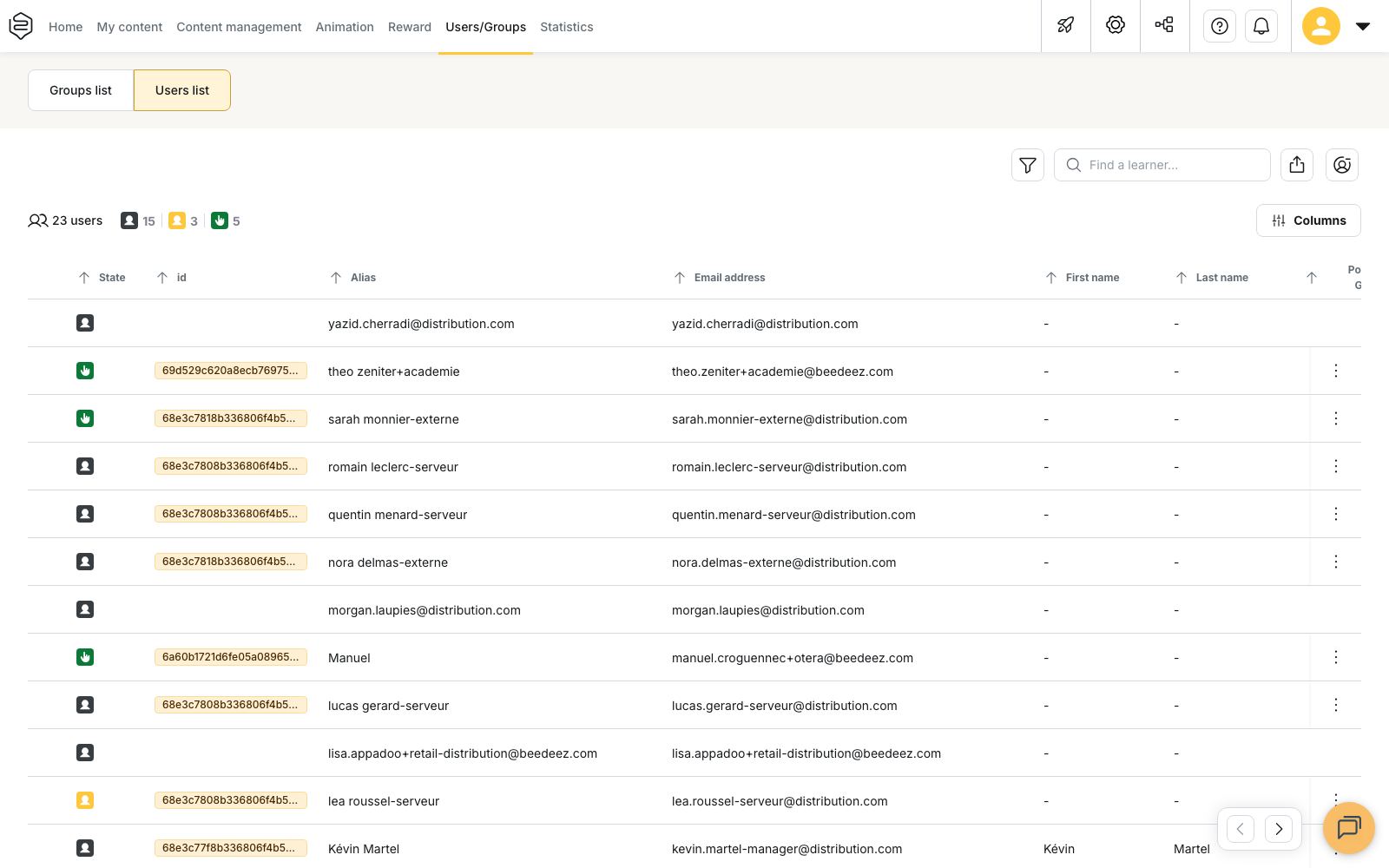
Deactivating a learner
You can deactivate a single learner from their card, or several learners at once from the list.
From a learner’s card
- Open the Users/Groups tab, then the Users list screen.
- Click the learner’s row to open their card.
- Open the Access tab.
- Click Deactivate learner, then confirm.
From the list, for several learners
- Tick the learners concerned in the Users list.
- Choose the Deactivate learner(s) action.
- Confirm in the Deactivate learners panel.
In both cases, the confirmation states the consequence: the learner will no longer be able to log in, and therefore will no longer have access to the platform.
On a chosen date
To deactivate learners on a date you set rather than immediately, use the multi-selection.
- Tick the learners concerned in the Users list.
- Click Schedule deactivation.
- Pick the date in the calendar. Past dates cannot be selected.
- Click Update.
The selected learners are deactivated automatically after that date, and the Deactivation scheduled on column shows the deadline. To cancel a scheduled deactivation, select the same learners, open Schedule deactivation again and click Delete, then confirm in the Delete deactivation date window.
Finding a deactivated learner
Once deactivated, a learner no longer appears in the list by default. Two options bring them back into view.
- Turn on Include disabled learners in the list filters. The Deactivated on column then shows the date and the origin of the deactivation: Manually, User provisioning, Inactivity or Scheduled date.
- Open the Deactivated learners panel with the dedicated icon at the top of the list. The Reactivate users window lists the deactivated accounts with their date.
Reactivating a learner
In the Deactivated learners panel, click Restore on the learner’s row, or select several accounts and click Restore the selection, then confirm. The learner can access the platform again, with their history intact.
On a deactivated learner’s card, the button in the Access tab reads Reactivate learner.
A deactivated learner can ask for their own reactivation. These requests appear in Pending requests from learners, which you open with the Requests button shown at the top of the list when a request is waiting. On the User Lifecycle screen (Configuration > Integrations), the Reactivation of learners setting lets you turn on Send to the team leader so that the team leader is notified of these requests.
⚠️ Creating a new account with a deactivated person’s email address does not restore their access. The original account still exists, deactivated. You have to reactivate it.
Automatic deactivations
Two mechanisms deactivate accounts without any action on your part.
- A departure recorded in the HRIS. The synchronisation itself deactivates the account. This is described in HRIS synchronisation and provisioning.
- Prolonged inactivity. The User Lifecycle screen (Configuration > Integrations) carries the Automatic deactivation of inactive learners block and the Inactivity span before deactivation (in months) field. Learners who have been inactive for longer than the selected span are deactivated instantly. You can exclude individual learners from this deactivation on the Users/Groups page. On the list, the If inactive mention in the Deactivation scheduled on column announces the deadline.
Automatic deactivation for inactivity is an option of your plan. If the Automatic deactivation of inactive learners block does not appear on the User Lifecycle screen, the option is not active on your platform: contact your Beedeez representative.
What deactivation does not change
- The learner stays in their groups. They remain a member, deactivated. To take them out, use the separate Remove from group action.
- Nothing is deleted. Progress, history and statistics are kept and come back on reactivation.
- Groups are not concerned. Deactivating a group is a different action, performed on the Groups list: see Creating and organising groups.
If an HRIS manages your accounts
When your accounts are synchronised from an HRIS, reactivating in Beedeez someone the HRIS considers as departed only holds until the next import: the synchronisation deactivates them again. Reactivating in Beedeez unblocks a person quickly; the lasting fix is made in the HRIS. See HRIS synchronisation and provisioning.
Going further
- Exploring the user list: the columns, filters and multi-selection used throughout this article.
- HRIS synchronisation and provisioning: the automatic deactivations and the rule that the HRIS is the authority.
- Adding users: how accounts are created, not to be confused with a reactivation.
- Dynamic groups: criteria-based groups that follow your users’ fields.