Product sheets
A product sheet describes a product or a service: its name, its references, its price, its description and its images.
Product sheets
A product sheet describes a product or a service: its name, its references, its price, its description and its images.
You manage the sheets from My content > Product sheets.
⚠️ Rights required: you must have the Create and edit product sheets right, found in the Edition rights of your authorization model, under Other edition rights. See Understanding custom permissions.
Create a product sheet
Select Create a product sheet. The menu offers four ways to create sheets.
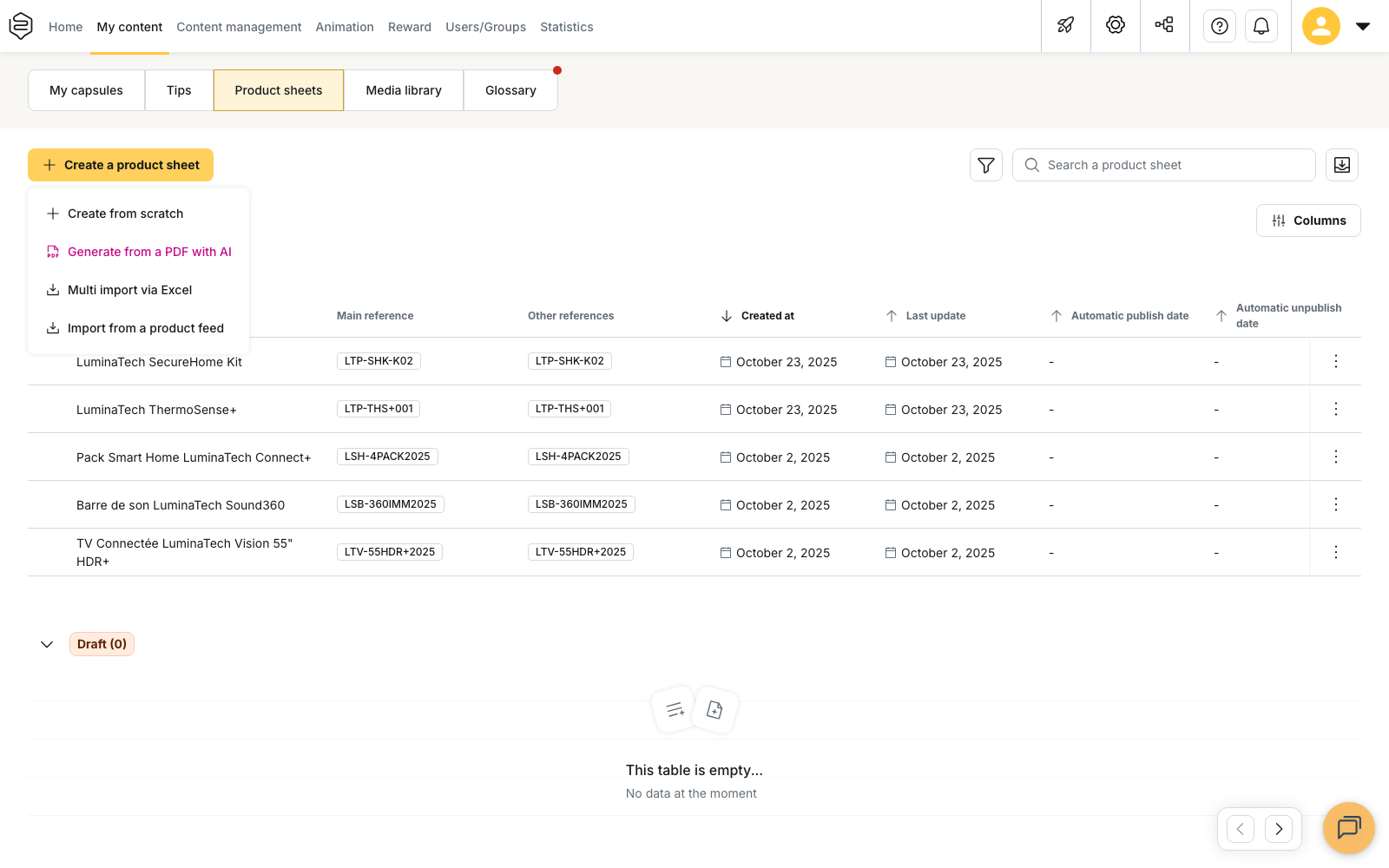
- Create from scratch opens an empty editor.
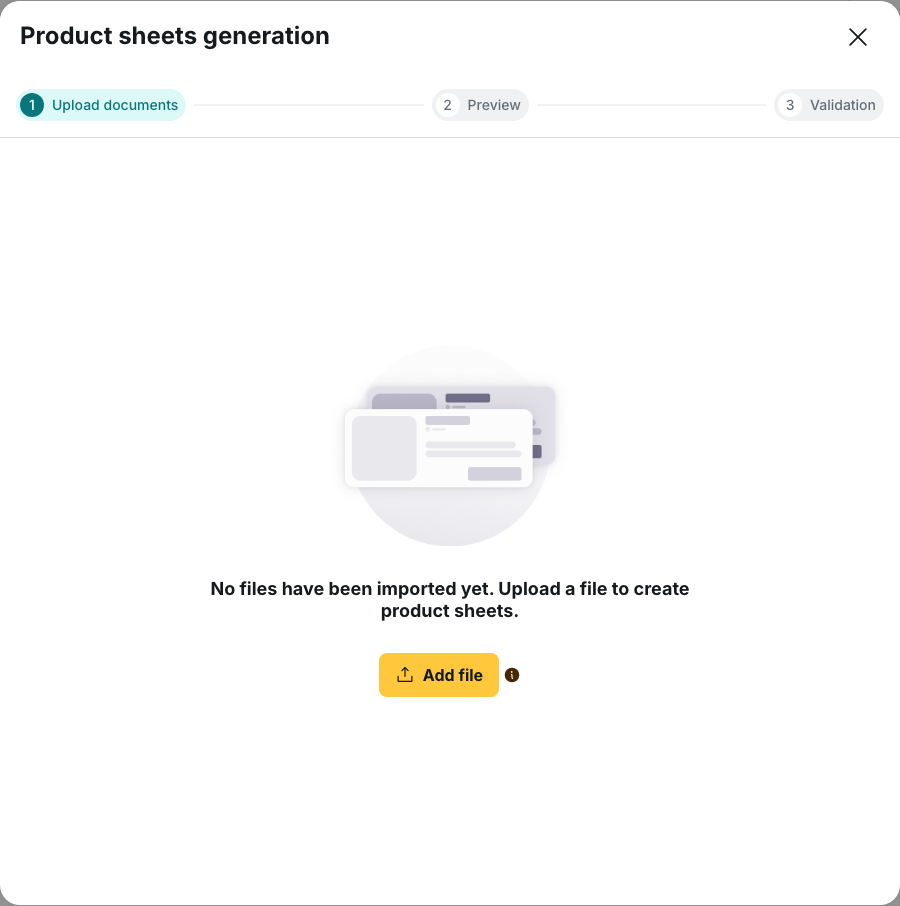
- Generate from a PDF with AI reads one or more documents and prepares sheets from them. You review each sheet before it is created.
- Multi import via Excel creates several sheets from a file. Select Download template, fill in the file, then select Import a file (.xlsx).
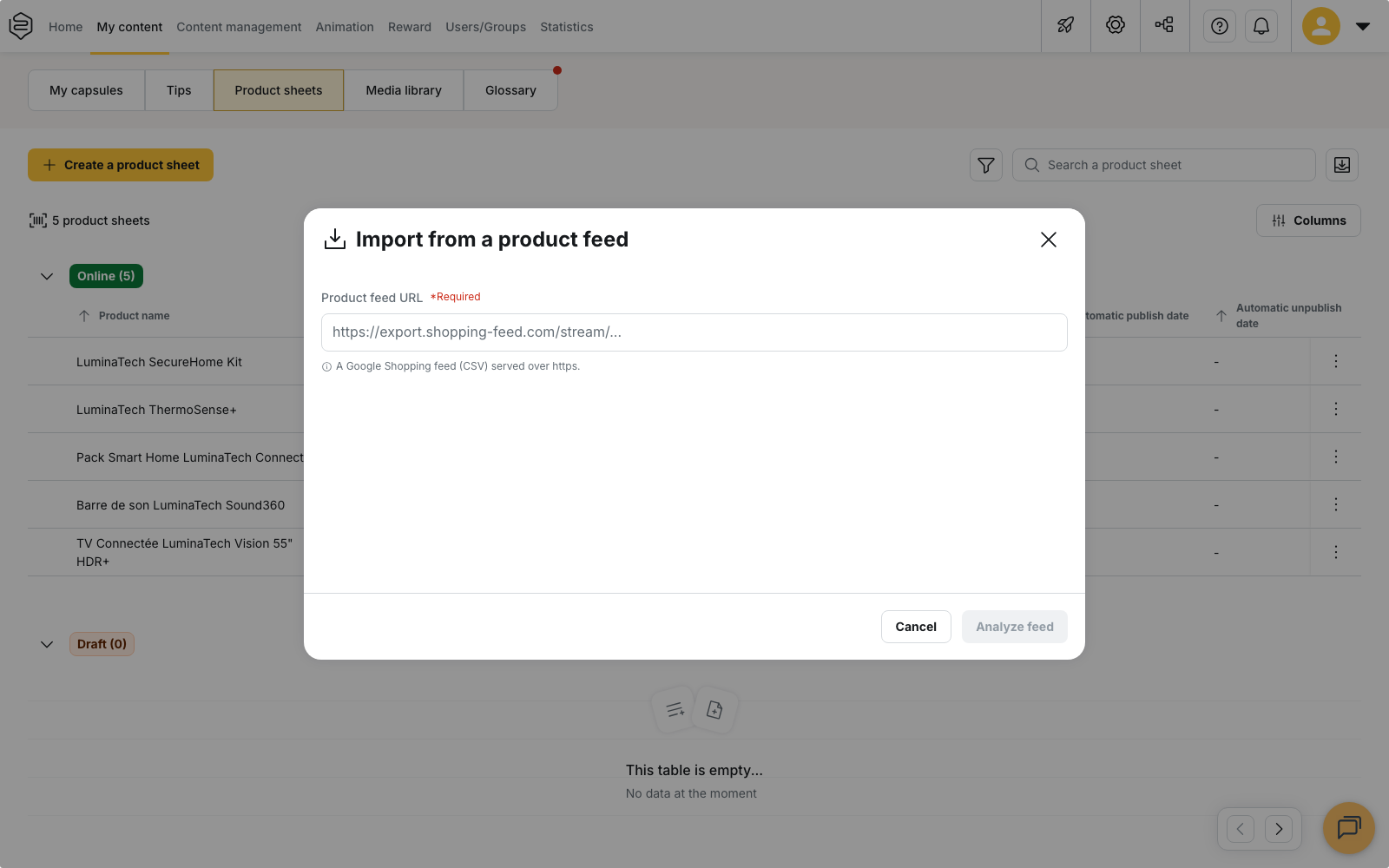
- Import from a product feed creates sheets from a Google Shopping feed (CSV) served over https. Paste the address in Product feed URL, then select Analyze feed.
Fill in the editor
The editor is organised in blocks.
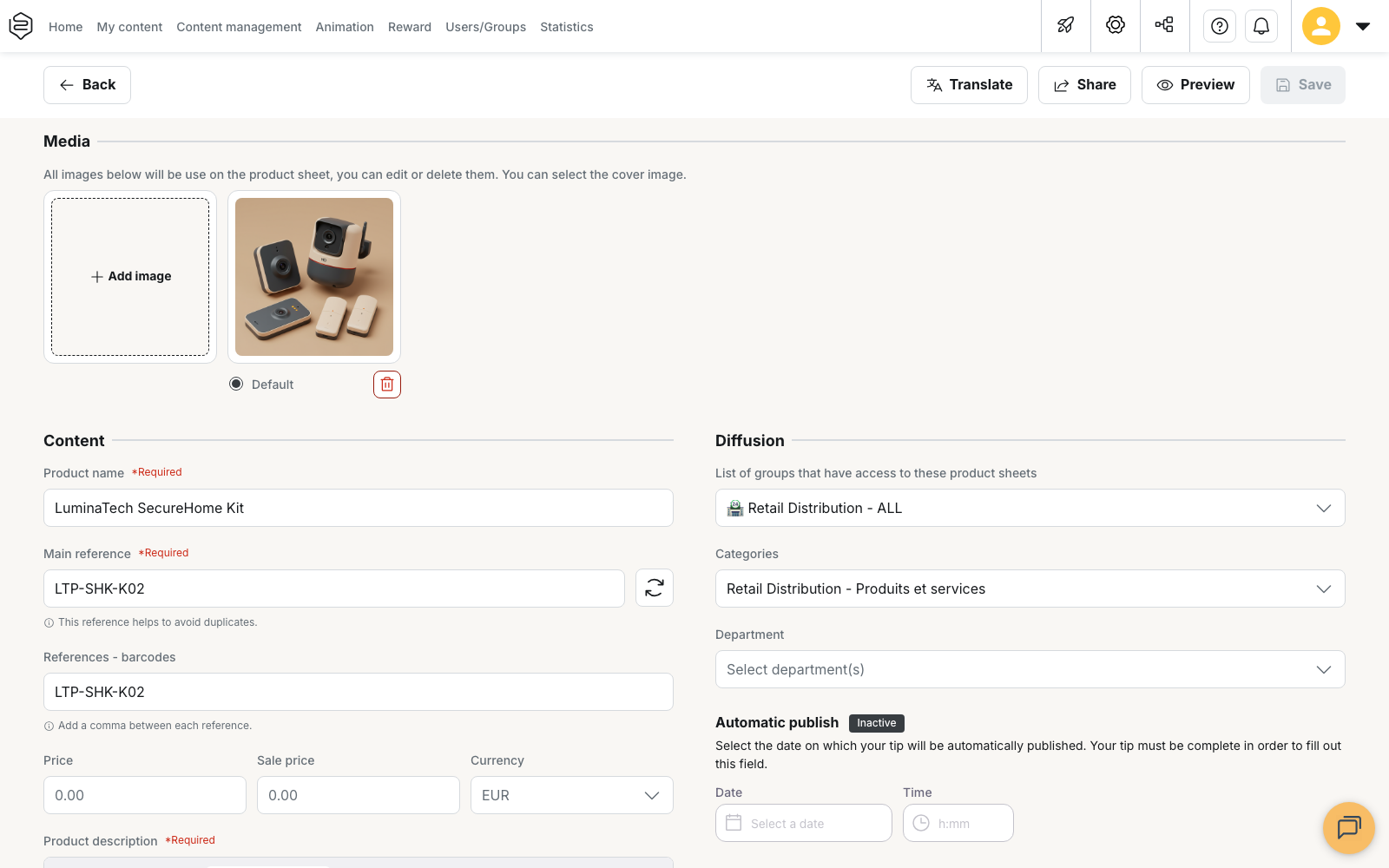
Media holds the images of the sheet. Select Add image, then select Default under the image you want to use as the cover. All the images added here are shown on the sheet.
Content holds the text of the sheet:
- Product name is required.
- Main reference is required. It helps to avoid duplicates. If you do not have one, use the button to the right of the field to generate a reference automatically.
- References - barcodes accepts several references. Add a comma between each reference.
- Price, Sale price and Currency are optional.
- Product description is required. Use it for the detailed information about the product, such as ingredients, use or application.
Diffusion controls who sees the sheet and how it is filed. It holds List of groups that have access to these product sheets, Categories and Department, together with the Automatic publish settings.
Additional information appears only when custom fields have been defined for product sheets. See Custom fields.
The buttons at the top of the editor let you Translate the sheet, Preview it and Save your changes. Save stays inactive until the required fields are filled in and a change has been made.
Find a sheet in the list
The list separates Online and Draft sheets. The Search a product sheet field filters the list by name. The filter button, to the left of the search field, offers a status filter with All product sheets, Draft and Online.
The See archived button, to the right of the search field, opens the Restore product sheets window, where you can bring back a deleted sheet.
Share a published sheet
Once a sheet is online, select Share in its editor. The window gives a Share URL that you can copy and a QR Code that you can download in SVG or PNG with Download QR Code, for example to display it on a stand or print it in a manual.
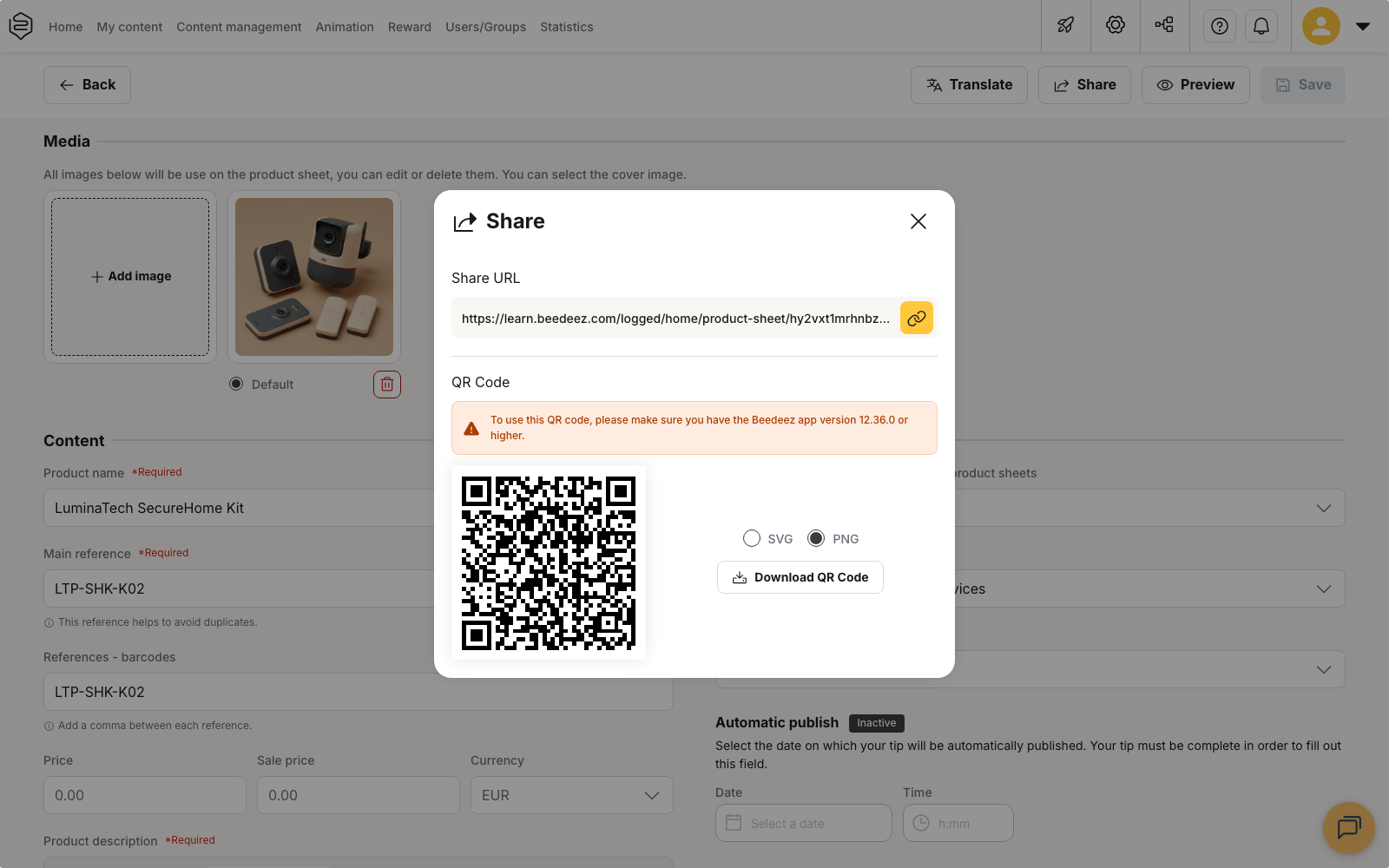
⚠️ Learners need version 12.36.0 or higher of the Beedeez app to use the QR code.
Where learners find a product sheet
On the learner’s home page, product sheets appear in a dedicated widget. An administrator activates it among the home page widgets of the back-office configuration. The widget is shown only to learners who have access to at least one sheet.
A learner can also reach a sheet by scanning the product code with the camera of the app. View product sheet then opens the sheet.
Measure the consultations
The product sheet statistics report counts, for each sheet:
- Learners who opened: the number of learners who opened the product sheet.
- Open rate: the number of learners who opened the product sheet divided by the number of learners who have access to product sheets.
- Number of views.
Learners who opened - active period and Open rate - active period give the same counts limited to the selected period. See Content analytics.
Going further
- Tips and their variants: the format the product sheet inherits from.
- Categories: the filing that decides where the learner finds it.
- Custom fields: the Additional information block of the editor.
- Content analytics: the numbers a sheet consultation produces.