Custom fields
⚠️ Required permissions: administrator profile with access to the Configuration menu.
Custom fields
⚠️ Required permissions: administrator profile with access to the Configuration menu.
A custom field lets you add information to a capsule, product sheet, or learning path that is not natively available in Beedeez: regulatory reference, review date, supplier, etc.
User fields are different. They are configured under Configuration → Integration → User schema, from Field list, and can notably be used for dynamic groups.
Create a custom field
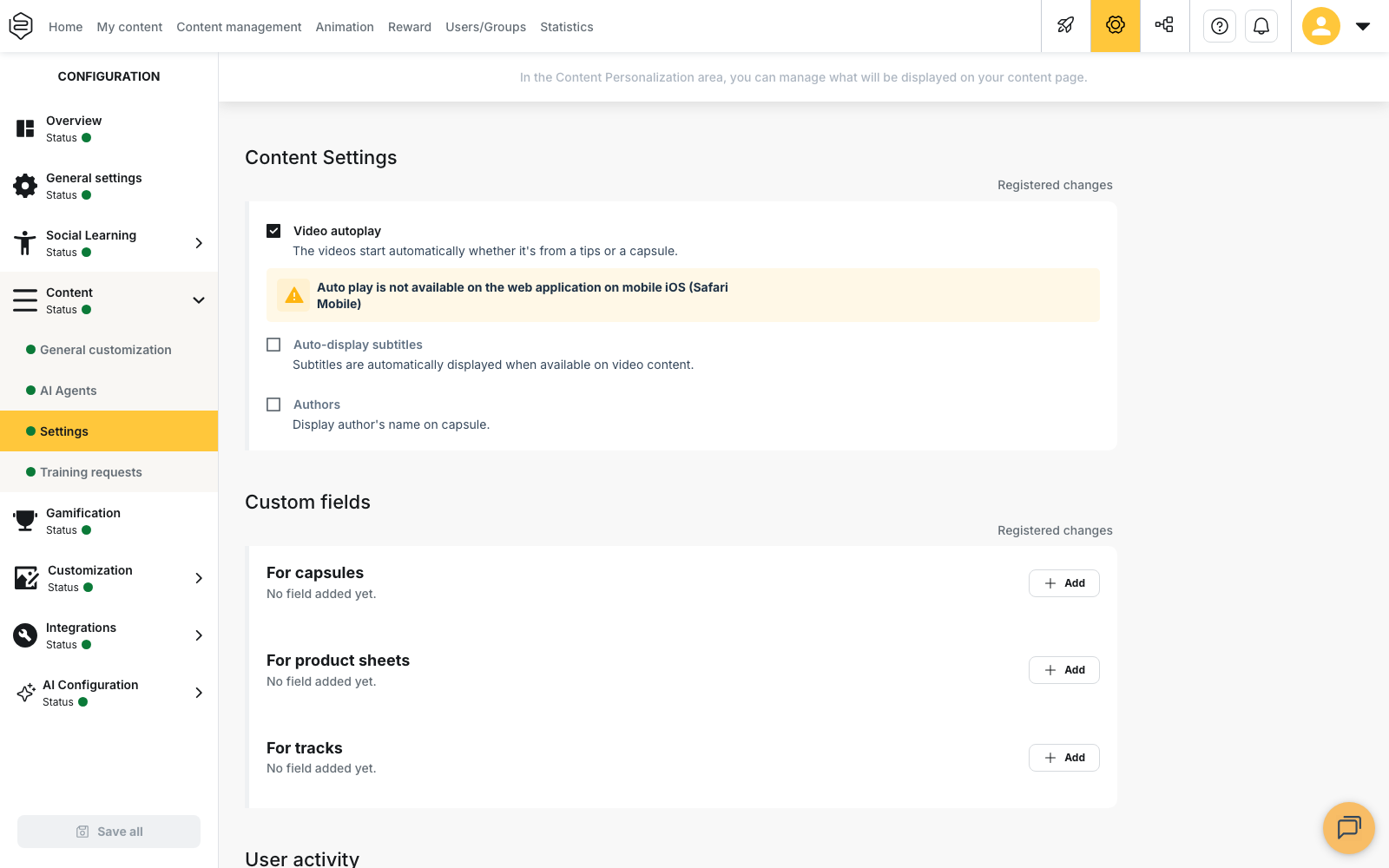
Go to Configuration → Content → Settings, then open Custom fields.
Three families are available:
- For capsules
- For product sheets
- For learning paths
These lists are independent and apply to the entire account. They are not available when a department is selected.
Select Add in the relevant family. Once at least one field exists, the button changes to Edit.
In the editor, Add a field opens the Add one or more new item(s) window.
⚠️ The same field type can only be added once per operation.
For example, to create two Short text input fields, add the first one, then repeat the operation.
Name and organize your fields
A new field initially uses the name of its type. Change it under Field label: this is the label displayed when entering a value.
You can then:
- reorder fields using drag and drop;
- enable Required field;
- open Field options to configure its behavior.
💡 After confirming your changes in the editor, click Save all at the bottom of the Configuration menu. Changes are not saved to the account until you do this.
Available field types
Capsules support all of the following field types, as well as Supplier:
- Short text input
- Long text input
- Number input
- Price input
- Email input
- URL/Link input
- Phone number input
- Date picker
- Time picker
- Dropdown (single selection)
- Dropdown (multiple selection)
- Multiple choice (radio buttons)
- Checkbox (single)
- Checkboxes (multiple selection)
- File upload
- Linear scale (Likert)
- Net Promoter Score (0-10)
- Rating (stars)
The Supplier field is specific to capsules. It lets you select a supplier from those declared on the account.
The other families have some restrictions:
| Content type | Unavailable field types |
|---|---|
| Product sheets | Time picker, Multiple choice (radio buttons), Checkboxes (multiple selection), File upload |
| Learning paths | File upload |
Configure field options
Depending on the selected field type, Field options provides different settings.
Make the field visible to learners
Visible to learners is disabled by default.
When enabled, the field can also be used as a filter with Display as a custom filter.
⚠️ Custom filters only work with choice-based fields:
- dropdowns;
- radio buttons;
- multiple-selection checkboxes;
- Checkbox (single);
- Supplier.
For text, number, or date fields, this option has no effect.
If you disable Visible to learners, the custom filter is also disabled. If you make the field visible again later, check the filter setting as well.
Set constraints
The available options depend on the field type. You can, for example, define:
- a Minimum value and Maximum value for a number;
- a Maximum character length for text;
- date boundaries;
- a currency for a price;
- the allowed file types and number of files.
Changes are saved when you confirm the window and discarded if you cancel it.
Where to enter custom field values
Custom fields appear in the following sections once at least one field has been created for the relevant family:
- Capsules: Other information in the Capsule information tab;
- Product sheets: Additional information;
- Learning paths: Additional information in the Information tab.
On the learner side, fields enabled for display appear:
- under Additional information when a capsule starts;
- on the product sheet.
A visible field with no value is not displayed to learners.
Things to know
Required fields do not block all content types
Required field only prevents a product sheet from being saved if the field has not been filled in.
For a capsule or learning path, the field is marked as required, but this does not prevent saving or publishing.
Custom fields remain simple
It is not possible to define:
- a default value;
- helper text;
- a rule preventing duplicates.
The Field label is the only text displayed to guide users when entering a value, and multiple fields can have the same label.
Some values are fixed
- Number input does not accept negative numbers. For this type of value, use Short text input instead.
- Linear scale (Likert) always uses a scale from 1 to 5.
- Rating (stars) always uses 5 stars.
These values cannot be customized.
Delete a custom field
Deleting a field requires confirmation.
The deletion is permanent and also removes any information already entered in that field from the affected content.
⚠️ If you only want to stop displaying the field to learners, do not delete it. Disable Visible to learners instead.