Creating an iterative quiz
An iterative quiz keeps a record of every attempt a learner makes. When they take the capsule again, learners can look back at the answers they gave in previous iterations and track their progress. This format suits action plans, reviews and progress check-ins carried out as part of on-the-job coaching.
You create an iterative quiz in the capsule editor, like any other quiz type. For the rights needed to edit a capsule, see Creating a capsule from scratch.
Create the quiz
- Open the capsule in the editor, then open the notion you want.
- Add a Quiz before topic content or a Quiz after topic content.
- From the quiz types offered, choose Iterative Quiz.
- Add your questions.
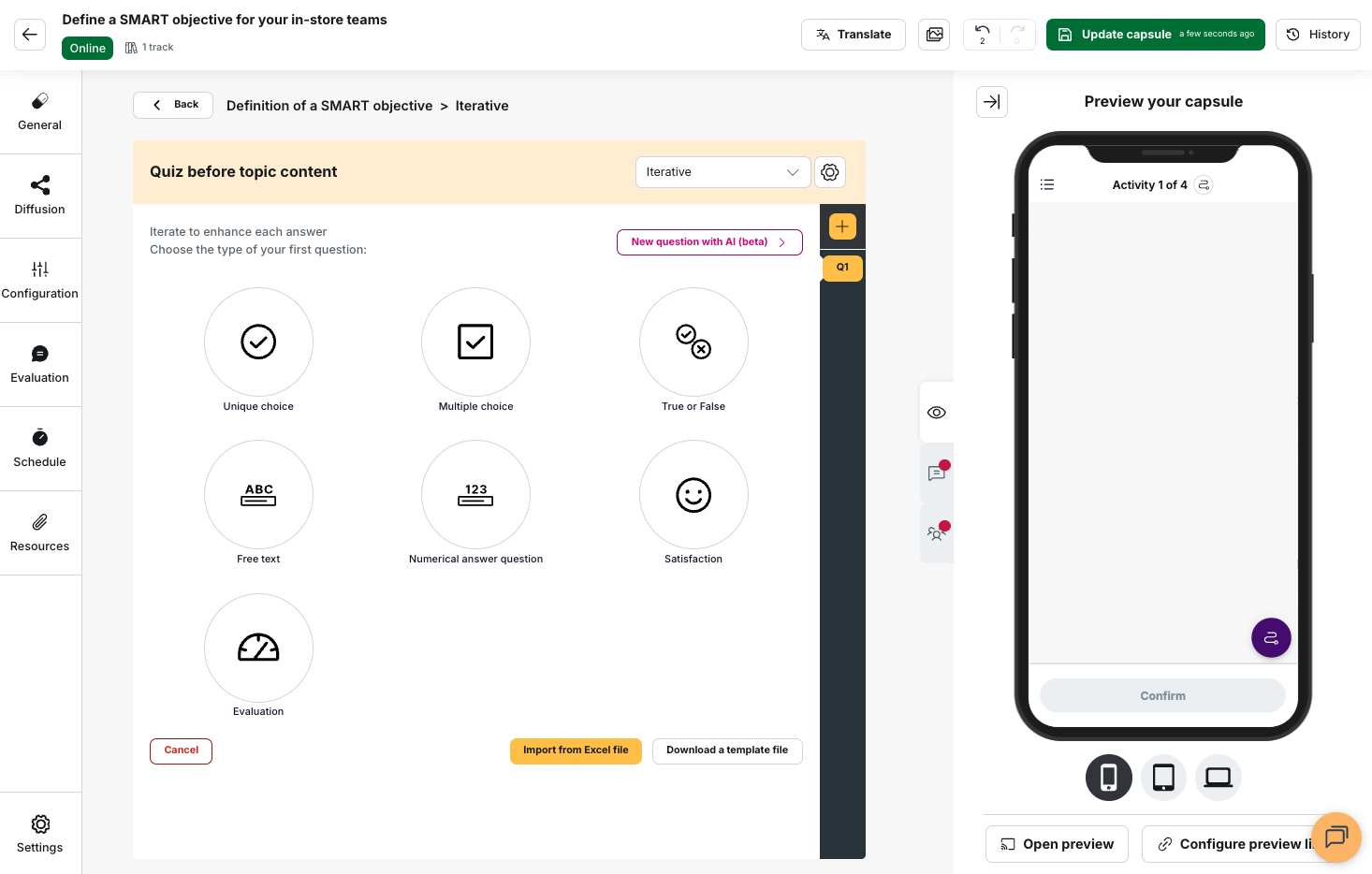
An iterative quiz accepts most question types, including Satisfaction and Evaluation, which are usually reserved for surveys. It does not accept Swipe Cards, Order, Hot spot, Gap fill or Label matching.
ℹ️ Good to know. The iterative quiz requires version 12.38.0 or later of the learner app.
Set the quiz settings
The settings described in the following sections are in the quiz settings.
- In the quiz editing window, look at the top banner, which shows Quiz before topic content or Quiz after topic content and the quiz type.
- Click the gear button, to the right of the quiz type. This button only appears once you have added questions to the quiz.
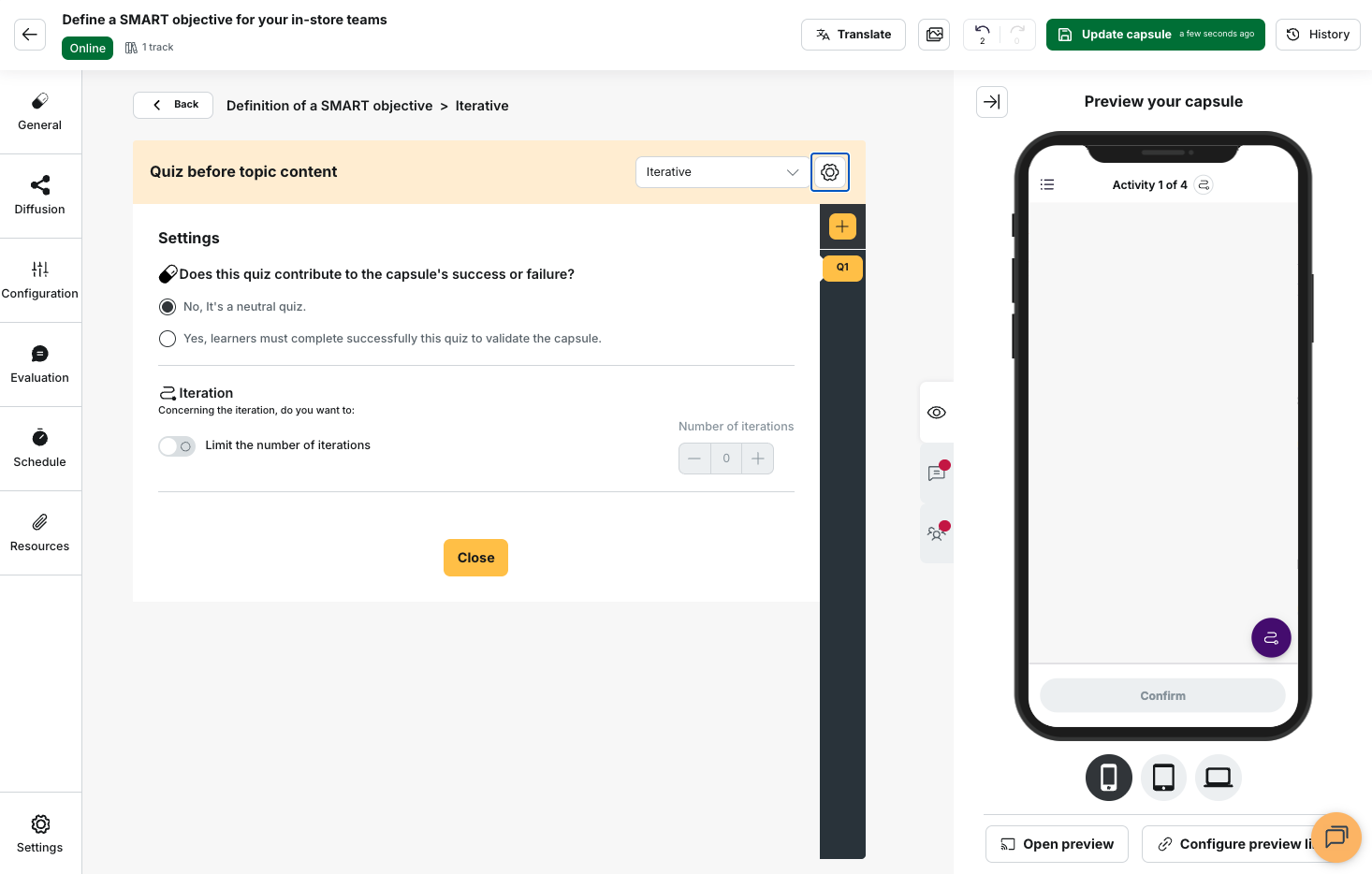
The Settings panel then replaces the question editor. To return to your questions, click Close at the bottom of the panel, or click the gear button again.
Choose whether the quiz counts towards validation
In the quiz settings, the question Does this quiz contribute to the capsule’s success or failure? offers two choices:
- No, It’s a neutral quiz. The learner’s answers have no effect on whether the capsule is validated. This choice suits an action plan or a self-assessment.
- Yes, learners must complete successfully this quiz to validate the capsule. The pass threshold settings then appear below this option. In a quiz after topic content, you can also set bonus points there.
Limit the number of iterations
By default, the number of iterations is not limited. To set a cap, in the Iteration section of the quiz settings:
- Turn on Limit the number of iterations.
- Enter the value you want in Number of iterations. The minimum value is 1.
When the quiz contains more than three questions, the random quiz option is also offered in its settings.
What the learner sees
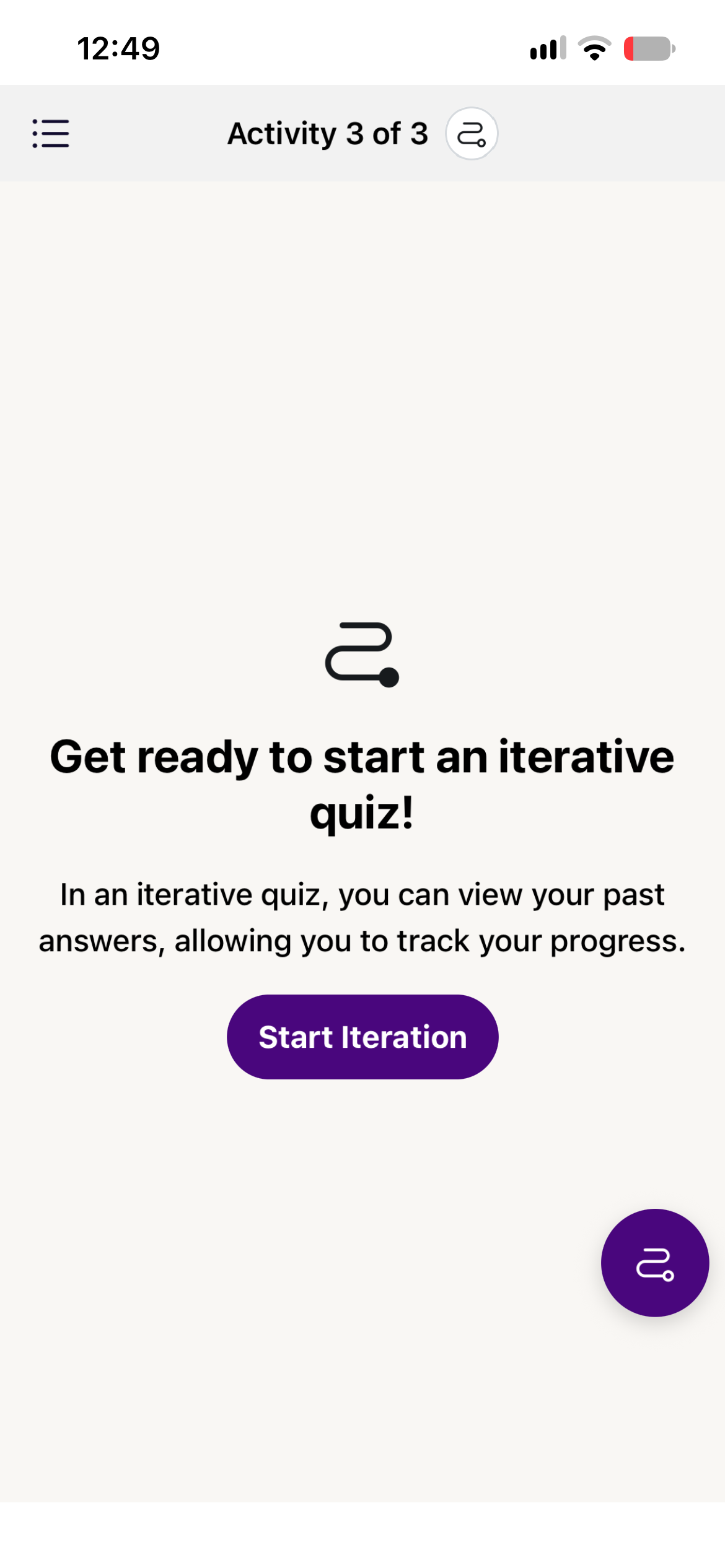
When the quiz starts, the app tells the learner that, in an iterative quiz, they can look back at their previous answers to track their progress.
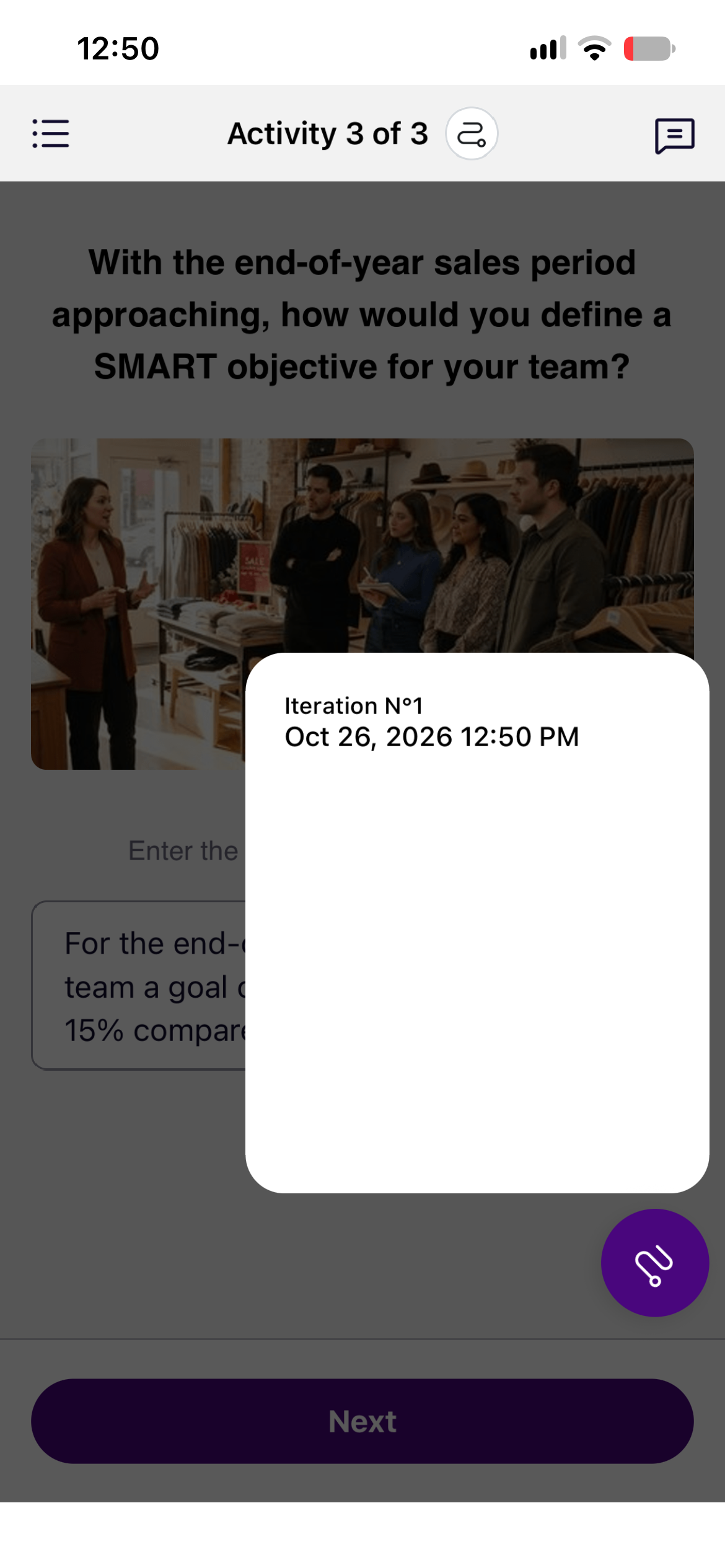 Each attempt is numbered (Iteration N°1, Iteration N°2, and so on).
⚠️ A completed quiz cannot be reopened to correct some answers. The learner looks back at the history of their previous iterations when they take the capsule again, then answers again. If you want to give learners room for mistakes during the quiz itself, use a Quizz with life instead.
Access to the capsule does not change: it is still managed through tracks and the usual distribution rules.
Going further
- Activity formats: compare quiz types and the questions each one accepts.
- Creating a capsule from scratch: build the notions that hold the quiz.