Create an evaluation quiz
An evaluation quiz puts learners in exam conditions: they answer the questions in any order, can go back and change their answers, then submit the whole evaluation at once. They see neither the correction of their answers nor the evaluation score. Use it for an end-of-training assessment or a certification.
Create the evaluation quiz in a topic
- Open the capsule in the editor, then the topic that will hold the quiz.
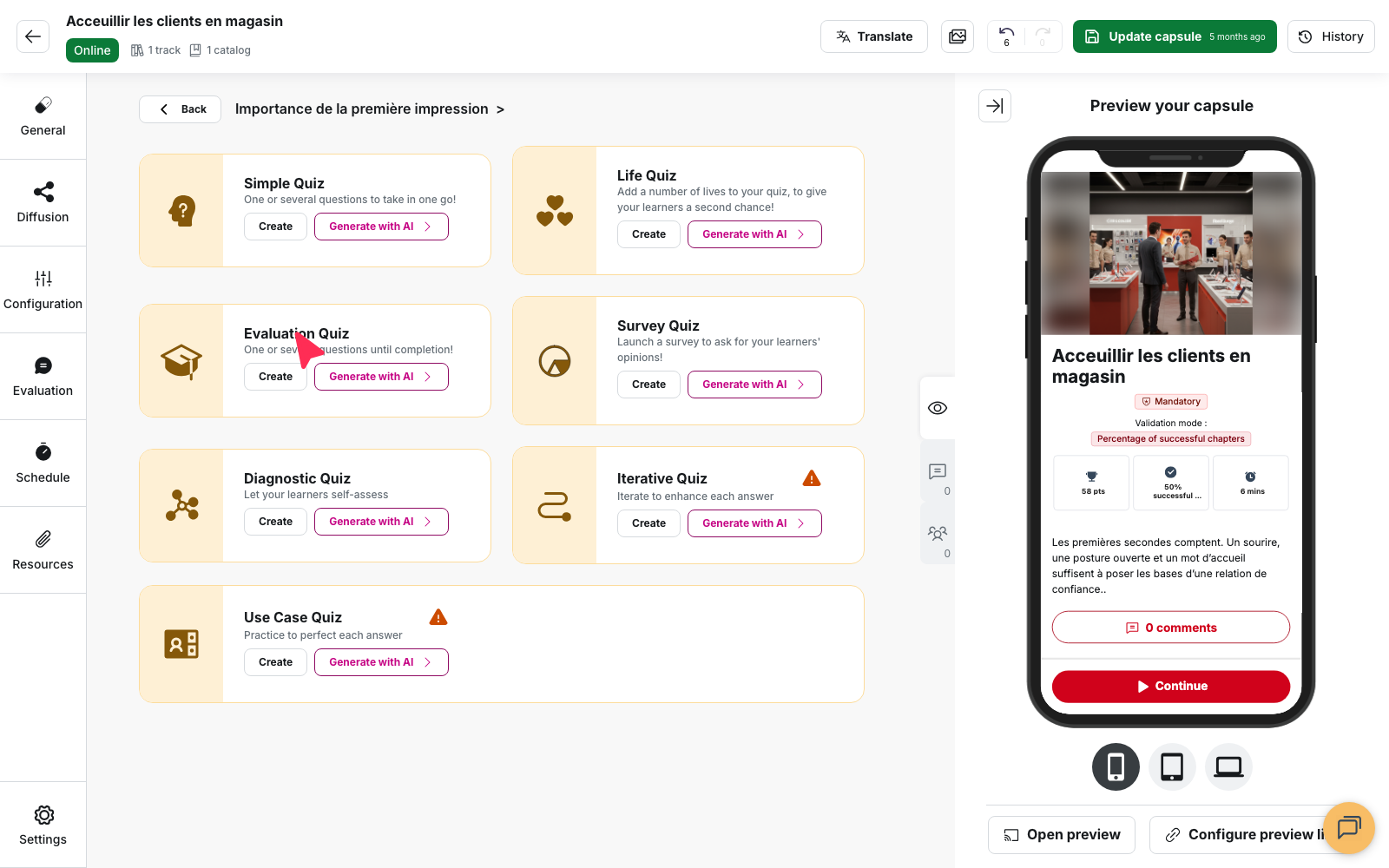
- In the quiz type selection, find the Evaluation Quiz card, then click its Create button. The block is then labelled Evaluation.
- Add your questions as you would in a standard quiz.
The quiz type selection shows the Evaluation Quiz card among the other quiz types:
Not every question type is available in an evaluation quiz: Swipe Cards, Label matching, Satisfaction and Evaluation are excluded. See Activity formats for details by type.
Set the quiz settings
The evaluation quiz settings are found in its parameters. In the quiz block header, to the right of the type selector, click the gear icon. It only appears once the quiz questions are correctly filled in.
- Set the Percentage required to pass the topic: the share of correct answers needed to pass the topic. It is 50% by default and cannot go below 20%.
- Set the Maximum response time (in minutes): the total time allowed to answer, up to 360 minutes. This setting only exists on the evaluation quiz.
- If needed, enable Random quiz, then enter the Number of questions asked: each learner receives this number of questions, drawn at random from your question bank. This option only appears if the quiz has more than 3 questions.
💡 Tip: for a certification, set a higher pass percentage than on your practice quizzes, so that passing reflects real mastery of the subject.
What the learner sees
Before the first question, an Are you ready? screen introduces the evaluation and, if one is set, the time allowed.
During the evaluation, the learner can skip a question, come back to it and change their answers. No correction is shown after they answer. They finish with the Send and finish evaluation button. A confirmation reminds them that they will no longer be able to change their answers and, if some questions are unanswered, tells them how many.
If a maximum time is set and it runs out, the message Time’s up - end of the evaluation appears and the answers already given are submitted automatically.
After submitting, the learner sees neither the evaluation score nor the correct answers. The end-of-capsule screen only shows the total number of points earned in the capsule. If they reopen an evaluation they have already completed, they see Evaluation over and the message “You have already completed this evaluation”. Their answers are not shown again.
Further reading
- Create a certificate per capsule: award a certificate to learners who reach the required pass percentage on the capsule containing the evaluation.
- Activity formats: compare the evaluation quiz with the other quiz types.
- Creating a capsule from scratch: build the capsule that will hold the evaluation.