Manage access to statistics
⚠️ Required permissions: you need the Edit / add permissions permission to view or modify a permission model.
Manage access to statistics
⚠️ Required permissions: you need the Edit / add permissions permission to view or modify a permission model.
The statistics available to an administrator depend on the permissions defined in their permission model. For each statistics category, you can define an access level and, when available, restrict the data to specific groups or learning paths.
Two administrators can therefore open the same screen and see different results depending on the permissions and scope assigned to them.
Edit statistics permissions
- Go to Permissions in the back office.
- Open the permission model you want to edit.
- Select the Statistics tab.
- Configure the required permissions, then save your changes.
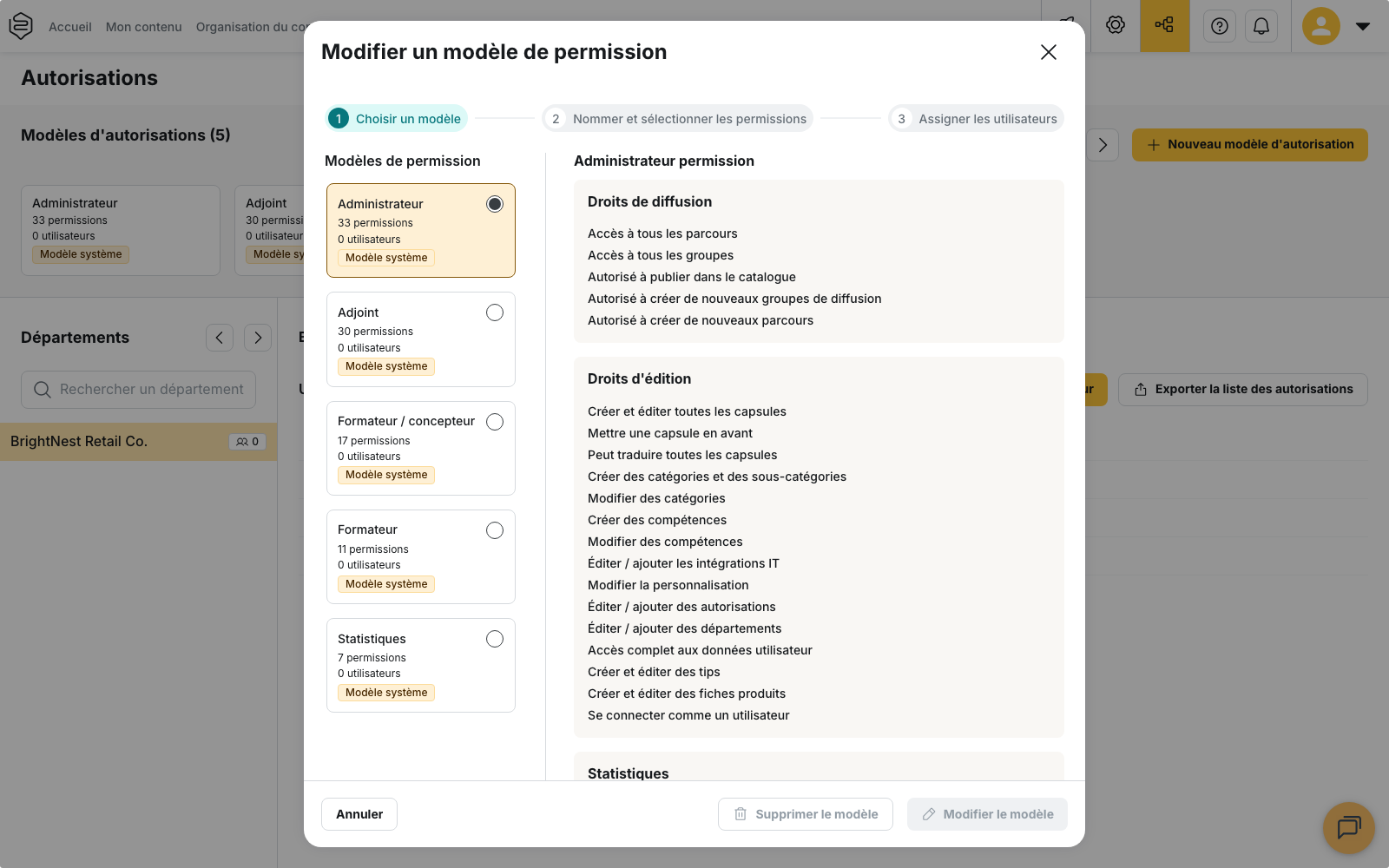
💡 Statistics are one of the four permission categories available in a permission model. For an overview of how permission models work, see Understanding custom permissions.
Choose which statistics are available
The Statistics tab can include up to eight permissions, which can be configured independently:
- Global Statistics: gives access to account-wide statistics;
- Capsule Statistics: gives access to capsule usage and success statistics;
- User Statistics: gives access to learner statistics;
- Tips Statistics: gives access to statistics related to tips;
- Product Sheet Statistics: gives access to product sheet statistics;
- Skills Statistics: gives access to skills and coaching statistics;
- AI Agents Statistics: gives access to AI Agent usage data;
- Learning Path Statistics: gives access to learning path progress statistics.
💡 Tips Statistics and AI Agents Statistics are displayed only when the corresponding features are enabled on your account.
Choose an access level
Each permission has a dropdown menu where you can define its access level.
Six of the eight permissions follow a similar structure. For Capsule Statistics, for example, the available levels are:
- Can view statistics for all capsules;
- Can view statistics for their own capsules;
- Can view capsule statistics for users belonging to restricted groups;
- No capsule statistics.
⚠️ “Their own” does not mean the same thing for every permission. For Capsule Statistics, Tips Statistics and Product Sheet Statistics, it refers to content created by the administrator. For User Statistics, Skills Statistics and Global Statistics, it refers to the learners or groups they supervise.
Permissions that can be restricted by learning path
Global Statistics and Learning Path Statistics are the only permissions that can also be restricted based on learning paths.
In addition to the access levels available for the other statistics permissions, they let you:
- restrict access to selected learning paths;
- combine a learning path restriction with a group restriction.
For Learning Path Statistics, the menu therefore includes six levels:
- Can view statistics for all learning paths;
- Can view statistics for learning paths they supervise (Learning paths they have access to);
- Can view learning path statistics for users belonging to restricted groups;
- Can view statistics for selected restricted learning paths;
- Can view statistics for selected restricted learning paths and users belonging to restricted groups;
- No user statistics.
Select allowed groups and learning paths
When an access level includes a restriction, a selection list appears below the relevant permission.
- Allowed groups: restricts the data to learners belonging to the selected groups;
- Allowed learning paths: restricts the data to the selected learning paths.
When an access level combines both restrictions, they apply at the same time: only data matching both the selected groups and the selected learning paths is available.
Skills Statistics works differently: its selection list uses coaching groups rather than standard learner groups. A group that is not configured as a coaching group will therefore not appear in this list.
⚠️ Changing an access level may reset previously selected groups or learning paths. Groups are preserved only in certain transitions between restricted access levels. Learning paths selected under Global Statistics and Learning Path Statistics are reset whenever the access level changes.
Before saving, always check the selected groups and learning paths.
Good to know
The Statistics menu only appears with certain permissions. To access it, the permission model must include at least one of the following:
- Global Statistics;
- Capsule Statistics;
- User Statistics;
- Learning Path Statistics.
A permission model that only includes Skills Statistics, Tips Statistics, Product Sheet Statistics or AI Agents Statistics will not display the Statistics menu, even if those permissions are granted.
Statistics permissions cannot be restricted directly by department. Restrictions in the permission model apply to groups and, for some permissions, learning paths. Departments are applied separately as filters within the reports.
A group or learning path created after a permission model has been configured is not automatically added to existing selections. Remember to review your permission models after changing your organization or creating new groups or learning paths. To learn more, see Understanding custom permissions.
Being able to view a group’s statistics does not give you permission to manage that group. Statistics permissions are separate from management and distribution permissions. See Who can distribute what?.
A permission that has not been granted is not shown as a disabled option. The corresponding feature or screen simply disappears. A feature that is disabled on the account can produce the same result. To identify the cause, see Why can’t I see this feature?.
Learn more
- Understanding custom permissions: understand the different permission categories and how permission models work.
- Filters and audiences: understand how filters further restrict the data after permissions are applied, including the department filter.
- Getting started with the Statistics profile: understand which permissions are included in the default Statistics profile.
- Model your company structure: understand the role of departments in your platform structure.