Managing a portfolio of certificates
⚠️ Required permissions: you need the Can create and edit certificates permission to access this screen.
Manage your certificate library
⚠️ Required permissions: you need the Can create and edit certificates permission to access this screen.
This page lets you manage all your certificates: find a certificate, compare the information displayed, edit several certificates at once, or deactivate those you no longer use.
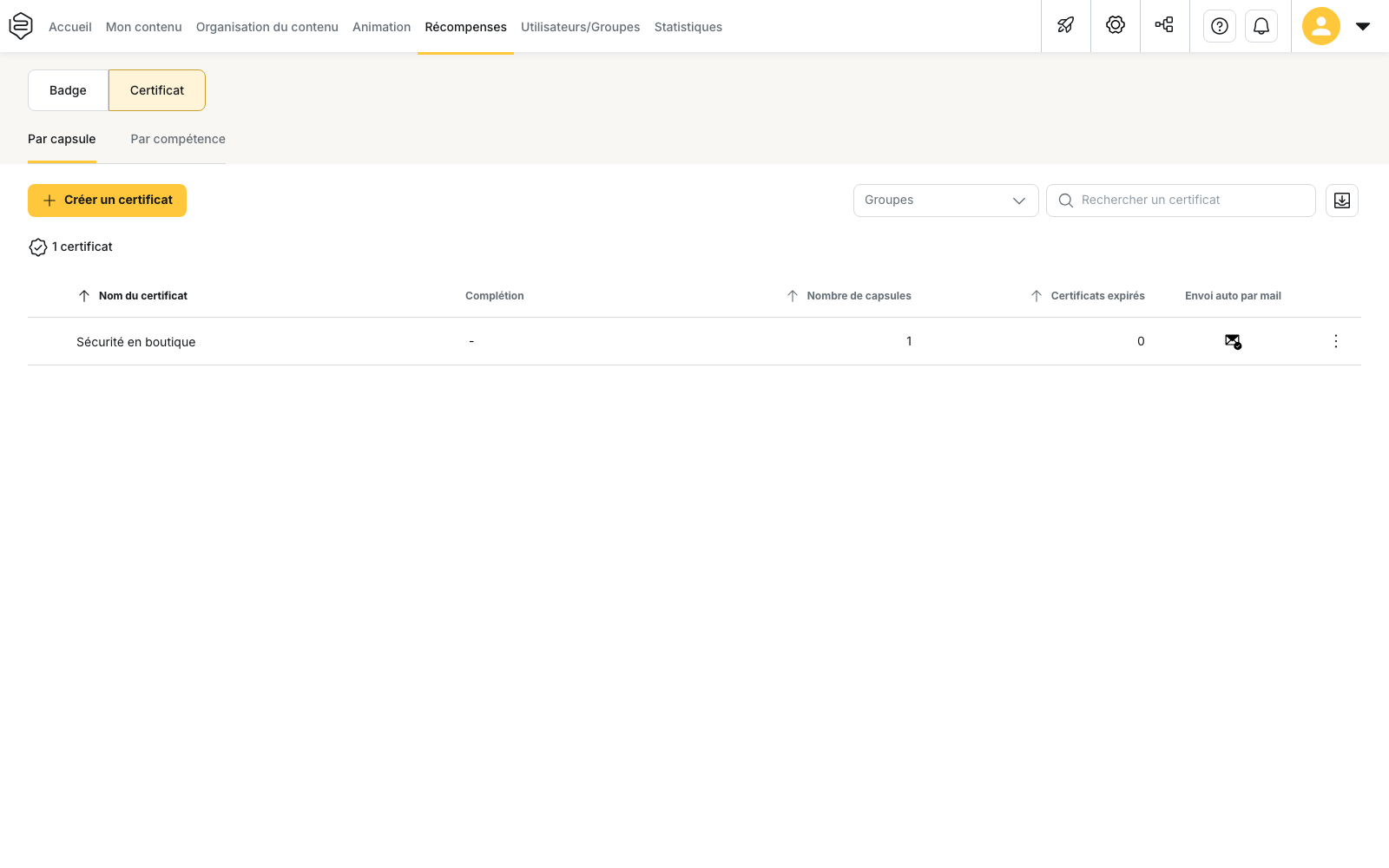
Go to Rewards > Certificate. Two sub-tabs are available:
- By capsule;
- By skill.
Each sub-tab has its own list, actions and recovery panel for deactivated certificates.
Find a certificate
At the top of the list, several tools help you find or filter certificates:
- the Search for a certificate field, which searches by certificate name;
- the Groups filter;
- the Create a certificate button.
Several columns can be sorted:
- Certificate name;
- Number of capsules, or Skills in the corresponding sub-tab;
- Expired certificates;
- Departments.
The Completion and Automatic email sending columns cannot be sorted.
The Departments column is displayed only if your account uses a department structure.
⚠️ The Groups filter applies to certificate holders, not certificate creators. A group appears in the filter only if at least one learner in that group holds a certificate. Once a group is selected, only certificates obtained by at least one learner in that group remain visible.
Certificates that have never been obtained therefore disappear from the list when a group filter is applied.
Understand the columns
Completion
Completion is not a percentage. This column shows the number of learners who have obtained the certificate.
If no learner has obtained it, a dash is displayed.
The number is clickable and opens the Learner list.
⚠️ Deactivated learners are not included in this count. The Completion value can therefore decrease when a learner is deactivated, even if the certificate itself has not changed.
Expired certificates
Expired certificates shows the number of learners whose certificate has passed its expiration date.
Deactivated learners are also excluded from this count.
This column is available only in the By capsule sub-tab.
Automatic email sending
Automatic email sending displays an icon rather than a value.
The icon is active as soon as at least one recipient has been configured for automatic sending, whether that recipient is:
- the learner;
- the team manager;
- another email address.
⚠️ An active icon does not necessarily mean that the learner receives the certificate directly. Open the certificate to check which recipients are configured.
Edit several certificates at once
Select several rows, then use the bulk edit action from the list’s action bar.
The edit window is configured in three steps:
- Step 1: Field;
- Step 2: Action;
- Step 3: Values.
Use Add a change to update several fields in the same operation. Then click Apply to make the changes to all selected certificates.
Three fields can be edited in bulk:
- Department, if your profile allows you to edit departments. This is the only field that provides Remove in addition to Replace with;
- Default language;
- Certificate template.
⚠️ Award conditions cannot be edited in bulk. Capsules, skills, the success threshold, validity period and notifications must be configured one certificate at a time.
Deactivate a certificate
Certificates are not permanently deleted from this page. The different delete actions deactivate them, and this can be reversed later.
Deactivate several certificates
Select several certificates, then use the delete action.
The Deactivate certificates window shows how many certificates are affected and explains that they will no longer be available to learners. You can reactivate them later from the recovery panel.
Deactivate a certificate from its row
From a certificate’s action menu, Delete certificate opens a window asking you to confirm permanent deletion and shows how many learners have obtained it.
Despite this wording, the certificate is not permanently deleted: it is deactivated and moved to the same recovery panel.
In both cases, only the certificate’s availability changes. Existing awards are kept, and the Completion value returns to its previous level when the certificate is reactivated.
Recover a deactivated certificate
The Recover deactivated certificates button opens a panel listing all deactivated certificates.
Use the search field to find them by name. You can then:
- restore a certificate individually;
- select several certificates and click Restore selection.
Once restored, the certificate becomes available to learners again.
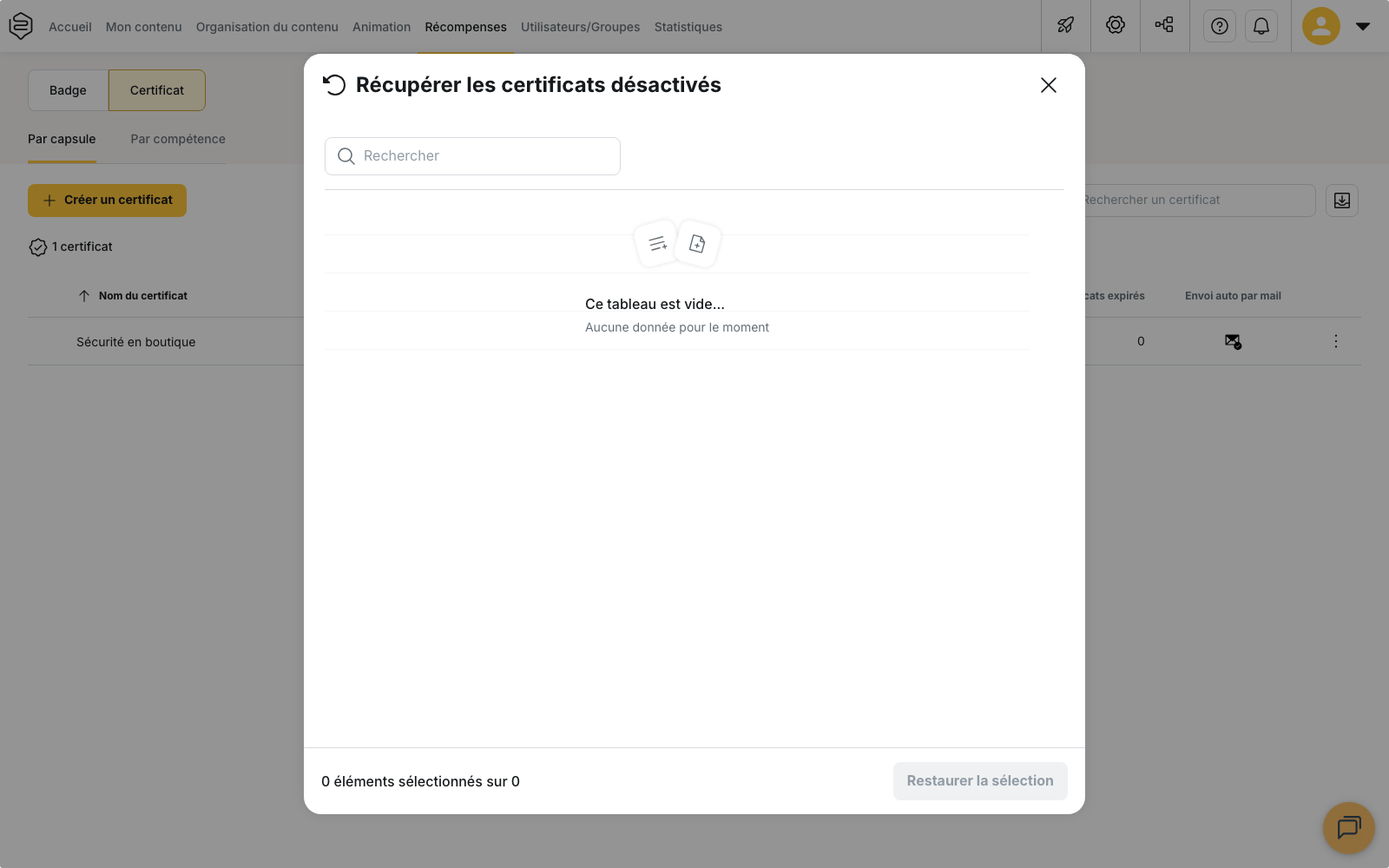
⚠️ The panel depends on the selected sub-tab. From By capsule, only deactivated capsule-based certificates are displayed. To find a skills-based certificate, open the By skill sub-tab first, and vice versa.
⚠️ The panel does not take the selected department into account. It may therefore display deactivated certificates from other departments, even when they are not visible in the main list.
Legacy learning path-based certificates
Some older accounts may still contain certificates based on a learning path. This type of certificate can no longer be created.
These certificates may appear in the Recover deactivated certificates panel under By capsule, and they can still be restored.
However, the current certificate lists only display By capsule and By skill certificates. Once restored, a legacy learning path-based certificate may therefore become active for learners again without reappearing in the management list.
⚠️ If you identify a legacy learning path-based certificate in the recovery panel, avoid restoring it unless you actually need to reactivate it.
Learn more
- Send, resend and export: understand the actions available once a certificate has been awarded to at least one learner.
- Validity, expiration and renewal: understand how the Expired certificates column is calculated and manage certificate validity.
- Certificate templates: understand which template is applied when editing several certificates at once.
- Understand structure and permissions: understand how a certificate’s department affects visibility and which permissions are required to manage it.