Turning a capsule into a Battle
A capsule in battle mode lets your learners challenge each other on its content. The mode is set capsule by capsule, in the editor settings, and you can turn it on for a new capsule as well as an existing one.
Turning on battle mode for a capsule
- In My content, open the capsule.
- In the editor’s left menu, click Settings.
- In the Animation section, turn on the Battle mode button.
- Click Update capsule to apply the change to the live version.
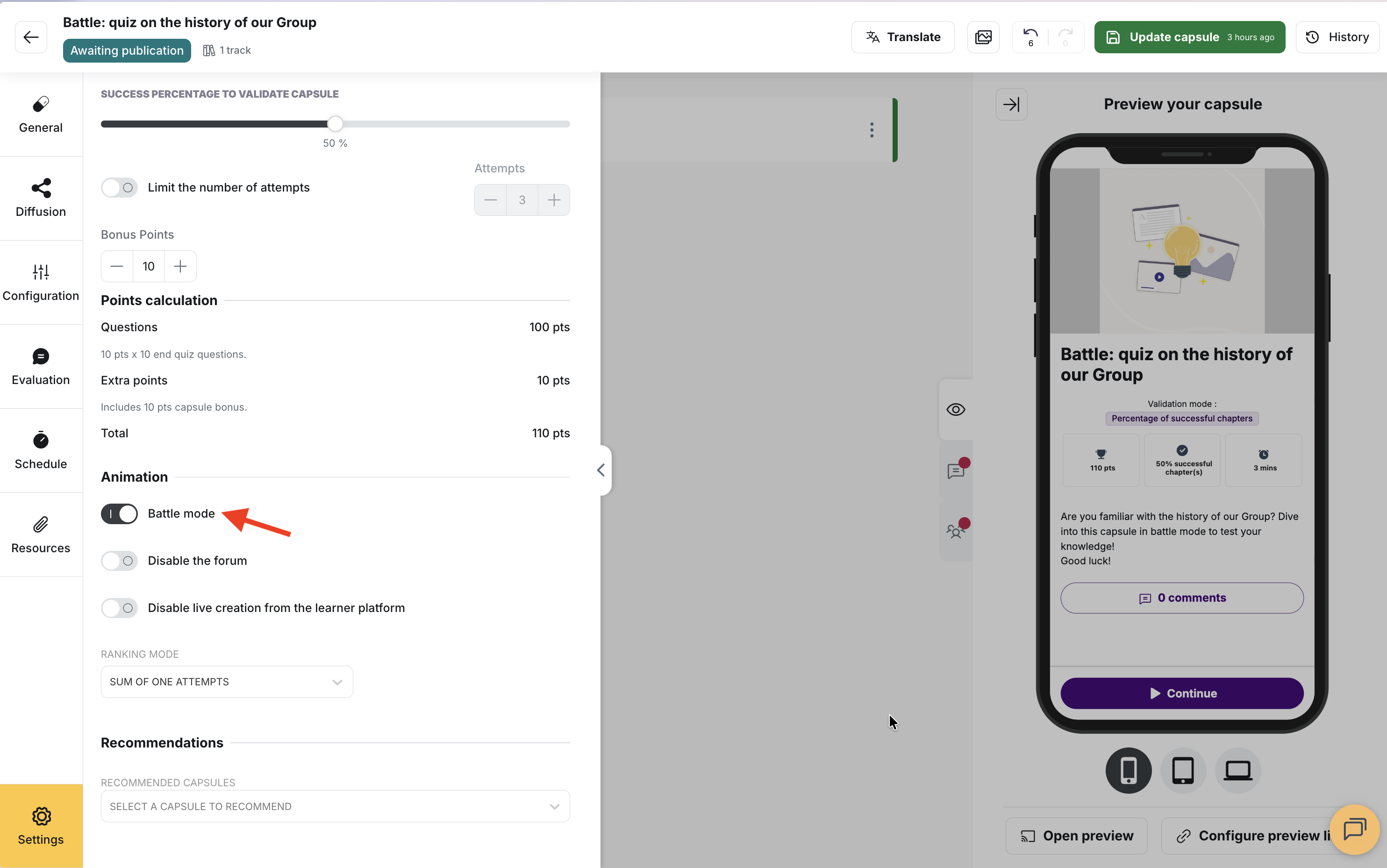
To switch back to a standard capsule, turn off the same button and update the capsule.
In the capsule list, a capsule in battle mode is marked by an icon in the corner of its image.
Battle mode and session mode
ℹ️ Good to know: battle mode and session mode are mutually exclusive. While session mode is active, the Battle mode button is disabled and the message “Battle mode cannot be enabled while session mode is active.” is displayed.
Conversely, a capsule in battle mode cannot be used to create a session.
Tips for preparing a capsule for a battle
💡 Favour quizzes over content to read or watch. Learners compete on their answers, not on reading a sheet or watching a video.
💡 Turn on the Random quiz option so that each game asks different questions.
To reach this option:
- In the capsule editor, open the quiz of the notion.
- In the header of the quiz editing window, click the gear icon. The quiz settings are displayed.
- Turn on the Random quiz button.
- In Number of questions asked, enter how many questions to draw for each game.
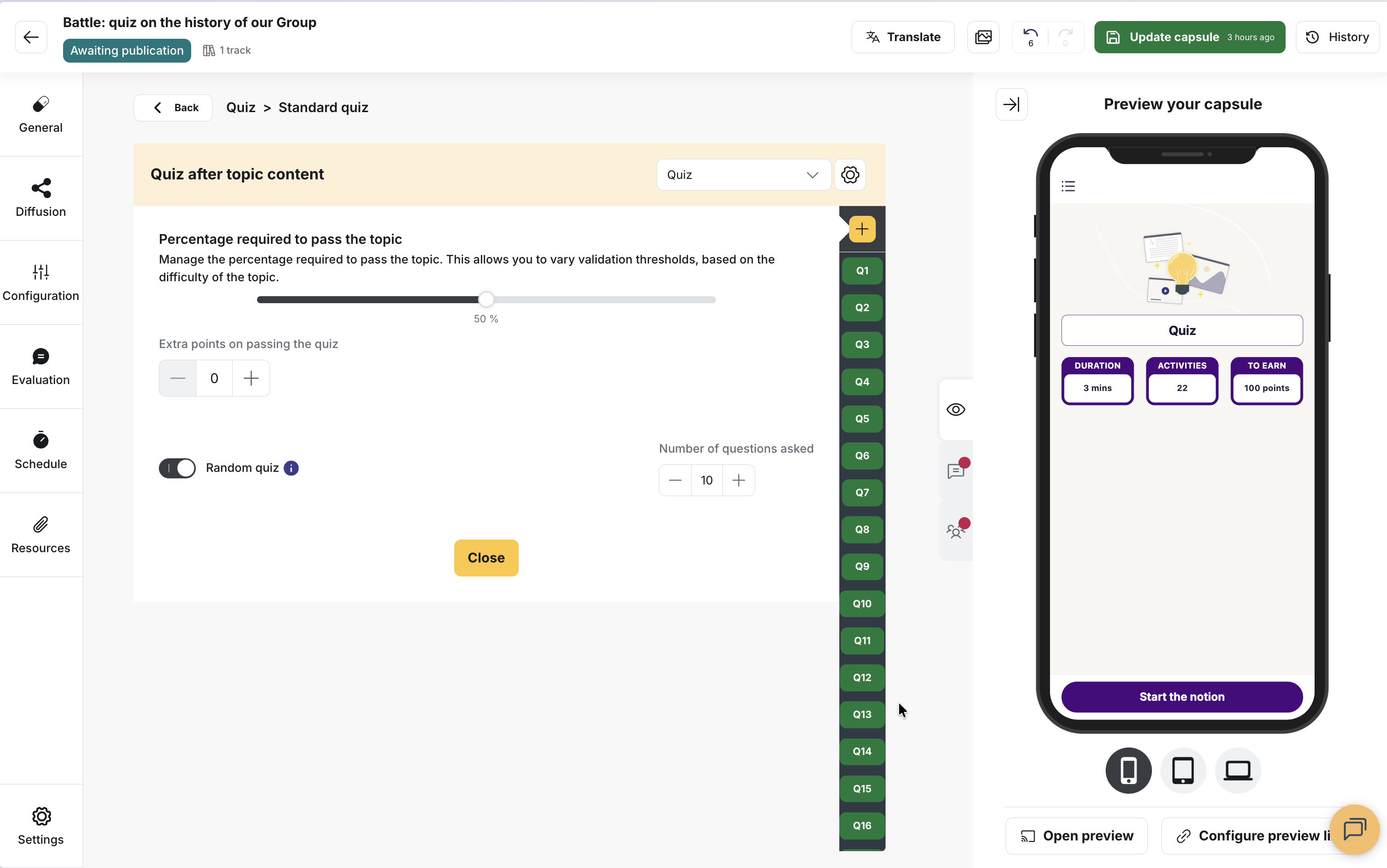
The Random quiz option only appears if the quiz has more than 3 questions. The Number of questions asked field stays inactive until the option is turned on; its value ranges from 3 to the total number of questions in the quiz.
Example: you create a quiz with 22 questions and set Number of questions asked to 10. In each game, 10 questions are drawn from the 22.
Configuring opponent options
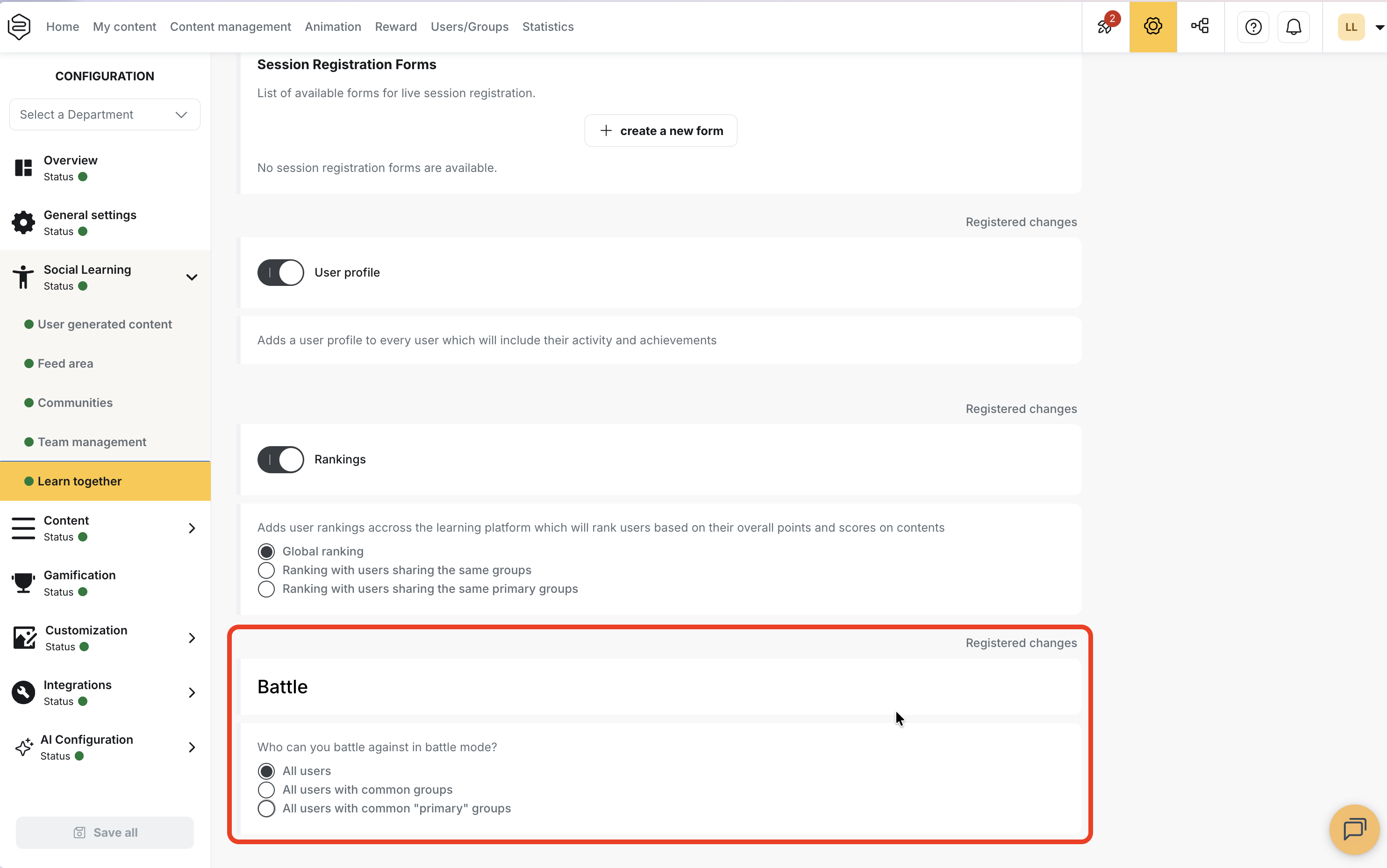
The opponents offered to learners depend on the Who can you battle against in battle mode? setting, which an administrator sets in your platform’s Configuration. Opponents must also have access to the same capsule.
On the learner side
When a learner starts a capsule in battle mode, they land on an opponent selection screen:
- The app suggests an opponent.
- The learner can search for another opponent.
From the same screen, they also find the battles already in progress on this capsule.
ℹ️ Good to know: battles with no activity for more than 7 days are no longer displayed.
Further reading
- Activity formats: quiz settings, including the random quiz.
- Publishing and unpublishing a capsule: what Update capsule does and the checks before publishing.
- Common issues: engagement: when battle mode or the opponent does not appear.
- Gamification and engagement: the account-level battle settings.