Filters and audiences
⚠️ Required permissions: at least one statistics permission must be enabled in your permission model. No additional permission is required to use filters: they only restrict the data you are already allowed to access. To learn more, see Manage access to statistics.
Filters and audiences
⚠️ Required permissions: at least one statistics permission must be enabled in your permission model. No additional permission is required to use filters: they only restrict the data you are already allowed to access. To learn more, see Manage access to statistics.
⚠️ Prerequisite: the department filter is available only if the department hierarchy is enabled on your account.
A filter does not change the formula used to calculate an indicator. Instead, it changes which learners, groups or content are included in the calculation. Two administrators can therefore view the same screen and see different values depending on their permissions and the filters applied.
This article explains the main filters available in Statistics, where they are available and how they affect the data displayed.
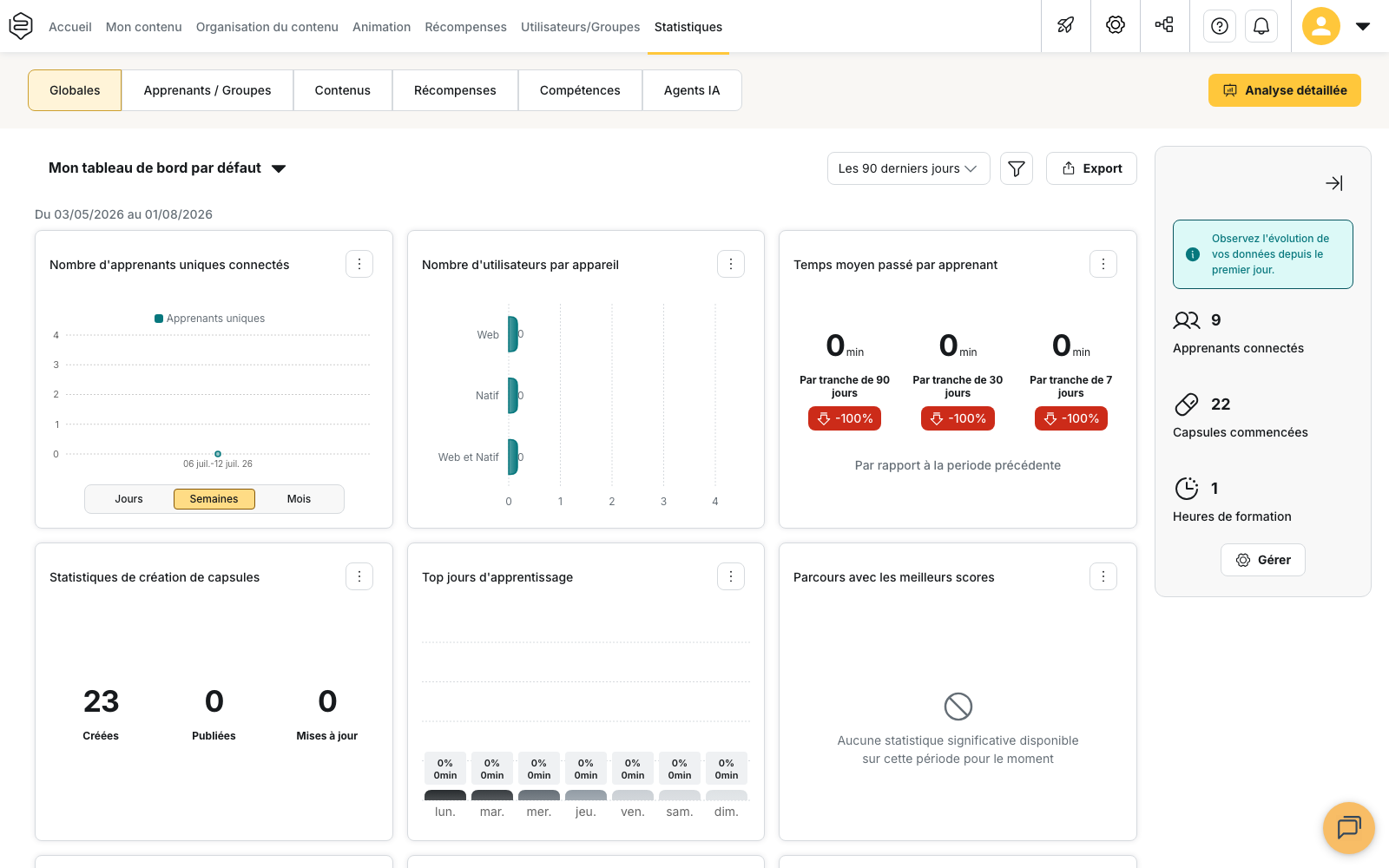
Apply a filter without saving it
Open the filter panel and adjust the criteria you want to use. Your selection is applied directly to the current tab without having to save the filter.
This configuration remains specific to the tab you are viewing and is not automatically available in other tabs. If you want to reuse it later, save it with a name.
Understand how the period works
The Period behaves slightly differently from other filters. When you change the period in the default filter of a tab, other screens belonging to the same statistics family may use the same period.
Screens related to capsules share their period with one another. Screens related to learning paths, tips, product sheets and skills belong to another family.
When a saved filter is active on a tab, the period defined in that filter is kept and is not replaced by the period selected on another screen.
Because the Learning paths tab does not have its own period filter, it does not directly take part in this synchronization.
Filter by department
The Associated department(s) filter is available under Other filters. Only one value can be selected at a time.
The first option, Main account, corresponds to data that is not associated with any department.
This filter is available in the six main Statistics tabs:
- Global;
- Learners / Groups;
- Content;
- Rewards;
- Skills;
- AI Agents.
When you select a department, its sub-departments are also included.
Understand the effect of the department filter
Statistics are not calculated directly from a department. Instead, the filter relies on the groups associated with the selected department: only those groups and their learners are included.
A learner who does not belong to any group in the selected department is therefore excluded from the results.
⚠️ Changing the department resets any learner groups you have already selected. The same applies when you switch back to Main account. No warning is displayed when this happens.
Select the department first, then the groups, and check the applied filters before interpreting the results.
Restrict the content
When you select a department, the Only content from my department or the selected department option becomes available. It is not enabled automatically.
On the relevant screens, this option restricts the content included in the statistics to content from the selected department.
The Detailed analysis, available from the Global tab, does not include a department filter. Its scope remains tied to the department you are currently working in.
Change the data scope
Several options let you include or exclude specific learner populations or types of content.
| Setting | Where it is available |
|---|---|
| Include deactivated learners | all tables except Hot / cold evaluations |
| Include deactivated groups | group statistics |
| Include deleted capsules | capsule statistics |
| Include learners without access | learning path details |
| Only content from selected groups | Capsules, Tips, Product sheets, Learning paths, Rewards and Skills |
Include deactivated learners
A learner who is currently deactivated may still have been active during the period you are analysing. When Include deactivated learners is disabled, that learner is excluded from the displayed results.
This option can therefore affect totals and certain rates, not just the number of rows displayed.
In the User groups sub-tab, for example, it affects the calculation of the Activation rate, Average time spent and Average points.
Include learners without access
⚠️ The Include learners without access option can significantly affect learning path rates. It adds learners who were never given access to the learning path to the population being analysed.
As a result, rates may decrease even though the activity of learners who actually have access to the learning path has not changed.
Before enabling this option, decide what you want to measure:
- the progress of learners who have access to the learning path;
- or the learning path’s coverage across a broader population.
Build an advanced filter
Advanced filters let you restrict the rows displayed based on the values in the table columns.
An advanced filter is made up of several cases. Each case contains one or more criteria defined by three elements:
- Column;
- Condition;
- Value.
All criteria within the same case must be met for a row to be included. If several cases are created, a row is displayed as soon as it matches at least one of them.
In other words:
- criteria within the same case work as AND conditions;
- different cases work as OR conditions.
The Column list only includes columns available in the table you are viewing. Text comparisons are not case-sensitive.
⚠️ An advanced filter affects the rows displayed in the table, not the formula used to calculate the indicators. It hides rows that do not match the selected criteria without recalculating the values already produced.
Advanced filters are not available in the Global tab.
Restrict the audience
Some screens include their own filters to narrow down the data displayed.
In a certificate’s details, the Audience filter provides:
- All users;
- Certified users only;
- Non-certified users only.
In a learner’s detailed statistics, the Status filter provides:
- All;
- Completed during the period;
- Passed;
- Failed;
- In progress;
- Not started.
These filters apply only to the screen where they are used.
Save and reuse a filter
The funnel-shaped button gives you access to Saved filters.
Click New filter to open the configuration panel, then define the criteria you want to use and give the filter a name.
Once saved, a filter can be:
- edited;
- duplicated using the copy icon;
- deleted.
Back to default filter removes the selected filter and restores the tab’s default settings.
💡 Give your filters a name that clearly describes the population and period being analysed. For example: France Managers – current quarter. This makes it easier to identify their scope without having to open them.
Use a filter across several content tabs
⚠️ A saved filter normally belongs to the tab where it was created. It is not automatically available in other tabs.
The four content statistics tabs are an exception:
- Capsules;
- Tips;
- Product sheets;
- Learning paths.
The Create a common filter action creates a filter that can be used across all four tabs. The menu then separates My filters from Common filters.
A common filter only keeps:
- the Period;
- the Department;
- the Groups;
- Include deactivated learners.
Other settings, including advanced filters, are not carried over. A common filter also cannot be duplicated.
⚠️ Common means shared across content tabs, not shared with other administrators. Saved filters remain personal.
When sharing a figure from Statistics, remember to include the filter and scope used so that the result can be interpreted correctly.
If your statistics permission is restricted to a specific selection of groups, that scope remains the one defined in the permission model. A group created later is not automatically added to that selection.
Learn more
- Manage access to statistics: understand the scope defined by permissions before filters are applied.
- Academies and statistics: understand how departments affect the data available in Statistics.
- Understanding groups: understand how groups are used to filter learners and content.
- Exports and reporting: understand which filters are carried over to the different exports and which ones need to be configured separately.