Exports and reporting
The Statistics > Global tab offers an advanced export, called Advanced reporting, which produces reports on learner activity, capsules or tracks. The other analytics tabs also have their own export options.
On this page
- Opening the export panel
- Choosing the data type
- Selecting the groups, then the content
- Choosing the data to export
- Choosing the period and the activity filtering
- Adjusting the additional options
- Launching the export and getting the file
- Saving a configuration as a template
- Exporting from the other screens
- Going further
Exports and reporting
The Statistics > Global tab offers an advanced export, called Advanced reporting, which produces reports on learner activity, capsules or tracks. The other analytics tabs also have their own export options.
This article follows the steps of Advanced reporting, in the order they appear in the panel, then describes the exports available from the other tabs.
⚠️ Rights needed: access to global statistics, the advanced export right to display the Advanced reporting button, and a right on at least one analytics family: learners, capsules or tracks.
Opening the export panel
The Advanced reporting button sits at the top right of the Global tab. It is not available on the Learners / Groups, Content, Rewards, Skills or AI Agents tabs.
Click Advanced reporting to open Advanced export options, which is organised in several sections:
- Template, if you have already saved a configuration;
- Content to Export, to select the groups, then the learners, capsules or tracks concerned;
- Additional Options, to include disabled learners or certain deleted capsules;
- Save This Configuration, to keep the settings and reuse them later.
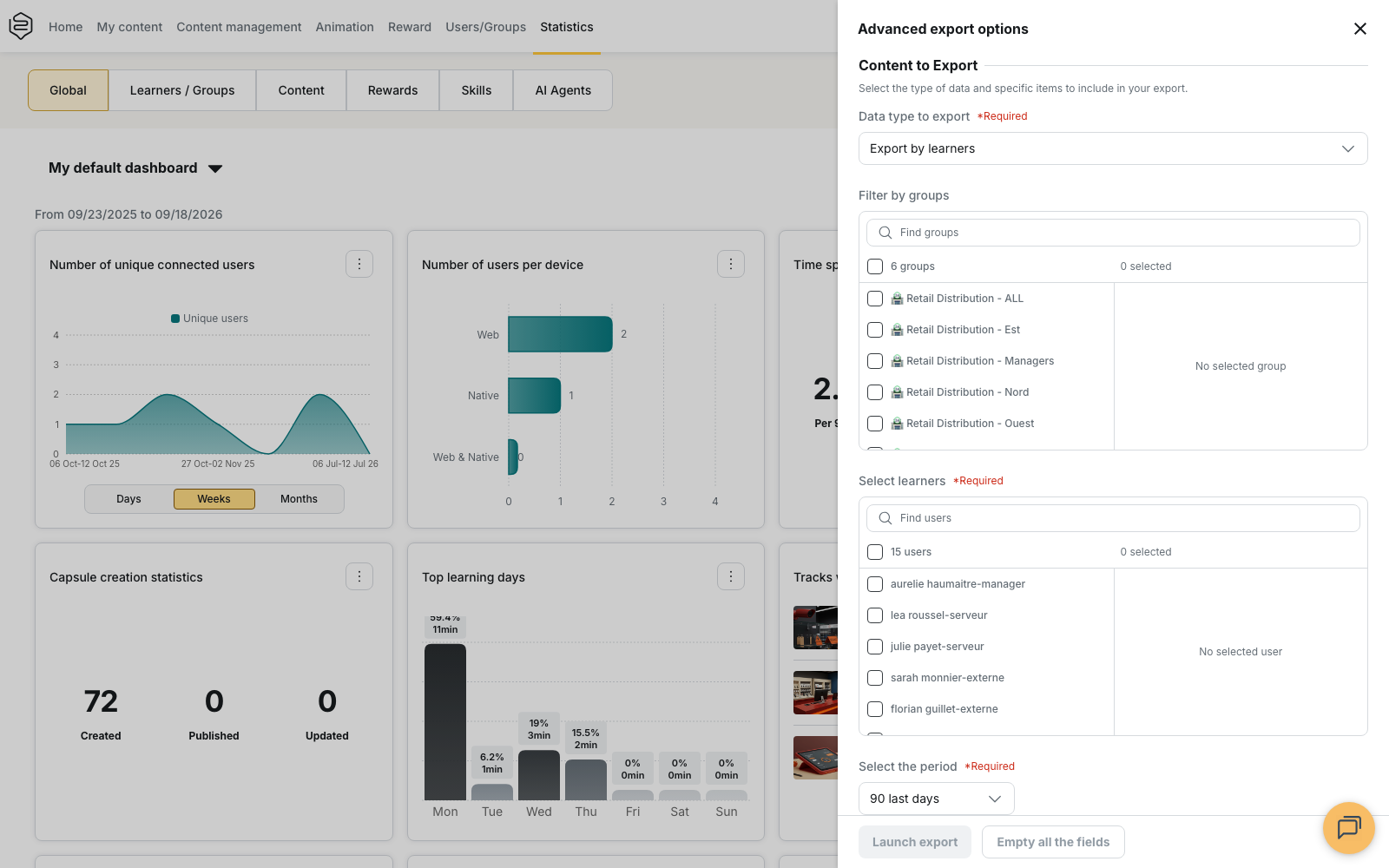
Fields marked * Required must be filled in. As long as one of them is empty, the Launch export button at the bottom of the panel stays inactive.
⚠️ The Advanced export options panel does not reuse the filters applied to the dashboard. It opens by default on 90 last days, with no group selected, even if you have already filtered the widgets. The dashboard filters and the Advanced reporting filters are independent.
Choosing the data type
Start by selecting the Data type to export:
- Export by learners;
- Export by capsules;
- Export by tracks.
This choice determines the options available in the rest of the panel, as well as the content of the generated file.
With Export by learners, you only select the learners concerned. There is no additional export type to choose.
With Export by capsules or Export by tracks, an Exported data section and the period filtering options are added.
Selecting the groups, then the content
Filter by groups limits the export to certain groups. If you select no group, the export covers every group accessible according to your rights.
Then select the items concerned in Select learners, Select capsules or Select tracks.
💡 For capsules, the Show only content accessible to these groups option appears as soon as a group is selected. Without this option, the exported list contains every capsule for which at least one learner in the selected groups has statistics. When the option is enabled, only the content actually distributed to those groups is offered.
If you select more than 40 capsules or tracks, a Large export warning window appears before the launch. It invites you to reduce the selection, but you can choose Export anyway to continue.
Advanced reporting offers no department filter. The scope depends on the department you are working in.
Choosing the data to export
This section is only available for capsules and tracks. Selecting content is not enough: you must also tick at least one type under Exported data.
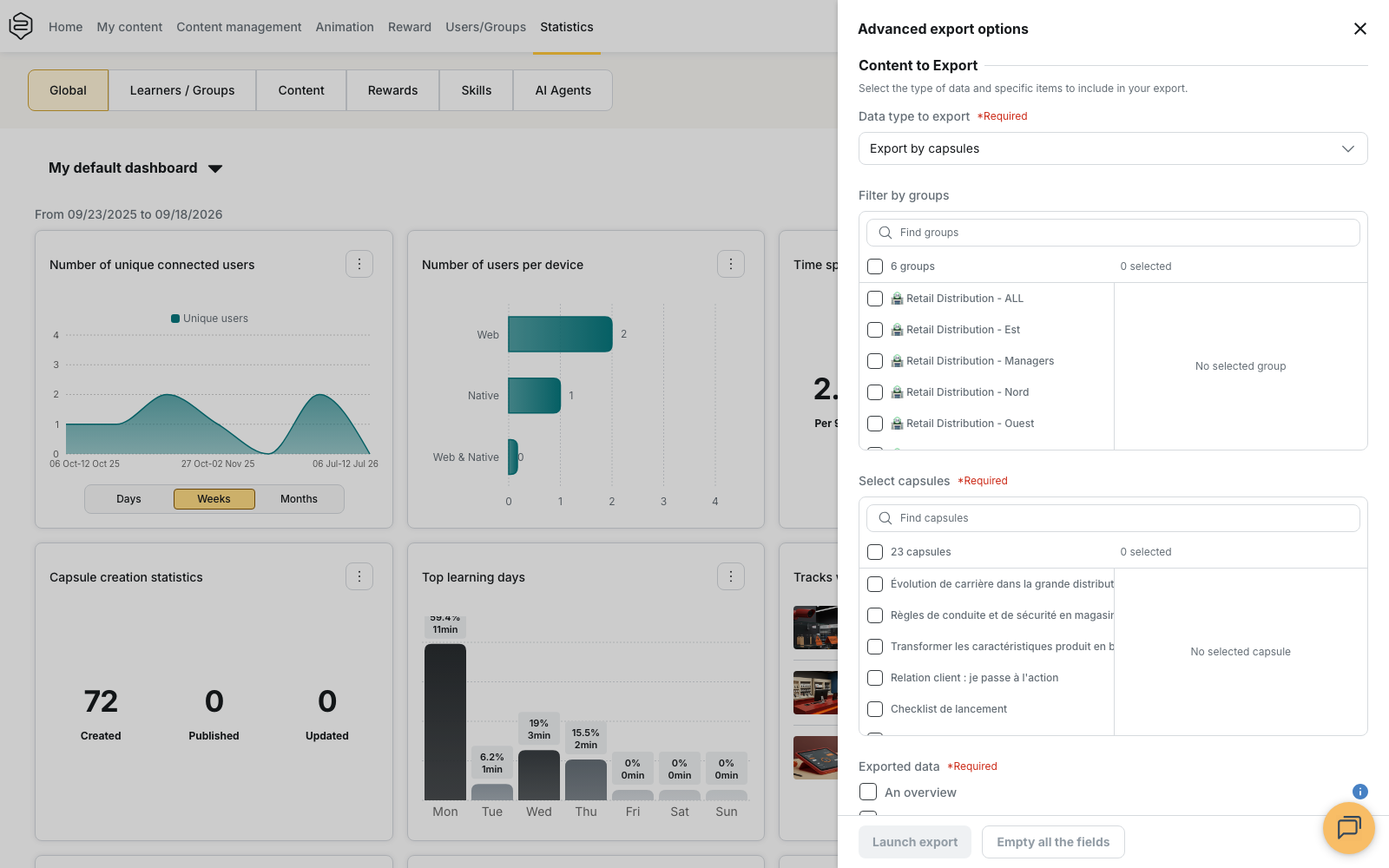
The options offered depend on the type of content:
- for capsules: An overview, A detailed view of capsules contents, Detailed time spent per capsule and A detailed view of capsules learners;
- for tracks: An overview, A detailed view and The list of answers.
Adding the exhaustive report
The Include the exhaustive completed/not completed report option adds one row for each learner and each content item, whether it was completed or not.
⚠️ This is a sub-option, not an export type in its own right. For capsules, it becomes available when A detailed view of capsules learners is selected. For tracks, it depends on A detailed view.
If you untick the associated export type, the exhaustive report is automatically disabled.
For capsules, a second option is available: Include the exhaustive report (completed learners only). It reduces the size of the file. The two variants exclude each other: selecting one automatically disables the other.
Choosing the period and the activity filtering
The Select the period field lets you choose the last 7, 30, 90 or 360 days, or define a custom period.
For capsules and tracks, the Activity filtering by period setting then determines which activities are included in the file.
Three modes are available:
- Loose - Activities overlapping the period: includes any activity that overlaps the selected period, even partially. An activity started before the period and finished during it can therefore be kept. This mode is selected by default;
- Activities finished during the period: includes the activities whose end date falls within the period, whatever their start date;
- Activities started AND finished during the period: only includes the activities whose start and end both fall within the selected period.
For capsules, this setting disappears when Detailed time spent per capsule is the only export type selected. That export only uses activity start dates.
If you combine this export with other types, a message tells you that the time spent data does not follow the selected filtering mode.
Adjusting the additional options
The Include disabled learners option is available for the three export types.
Include deleted capsules only appears with Export by tracks.
Launching the export and getting the file
Once every required field is filled in, the Launch export button becomes active.
The file is downloaded once its generation is complete. It is not sent by email: you will find it directly in your downloads.
The format you get depends on the type of data selected:
| Data type | File you get |
|---|---|
| Export by learners | an Excel workbook |
| Export by capsules | a ZIP archive containing one Excel workbook per export type selected |
| Export by tracks | a ZIP archive containing one Excel workbook per export type selected |
Saving a configuration as a template
The Save as template option keeps the complete configuration of the panel: data type, groups, content, period, additional options and filtering mode.
You can then find this configuration again from the Template selector at the top of the panel. The button stays inactive as long as the required fields are not filled in.
A relative period, such as 90 last days, is recalculated from the current date each time you reload the template. A custom period, on the other hand, keeps the dates defined when it was saved.
⚠️ A template is tied to your account and to the department in which you created it. It is not shared with the other administrators and no longer appears in the list if you switch department.
The Empty all the fields button resets the panel without deleting the saved templates.
Exporting from the other screens
Outside Advanced reporting, several screens offer their own export options.
From the Global tab: the Export button produces an A4 PDF of the dashboard on screen, with two widgets per page, the account logo on the cover and the period in the footer. The button stays inactive as long as no widget is placed on the dashboard.
From a widget: the Export PDF action is available on every widget. Export excel is only offered on certain widgets, and the generated file is limited to the first 50 results, whatever the number of rows displayed.
From an analytics tab, for example Learners: the Export button produces an Excel file from the table as it is configured on screen. It reuses the displayed columns, the current sort, the filters and search applied, as well as every row of the corresponding report.
From a capsule’s Answers tab: you can export the table in Excel or PDF format. The Export All action also starts a server task that retrieves the detailed answers of every learner.
From a certificate’s detail: the Download certificates action produces a ZIP archive containing the certificates for the selected rows.
The inclusion options also vary from one screen to another. Include disabled groups is only available in the groups report. Include deleted capsules is offered in the capsules report as well as in Advanced reporting by tracks.
Going further
- Filters and audiences: to understand which filters the different exports reuse and how they influence the data you get.
- Managing access to analytics: to understand why two administrators can get different files from the same report.
- Dashboards: to compose the widgets picked up by the PDF export of the Global tab.
- Automated SFTP reporting: to automate the delivery of reports when the same exports have to be generated regularly.