Importing a SCORM module into a capsule
⚠️ Required permissions: capsule editing permissions (see Who can distribute what).
Importing a SCORM module into a capsule
⚠️ Required permissions: capsule editing permissions (see Who can distribute what).
This article explains how to import a module built with another authoring tool into Beedeez, in SCORM format, so that your learners can play it.
If you want to do the opposite and export Beedeez content to another LMS, see Exporting to SCORM.
Prerequisites
- Beedeez supports the SCORM 1.2 and SCORM 2004 formats. xAPI and cmi5 are not supported.
- Your module must be compressed as a .zip file.
- You can import one file at a time.
- ⚠️ We recommend not uploading a SCORM module heavier than 500 MB.
- ⚠️ We recommend designing your module so that it adapts to every screen size and can be played on a phone as well as on a computer. Watch out in particular for small click targets.
Importing the module
- Open the capsule in the editor, then expand the notion that will hold the module.
- Add a content page of type SCORM Offline.
- Fill in the Content title, then, in the SCORM package block, click Add a SCORM.
- Select the
.zipfile on your computer or in the media library. - Wait for the processing to finish. The Deploying SCORM package… window asks you not to closeit.
- Confirm your choice, then save the capsule by clicking Update capsule.
- Test your module before publishing it to your learners (see below).
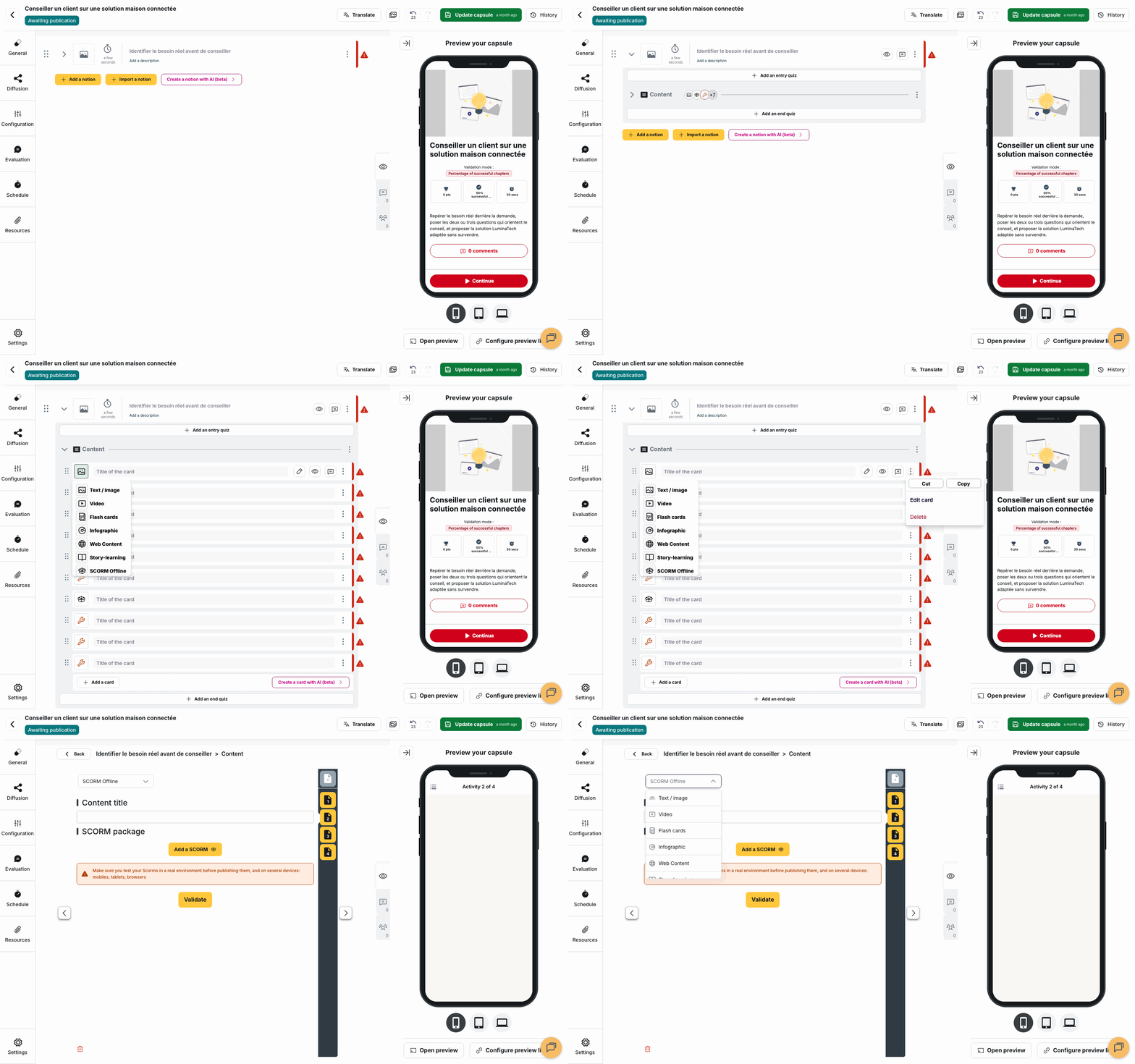
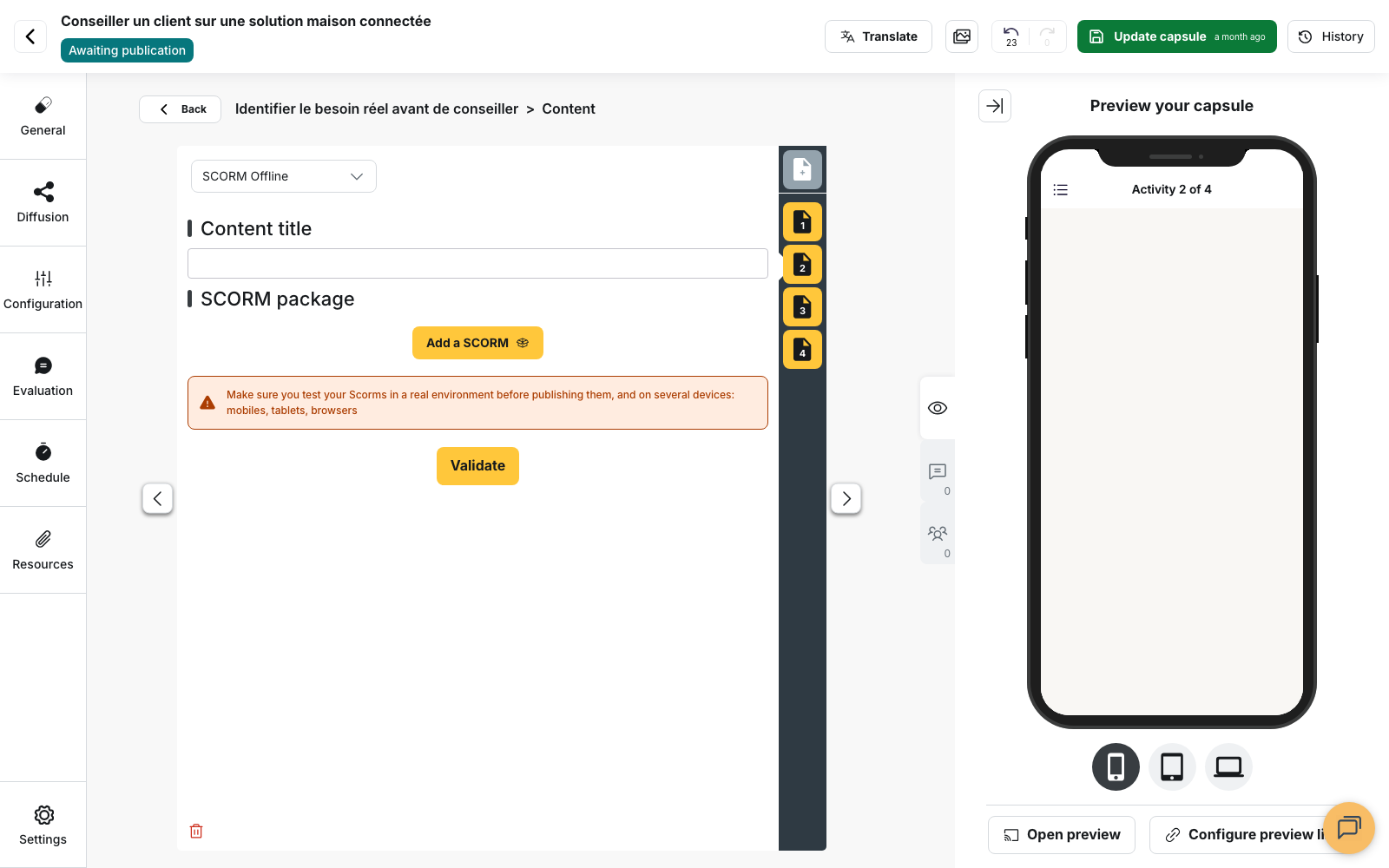
Processing unzips the package and puts its files on Beedeez storage. It can take several minutes for a heavy module. Once the import is complete, the SCORM package block shows the file name and the name of the entry-point file.
⚠️ Put one SCORM module per notion. You can, however:
- build a capsule with several notions, each holding its own SCORM module;
- place other native Beedeez content pages in the same notion as your module.
Advanced options
The Advanced options block appears once the module has been imported. It holds:
- Immersive mode, which displays the module full screen, without the continue button. A red close button remains visible so learners can exit the module at any time.
- iOS user agent and Android user agent, reserved for specific technical settings.
- Close button position, which determines where the button used to exit the module appears: Top Left, Top right, Bottom right or Bottom left.
- Max score determines the maximum number of points a learner can earn from the SCORM activity. Points are awarded in proportion to the score reported by the SCORM activity. For example: if the maximum score is 50 and a learner completes the SCORM activity with a score of 30%, they earn 50×(30/100) = 15 points. If you leave this field blank, the learner will not earn any points for completing the SCORM activity. However, its completion status will still count towards the capsule’s completion criteria.
- Validation threshold, which sets the minimum percentage score a learner must achieve to pass the module.
⚠️ If your module reports a passed/not passed status in addition to a completed/not completed status, the passed/not passed status takes precedence over the threshold entered here. For example, if the module reports a pass at 80%, that result takes precedence even if you have set the validation threshold to 90%. This setting is therefore only useful for modules that return no passed / not passed status, which is the case of SCORM 1.2 modules.
Translating a SCORM module
An imported module is not translated by Beedeez. For a multilingual capsule, import one module per language (see Translating your content).
Offline mode and SCORM storage
SCORM modules are always available offline in the mobile application, from the moment a learner has started their download. They are independent from offline mode (see Offline mode). Once the module is completed, its downloaded files are automatically deleted from the learner’s device storage.
If needed, a learner can clear the SCORM storage on their device by hand:
- In the application, open the menu at the top left and select Settings.
- In the Offline storage section, select Clear storage.
- Select Clear storage again in the window that opens to confirm.
⚠️ If learners clear the SCORM storage on their device, they can no longer access those modules offline. They must download them again to use them without an internet connection.
Statistics
Statistics do not detail the answers question by question inside a module.
Testing and checking your module
SCORM is a standard that allows modules to run on compatible learning platforms, including Beedeez. Depending on the tool that produced it or on the settings of the file, a module can still have its own particularities. Test your modules in real conditions before sharing the capsules with your learners.
- Publish the capsule, to a test group for instance, and play it on every device your learners are likely to use: phone, tablet and web app. Behaviour can vary from one type of device to another. Check that you can validate the capsule and that navigation inside the module works.
- If you encounter a problem on one or more devices, test your files on the free website https://cloud.scorm.com/ and check whether your module behaves as it does on Beedeez. SCORM Cloud provides reports that show which data your module makes available: validation, completion, score, and so on.
- If one of these pieces of data is missing from your module, Beedeez cannot retrieve it. Change your module’s settings or contact your authoring tool’s support team.
- If your module works on SCORM Cloud and all the information is reported correctly, contact our support team so that we can look into it and make sure the behaviour on Beedeez is the expected one.
⚠️ If the behaviour is abnormal on one device only, test the module on SCORM Cloud from that device (an iOS device, an Android one, and so on). You will then know whether the problem comes from the Beedeez application on that system or whether the module simply cannot be played there.
Using SCORM Cloud for your tests
- Sign in to your account, or create one if you do not have an account yet.
- Click Add Content at the top right, then select Import a SCORM, AICC, xAPI or cmi5 package.
- Click Browse to select the
.zipfile you want to test. Double-click it, or click Open, to add it to SCORM Cloud. - Click Import Course. SCORM Cloud loads your module and takes you back to your home page.
- Start the module by clicking Launch. A pop-up blocked message can appear; in that case, choose to start the course.
- Watch how the module behaves: display, position of the elements, any unusual behaviour.
- When you are done, leave the module and check that the result matches what you actually did.
- To view the reports, open the library from the left-hand menu, select your module, then open its reports to see the available data.
Fixing a SCORM module compressed on a Mac
Checking the contents of the .zip file
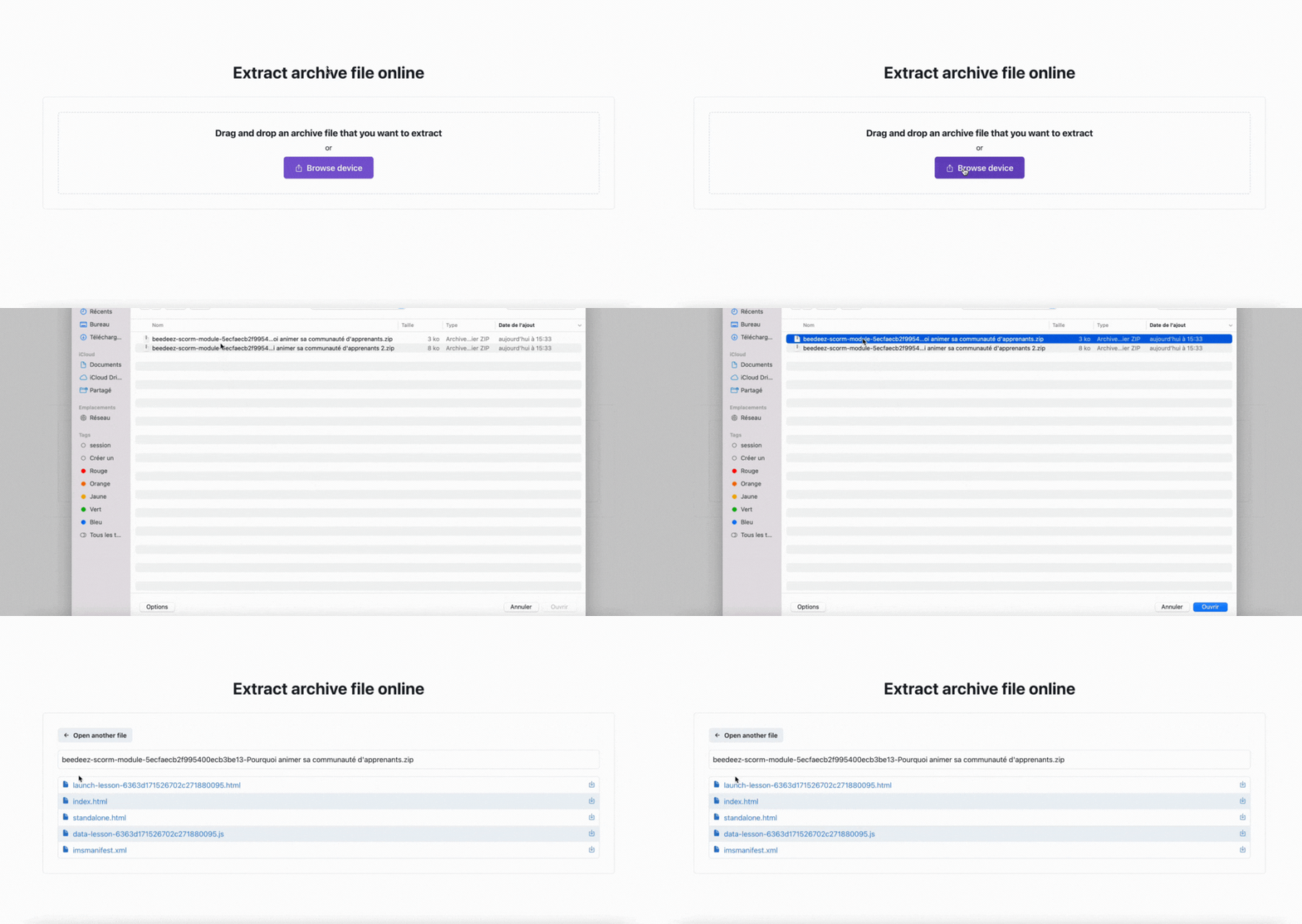
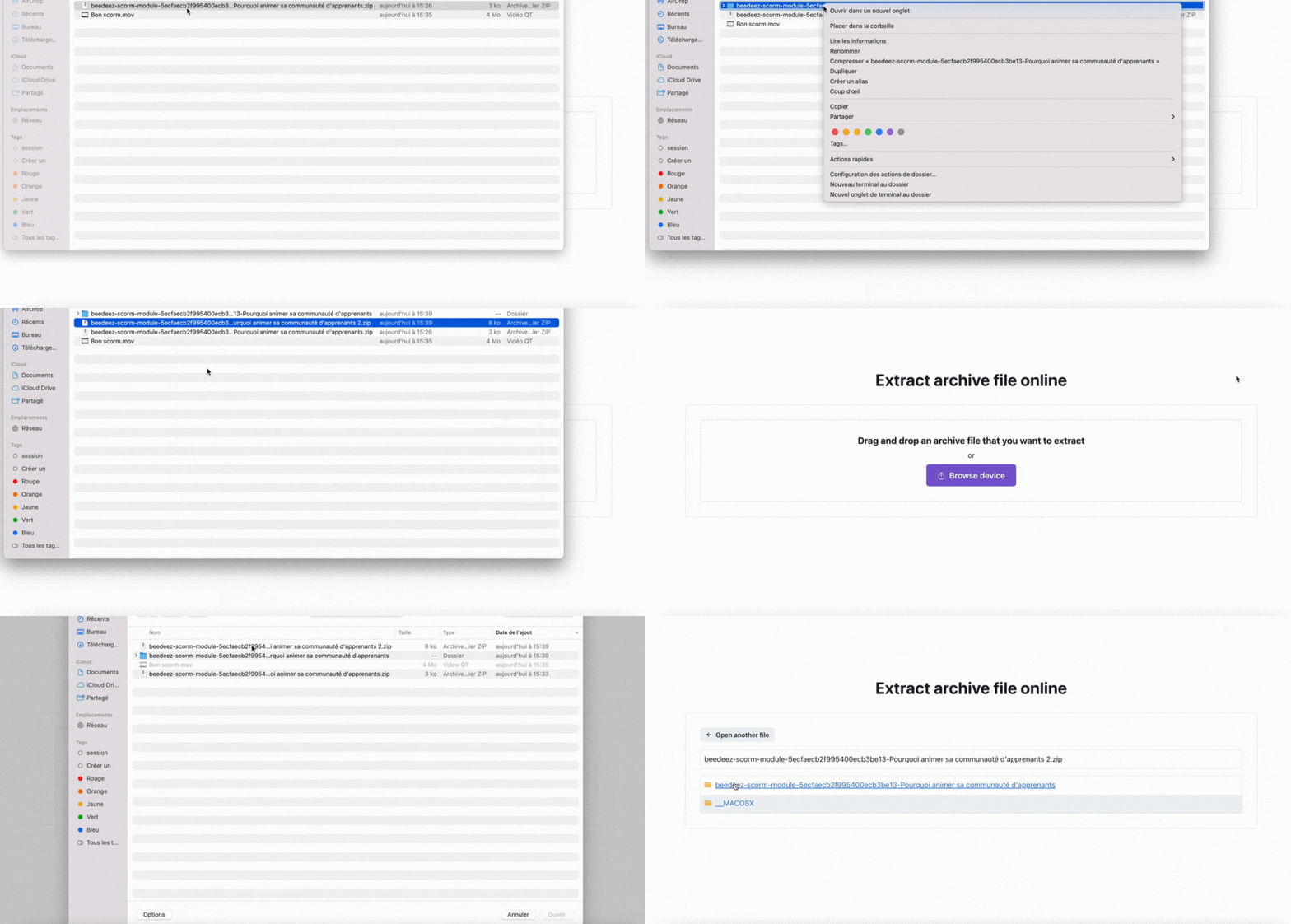
Extract your file, for example with https://createzip.com/extract :
click Browse device and select your .zip file to import it.
- If your folder holds all the files that make up the module, including
imsmanifest.xml, the directory sits at the root of the package. Your module was compressed correctly.
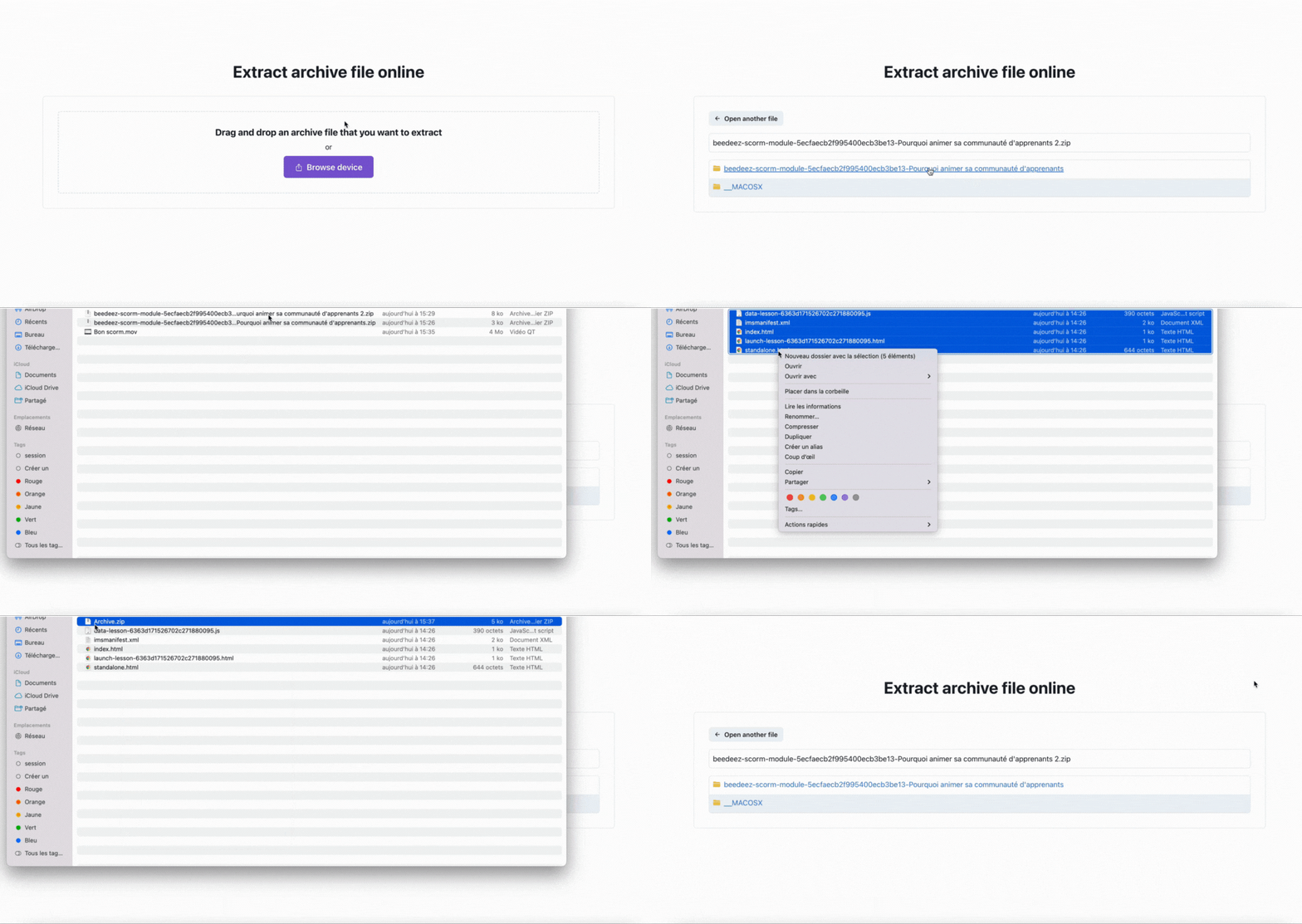
- If you see two folders, one carrying the name of your module and the other named
__MACOSX, the module was compressed the wrong way on the Mac. The module’s files are nested inside the module folder instead of being directly at the root of the .zip file. The
__MACOSXfolder appears alongside that module folder.
Solving the problem
- Go back to your folders and double-click your
.zipfile to unzip it, then open the folder that appears. - Select every file the folder contains, right-click and choose Compress. An
Archive.zipfile appears. - That
Archive.zipfile is the one to import into Beedeez, as explained above.
Where does this extra folder come from?
When you compress your module on a Mac, do not compress the whole folder. Open the folder, select all the elements it contains, then right-click and choose Compress. The Archive.zip file that
appears is the one you can import into Beedeez.