Translating your content
Required permissions: Can translate all capsules or Can translate own capsules, under Content translation.
Translate your content
Required permissions: Can translate all capsules or Can translate own capsules, under Content translation.
If you do not have either permission, your capsule editing rights determine what you can translate.
A capsule has a creation language and can be available in several languages. You can add these versions manually, use automatic translation, or work with an external tool using an XLIFF file.
Learning paths have their own translation system. See Translate a learning path for more information.
Open translation management
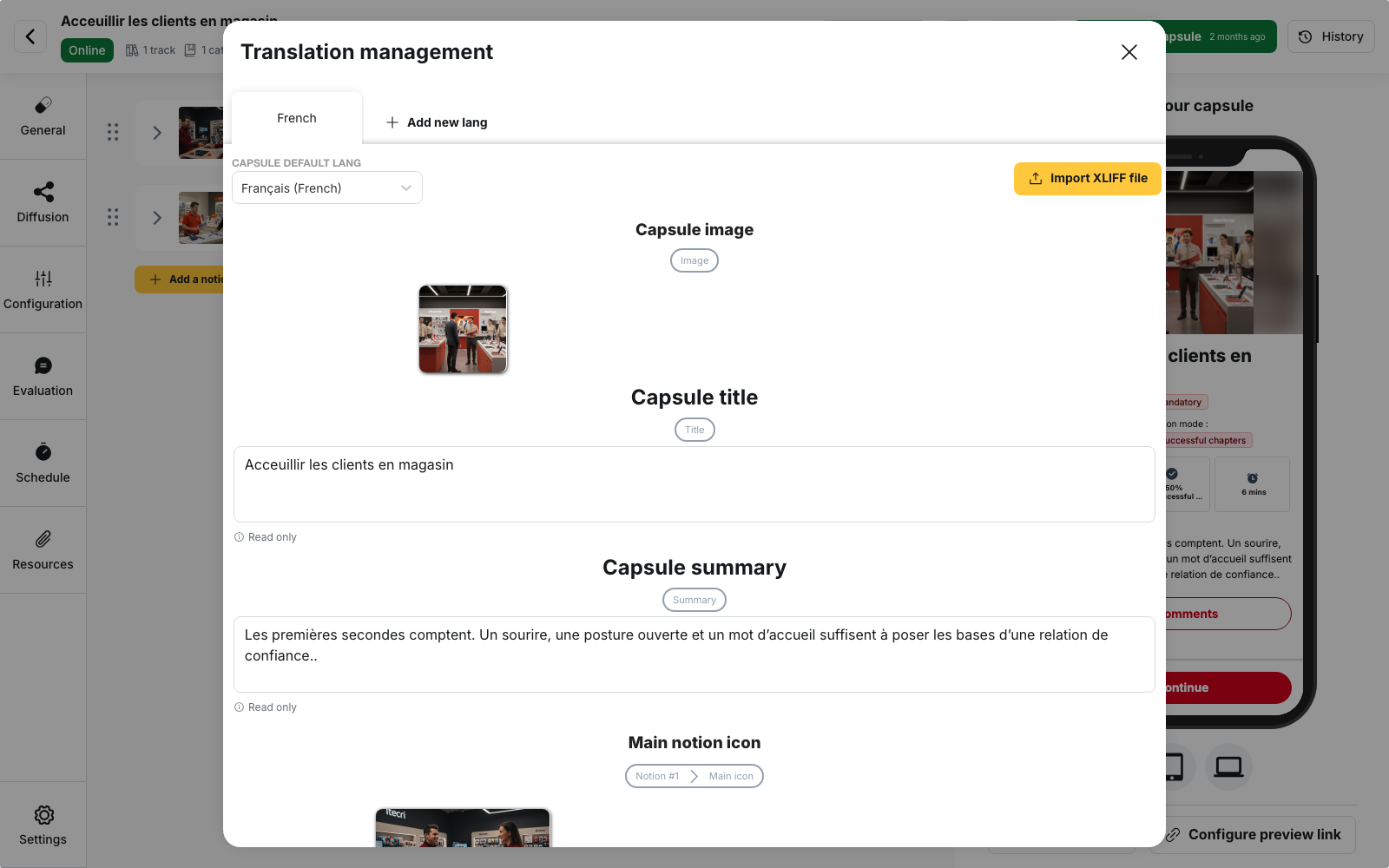
From a capsule, select Translate at the top of the page to open Translation management.
Each language has its own tab:
- the default language is displayed first
- other languages are shown with their translation rate
- Add a new language lets you add a language to the capsule
If you have translation rights but cannot edit capsules, the capsule opens in Translator access.
There is no save button in this window: your changes are saved when you save the capsule.
Change the default language
In the default language tab, the fields are Read-only because they contain the original content.
The Capsule default language field lets you choose another language. This can be useful, for example, when a capsule created at a national level is taken over by a subsidiary.
If you do not change it, the default language is the account language at the time the capsule was created.
⚠️ If the new language already exists in the capsule, the two versions are swapped. The previous default language then becomes a translated version.
What can be translated
Translation applies to:
- the capsule title and description
- the name, main title, description and content of notions
- before-notion and after-notion quizzes
- question statements, answers and explanations
Some formats have additional fields:
- each gap in a fill-in-the-blank text
- swipecards
- image areas and labels
- both sides of a flashcard
- slides
- tasks in the In practice section
- podcast transcripts
- video subtitles
Images and icons can also be replaced with a different file for each language.
Tips and product sheets use the same window, but do not support bulk translation or XLIFF exchange.
Use automatic translation
In each language tab, the Translate button generates the content of a field.
To translate the entire capsule at once, select Translate entire capsule.
⚠️ This action replaces any existing content in the selected language.
Check the confirmation message before using it on content that has already been manually edited.
Choose the translation engine
Translation uses DeepL or OpenAI.
The ”⋯” button next to Translate entire capsule opens Translation system. The (Default) label corresponds to the engine selected under Translation integration in the account settings.
Some languages are not supported by DeepL. In that case, the window indicates this and OpenAI is used instead.
Use an XLIFF file
You can send the translation to a translator or use a professional tool that supports the XLIFF format.
From the relevant language:
- Select Export as XLIFF
- Have the file translated using the tool of your choice
- Select Import an XLIFF file to import the result
The file contains text elements only, including subtitles.
The import starts automatically as soon as the file is selected.
If the file is rejected
Invalid file type
The file must be in .xlf or .xliff format.
Changes to its structure can also cause this error, such as moving a tag, adding a character or inserting formatting.
The XLIFF file does not match the capsule’s current content
The capsule has changed since the file was exported. Export a new file and have the translation work carried over to it.
The XLIFF file targets the capsule’s default language
An XLIFF file can be used to populate a secondary language, but cannot modify the original content.
💡 Tip: ask the translator to edit only the intended text and keep the tags already present in the file.
Also avoid editing the capsule while the translation is in progress to preserve the correspondence between the file and its content.
Delete a language
The delete button next to a language name lets you remove a version after confirmation.
It is not available for the default language.
To delete the default language, first select another language as the default. The previous default language can then be deleted as a secondary version.
When a language is not available
The learner always sees content: the system uses the most relevant available language.
- An untranslated field uses its original text
- If no version exists in the requested language, the capsule is displayed in its creation language
For example, if a capsule is available in French and English, with English as the default language, it will be displayed in English for a learner whose app is configured in Russian.
The Fallback language for learners, available in General options, has a different purpose: it determines the requested language when a learner has not selected one.
Key points
- Learning paths are managed separately from their own translation screen
- An untranslated capsule remains visible and can be distributed
- Changes to the original content do not automatically update other languages. The displayed translation rate does not indicate whether a translation matches the latest version
- Text embedded directly in an image is not translated. You therefore need to provide a version of the visual for each language