Administrative documents
A document template is a document you create once, which the platform then personalizes automatically for each learner before generating it as a PDF and sending it by email.
Administrative documents
A document template is a document you create once, which the platform then personalizes automatically for each learner before generating it as a PDF and sending it by email.
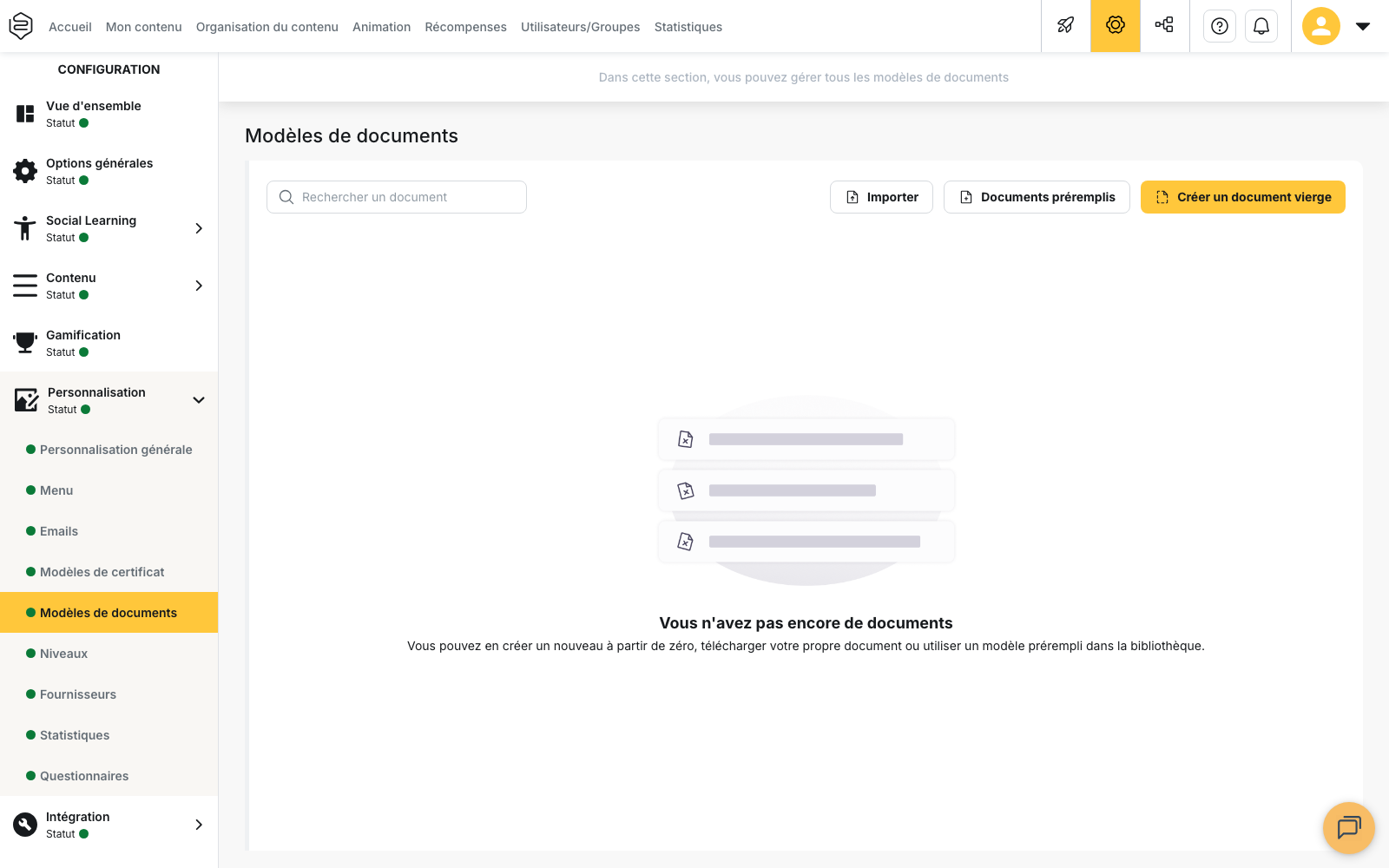
Templates are configured from Configuration > Customization > Document templates.
These documents can be used in several contexts:
- Alongside a certificate: to provide additional information without overloading the certificate template.
- As a document issued after a learner passes: the document can be sent when the learner meets the required conditions, for example after passing one or more capsules.
- As part of a session: documents can be linked to a session and sent to participants at the appropriate time.
Use documents in a session
There are two ways to use administrative documents in the context of a session:
- Configure automatic delivery from the capsule: from the capsule’s main menu, go to Configuration and choose which documents should be sent before or after a session. This configuration is then automatically applied to every new session created for that capsule, so you do not need to resend the documents manually each time.
- Send a document from a session: from the Sessions tab, you can send a specific document directly to the participants of a session. This is useful when a particular session requires an additional document or when an individual learner needs an extra document.
To understand the difference between certificates and administrative documents, see Certificates and documents.
⚠️ Required permissions: you need access to Configuration to create and edit templates, as well as access to learners in order to send them documents. To learn more, see Assign permissions.
Create a document template
There are three ways to create a template.
Use a pre-filled document
Pre-filled documents opens a library of ten templates ready to be customized:
- DPC certificate;
- Attendance certificate;
- VAE eligibility certificate;
- Completion certificate;
- Formatted VAE contract (for companies);
- Professional training agreement;
- Intervention agreement;
- Training invitation (learner);
- Attendance sheet;
- Attendance sheet per learner.
Create a blank document
Create a blank document opens an empty page in the editor. You can then build the entire template from scratch.
Import a Word document
Import converts a Word document into an editable template in the platform. Only the text and its structure are retained.
⚠️ In all three cases, you must enter a title and save the document. No template is created until you click Save.
Use dynamic values
The Dynamic values panel lets you insert information that will automatically be replaced with the relevant data when the document is generated.
Place the cursor where you want the information to appear, then click the value you want to insert.
Available values are grouped into four categories:
- User details: Username, Email, and custom user fields;
- Capsule details: Title, and custom capsule fields;
- Capsule session details: Session start date, Session end date, Session address, Registration start date, Registration end date;
- General details: Today’s date.
The document is generated in the recipient learner’s language. If no language has been set for the learner, the account language is used instead.
Today’s date corresponds to the date on which the document is generated, not the date when the template was created.
Values related to a capsule or session can only be populated if the document is sent in connection with the relevant content. When a template uses this type of value, the send window therefore asks you to select the related capsule or session.
Manage templates
When you create a new template, the editor header displays Unsaved document.
Once the template has been saved, any further changes display Unsaved changes, and the Save button becomes Update.
The editor’s action menu lets you:
- Edit title;
- Save as new, to create a second template from the version currently open;
- Delete the template.
From the template list, Create a copy also lets you duplicate a document without modifying the original.
⚠️ Deleting a template is irreversible.
If you leave the editor with unsaved changes, the Document is not saved window gives you two options:
- Save and exit;
- Exit without saving.
Document templates are configured at account level. If you have selected a department in Configuration, the Document templates section is not available.
Send a document
From the learner list:
- select the relevant learners;
- click Send a compliance document;
- select the template under Select the document to send.
Depending on the dynamic values used in the template, additional fields may appear:
- Select the related capsule;
- Select the related session.
The Send button remains inactive until all required selections have been completed.
Each learner receives their own A4 PDF document by email.
The same action is available from a session’s participant screen. In this case, the capsule and session are already known by the platform, and only templates using session data are available.
Understand delivery failures
⚠️ A document cannot be sent to a learner who does not have access to the content it is associated with.
Once the send operation is complete, a report distinguishes between:
- successful sends, grouped under the total number of documents sent;
- failed sends, showing each affected learner and the reason for the failure.
⚠️ For an attendance sheet, receiving a training invitation does not mean that the learner is registered for the session.
Understand the limitations of administrative documents
The platform generates and distributes documents, but it does not collect signatures or delivery acknowledgements from these files.
Each learner receives their own PDF. No shared document is generated for an entire group.
Session attendance is handled through a separate feature. Attendance and signatures are recorded time slot by time slot from the participant screen and cannot be inserted automatically into a document template using a dynamic value.
⚠️ The Attendance sheet template generates a document to be signed. It is not a record of signatures already collected in the platform.
Track distributed documents
In a learner profile, the Distributed documents tab lists the documents that have been sent to them.
The table includes:
- Title;
- Description;
- Distributed on;
- Status;
- Download.
The Download button lets you retrieve the exact PDF that was sent to the learner.
A compliance document that has been sent appears with the Distributed status.
On the learner side, the same files are available in the Documents section of their profile. They are shown with a Received on date and can be downloaded or shared.
A team manager can also view the documents distributed to members of their team.
Learn more
- Certificates and documents: choose between a certificate and an administrative document depending on your needs.
- Training sessions: manage registrations, attendance and session sign-in.
- Explore the user list: filter learners before selecting document recipients.
- Learner and group statistics: find the Distributed documents tab in a learner profile.