Creating an academy
⚠️ Prerequisite: an account organised into departments (the hierarchy option). If the department tree is missing from your back-office, see Why can't I see this feature?.
Creating an academy
⚠️ Prerequisite: an account organised into departments (the hierarchy option). If the department tree is missing from your back-office, see Why can’t I see this feature?.
⚠️ Rights required: you administer the account itself, or your authorisation carries the Edit / add departments right. Without one or the other, the department menu is not displayed, and no department can be created, edited or deleted.
An academy is not a separate object: it is a department with the This department is an academy toggle switched on, either when you create it or later. For what that changes for your learners, see Understanding academies. Before you create one, also read When not to create an academy.
Where the setting lives
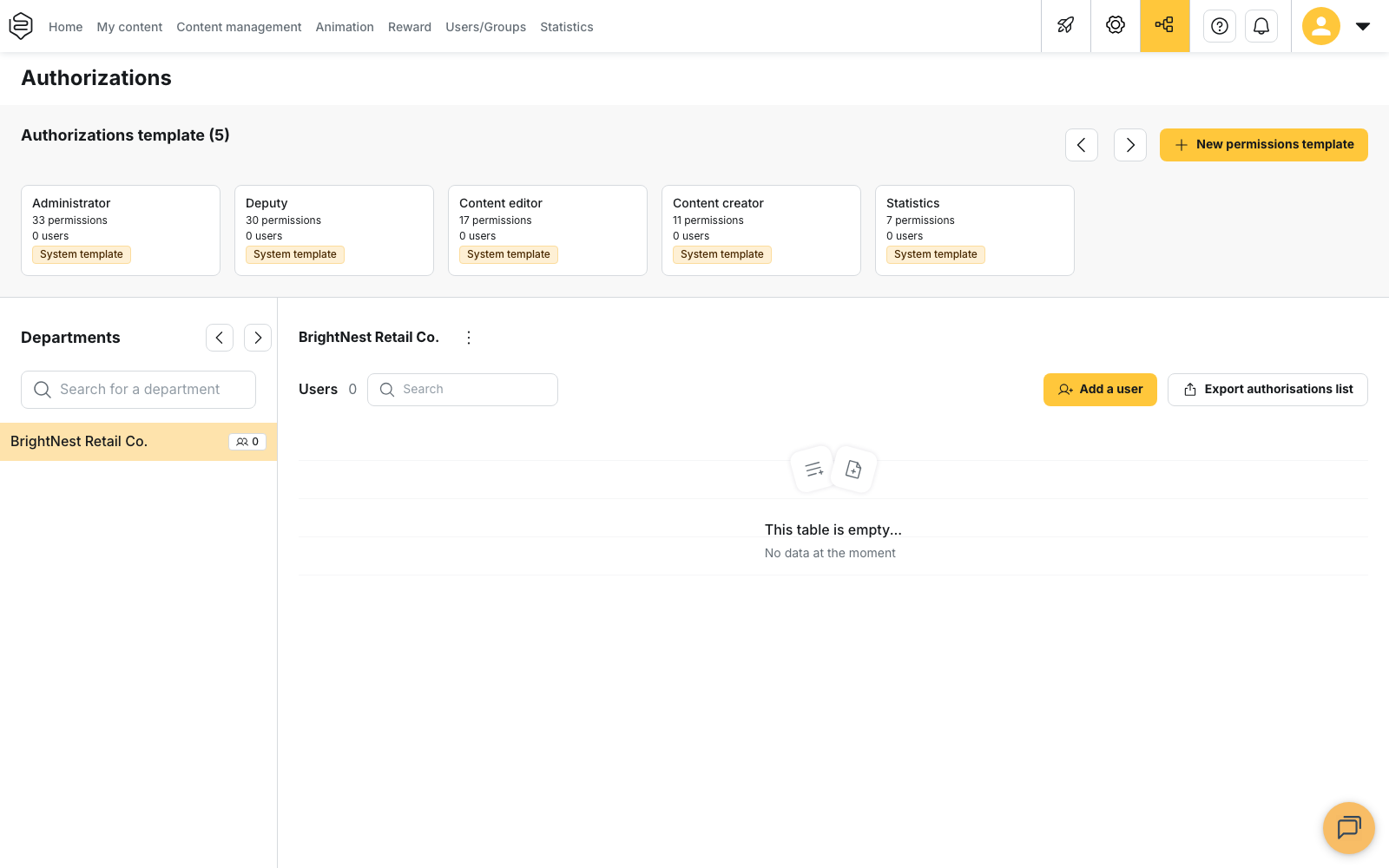
Everything happens on the Authorizations page, in the Departments tree on the left.
Each row of the tree has a menu that opens the actions available on that department:
- Add a department creates a department under the selected one.
- Edit department reopens the department form.
- Remove department deletes the department.
Edit department and Remove department are only offered on a department. On the top row, which represents your account, the menu offers Add a department alone.
A department already set as an academy is marked with an icon before its name in the tree. That is how you tell, at a glance, which departments are academies.
⚠️ Remove department does not only remove the department. The confirmation window, titled Delete this department, states it before anything happens: This action will delete all users in this department, including those in sub-departments, if any exist.
Creating a department as an academy
- In the department tree, open the menu of the department you want to place the academy under, then choose Add a department. The window opens under the title Add a sub department, because the new department is created below the one you selected.
- Fill in Name of the department. This is the only required field: Confirm stays disabled until it is filled in.
- Open Advanced Options and fill in Unique Id and External Id if your organisation uses them. Both are optional. The form checks that the name and the unique Id are not already used by another of your departments, and displays an error under the field if they are.
- Switch on This department is an academy.
- Select Confirm. The new department appears in the tree, marked with the academy icon.
💡 Where to find it?, next to the toggle, opens the Where to find academies? preview. A short looping video shows where a learner switches from one department to another in the application. Use it if you want to see the result before you switch the toggle on.
Turning an existing department into an academy
Edit department reopens the same form on an existing department. Switch This department is an academy on, then select Confirm.
The operation works in both directions: switch the toggle off and confirm, and the department goes back to distributing its content like any other.
What the toggle does not change
The toggle moves nothing. The department keeps its name, its users, its groups, its content and its authorisations. Only the way its content reaches learners changes: it becomes a universe learners enter, instead of arriving in their main feed.
Visual identity is not set here. A department’s logo and colours are configured on the Configuration page, using the Select a Department selector. A department without its own customization inherits the general one. See Visual identity: logo, colours and typography.
Before switching a department that already distributes content
On a department whose learners already receive content, the switch is immediate and visible to them: a selector appears on their home page, the department’s content moves inside the academy, and a Root account entry brings them back to the overall view.
Check the result through their eyes before you announce it: Signing in as one of your learners.
Going further
- Understanding academies: what an academy changes, and who it is built for.
- Switching between universes as a learner: what your learners see after the switch.
- Sharing a track across departments: feeding the academy without duplicating your common core.
- Academies, analytics and engagement: reading the results once the academy is open.