Sharing a track across departments: bookmarking or cloning
A group belongs to a single department, and a learning path cannot be distributed directly to a group in another department.
Share a learning path between departments: pin or duplicate
A group belongs to a single department, and a learning path cannot be distributed directly to a group in another department.
To share a learning path between departments, you can:
- Pin the learning path: access the learning path owned by the original department, which remains responsible for its content.
- Duplicate the learning path: create an independent copy that you can modify.
⚠️ Prerequisite: the account must be organized into departments, and cross-department sharing must be enabled by your Beedeez contact.
⚠️ Required permission: in the owning department, you must have the Authorized to edit learning paths permission to configure sharing.
Pin or duplicate: what is the difference?
| Pin | Duplicate | |
|---|---|---|
| Result | Access to the learning path owned by the original department | Creation of an independent copy |
| Changes made by the owner | Automatically reflected | Not reflected |
| Learning path content | Remains managed by the owner | Can be modified |
| Capsules | Remain those of the owner | Are copied |
| Distribution | You choose which groups can access it | You configure distribution for the copy |
| Reverting | Possible by unpinning | Not possible: the copy is independent |
Pin a learning path when it needs to remain identical across several departments, for example for safety, compliance, or core training content.
Duplicate a learning path when each department needs to be able to adapt it.
💡 Tip: if you are unsure, pin the learning path first. You can always create a copy later.
Allow sharing from the owning department
The owning department must allow sharing before a learning path can be accessed by another department.
- Open the learning path under Content management > Learning paths.
- Open the Information tab.
- Under Access to the learning path from other departments, choose:
- No sharing
- Allow sharing: allows pinning
- Allow duplication: allows duplication
- Allow all: allows both
To apply different rules depending on the department, select Configure by department. You can then define a specific sharing permission for each department.
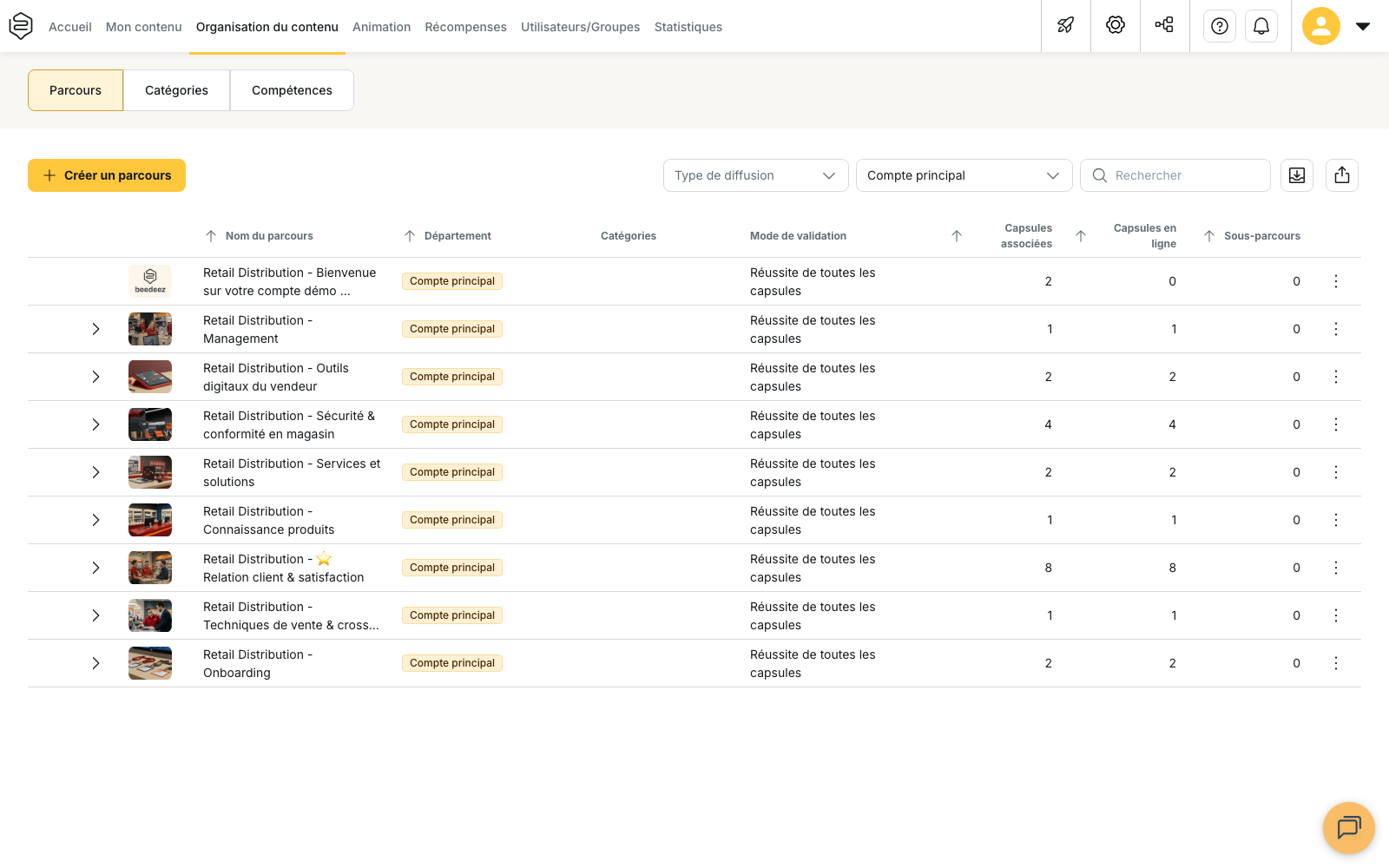
In the learning path list, the Access granted column shows the configured sharing level.
Retrieve a learning path from another department
From the learning path list, click Pin or duplicate from the library.
The library displays learning paths made available by other departments, along with their Department of origin and the available actions.
The button only appears when at least one other department has shared a learning path.
Depending on the situation, an action may be replaced by an indication:
- Cannot be pinned: pinning is not allowed
- Cannot be duplicated: duplication is not allowed
- Already duplicated: you already have a copy of the learning path
Manage a pinned learning path
A pinned learning path appears in your learning path list with an indication that it comes from another department.
You can only define which groups have access to it:
- Open the pinned learning path
- Under Groups with access to the learning path, select your groups
- Click Save
You cannot edit the title, description, content, or status of the learning path.
Groups already defined by other departments remain associated with the learning path. Your groups are added to them.
When the learning path is distributed through a campaign, the Groups with access to the learning path setting is not available.
Unpin a learning path
In Pin or duplicate from the library, the Unpin action replaces Pin for learning paths that are already pinned.
Unpinning removes the learning path from your list without deleting it or asking for confirmation. The groups you previously associated with the learning path remain configured.
⚠️ Remove your groups from the learning path and save before unpinning if you also want to remove their access.
What duplication copies
The copy includes:
- the title and description, including their translations
- sub-learning paths
- categories
- display order
- icons
- learning path type
- validation mode
- satisfaction survey
- campaign configuration
- enabled or disabled status
- capsules, including their status, position, and sequencing conditions
Three elements are not copied:
- the learning path’s distribution groups
- the sharing setting, which is reset to No sharing
- the External ID
Duplication runs in the background. The Duplicate button remains in a loading state until the operation is complete. The window then closes and the Learning path duplicated message appears.
⚠️ Do not restart the duplication or close the window during the operation. Only one duplication can be performed at a time.
Configure distribution after duplication
The duplicated learning path has no distribution groups. However, its capsules retain the groups from the original department.
The campaign configuration and recommendation groups may also refer to groups from the original department.
After duplicating a learning path, check:
- the learning path’s distribution groups
- the groups associated with its capsules
- the campaign configuration
- the recommendation groups
- the validation mode, especially when it is based on a selection of capsules