Reusing content and working with several authors
⚠️ Rights required : You need content editing rights to duplicate or edit a capsule. To add or manage a capsule’s authors, you also need permission to edit all content, not just your own.
Reusing content and working with several authors
⚠️ Rights required : You need content editing rights to duplicate or edit a capsule. To add or manage a capsule’s authors, you also need permission to edit all content, not just your own.
There are two ways to save time when creating content:
- duplicate an existing capsule to create a new one;
- work with several authors on the same capsule, with each person responsible for assigned notions
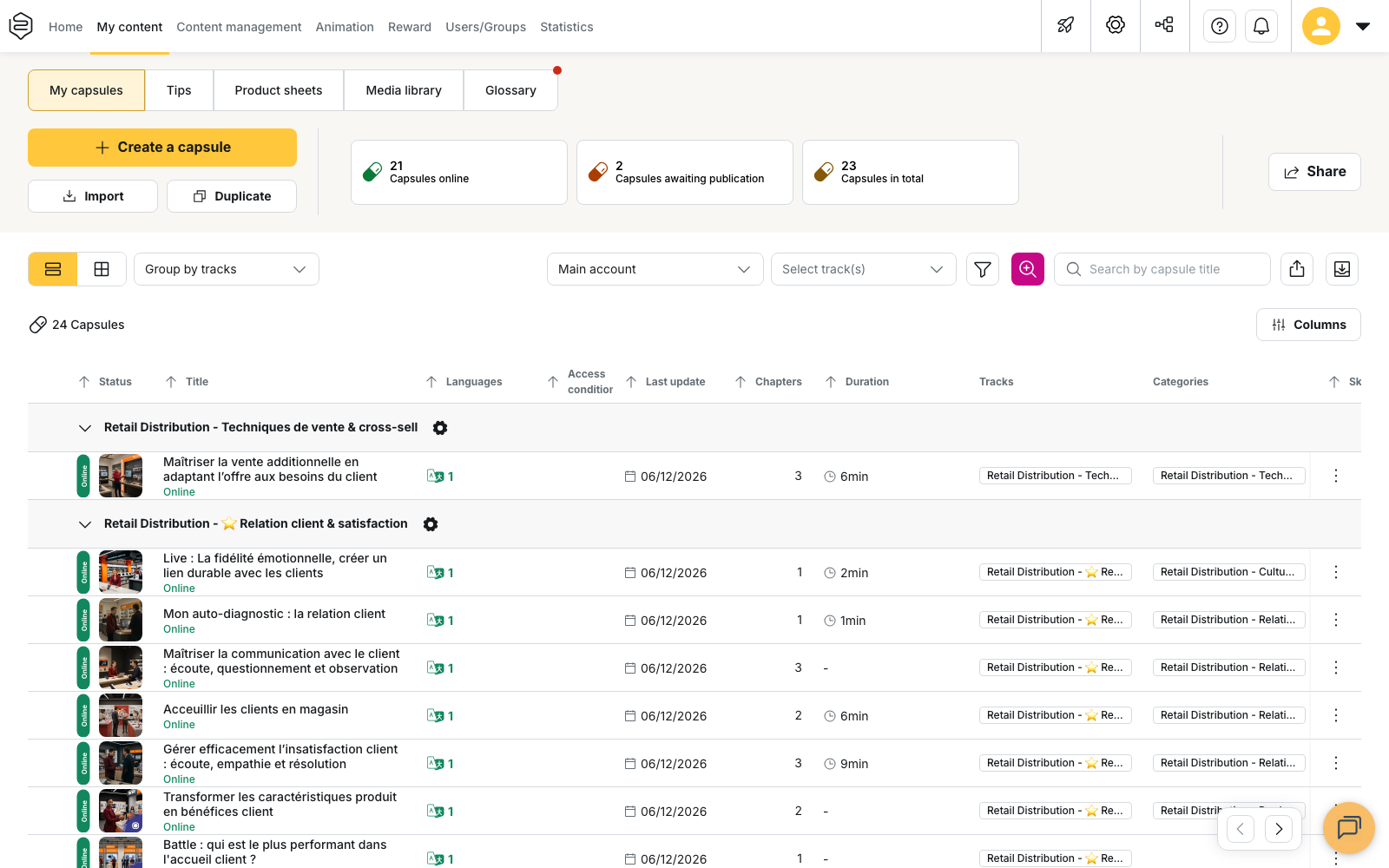
Both options are available from My content > My capsules
Duplicating a capsule
To duplicate a capsule from the list:
- Go to My content > My capsules
- Open the menu at the end of the capsule’s row
- Select Duplicate
A new capsule is created from the original and opens directly in the editor.
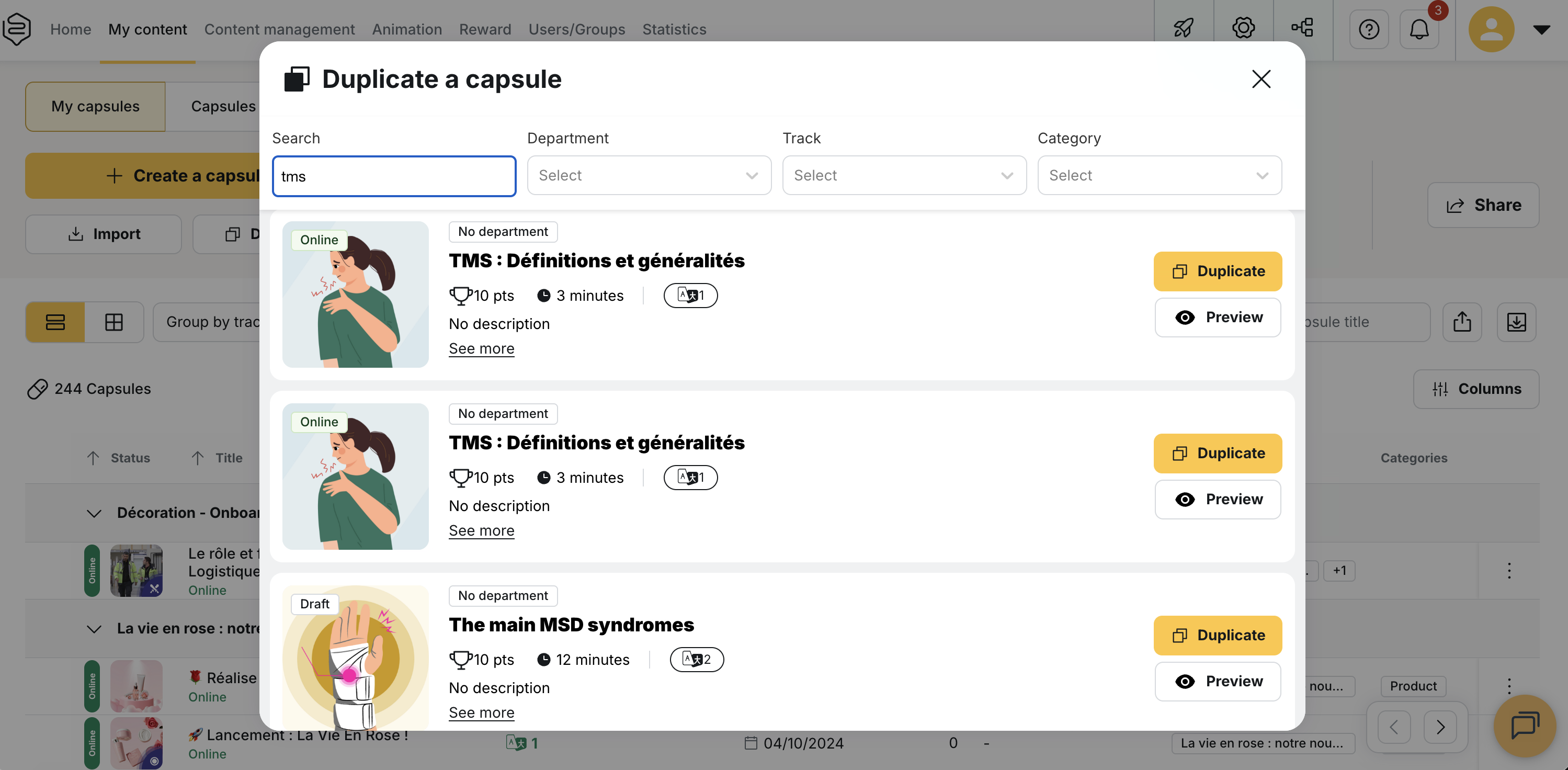
You can also select the Duplicate button above the capsule list. This opens the Duplicate a capsule window, where you can:
- search for a capsule;
- filter capsules by Department, Track, or Category;
- preview a capsule before copying it;
- duplicate a capsule available from another department, if your account uses departments
To create a capsule from a file instead, use Import. For more information, see Importing a capsule.
What the copy keeps
The duplicated capsule keeps:
- the notions and their content;
- the quizzes;
- the images and the other media;
- the categories, matched back by name.
What is reset
Some elements are not carried over to the copy:
| Elements | What happens in the copy |
|---|---|
| Title | It is replaced with the original title prefixed with [COPY - date] |
| Distribution | Tracks, groups, and distribution rules are removed. The capsule is not available to learners until you distribute it |
| Statistics | They start again from zero |
| Version history | It remains attached to the original capsule |
| Authors | The person who duplicates the capsule becomes its author |
| Access code | A new code is generated |
The copy is created with the status Awaiting publication. It is never published automatically, even when the original capsule is online. If the capsules you create go through a validation circuit, the copy goes through it too before it reaches learners. See Getting a capsule validated.
⚠️ A duplicate is independent from its original capsule. Changes made to the original are not applied to its copies. This matters on regulatory or frequently updated content. Each duplicate must be updated separately.
Duplicating or sharing?
Duplicating creates a new, independent capsule.
If another department needs to use the same capsule, rather than its own copy, use Bookmark. This keeps one shared source of content and avoids versions diverging over time.
Capsules can only be duplicated one at a time. Multi-select in the capsule list can be used to edit, publish, unpublish, or delete multiple capsules, but not to duplicate them.
Reusing a notion
You can also reuse a single notion without duplicating the whole capsule.
In the editor, select Import a notion. A panel opens with two tabs:
- Notion: to search among the notions that already exist;
- Tips: to search among the available tips
Select the content you want to add to your capsule.
The selected notion and its content are copied into your capsule. The original notion is not changed, and future edits to the copied version do not affect the source notion.
Working with multiple authors on the same capsule
Several authors can edit the same capsule at the same time.
To add authors, open the capsule editor and go to General > Author(s).
This also has an effect on access rights: an administrator restricted to their own content only sees the capsule in their list if they are one of the declared authors.
Authors are also notified when a learner opens a discussion on the capsule.
Identifying the other authors
When several authors are working in the same capsule, each of them sees the others present in the editor. Each person is identified by a colour. Edits appear progressively on the other screens.
To communicate without leaving the editor, use Author conversation, in the panel on the right-hand side.
Notions are locked while they are being edited
To prevent two authors from editing the same notion at once, a notion is automatically locked while someone has it open.
It greys out, with a padlock in place of the opening arrow. The following message identifies the person editing it:
The notion is locked because {alias} is editing it
While a notion is locked, other authors cannot edit its content, its title, its image or its summary.
The lock is released automatically when the author:
- closes the notion;
- leaves the editor;
- closes their browser, including when it closes unexpectedly
Saving changes
⚠️ Saving applies to the entire capsule, not just to the notion you are editing
Notions are locked individually, but a save affects all content in the capsule. If several authors save changes in succession, the most recent save can overwrite earlier changes without warning. Agree in advance on who will save the capsule.
Reordering the notions
Drag-and-drop reordering is disabled whenever another administrator is present in the capsule.
To reorder notions, make sure you are the only person currently in the editor.
If the connection drops
If the connection is interrupted while you are working, the Lost connection window appears.
You can then choose Reload page or Leave editor.
Until the page is reloaded, the changes you make no longer reach the other authors present in the capsule.
Good practice for working with several authors
To avoid conflicting edits:
-
Split the notions between yourselves rather than the capsules. The lock applies to a notion, so several authors can work on different notions at the same time
-
Close a notion when you have finished with it. That releases the lock and lets another author step in
-
Agree on who saves. This helps prevent one author’s save from overwriting another author’s changes
Going further
- Importing a capsule: create a capsule from a file rather than from existing content
- Sharing content between departments: use Bookmark to keep a single shared source, or Clone to create an independent version
- Version history and restoring: understand what can be recovered after changes have been overwritten
- Assigning rights: learn why administrators with access to their own content only must be listed in Author(s) to access a capsule