Version history and restoring
Required permissions: you need editing rights for the capsule.
Version history and restoration
Required permissions: you need editing rights for the capsule.
History allows you to recover a previous version of a capsule that still exists in your space.
Restoration allows you to recover a capsule that has been deleted.
In both cases, the recovered content is not automatically published again. You must save it and then republish it to make it available to learners again.
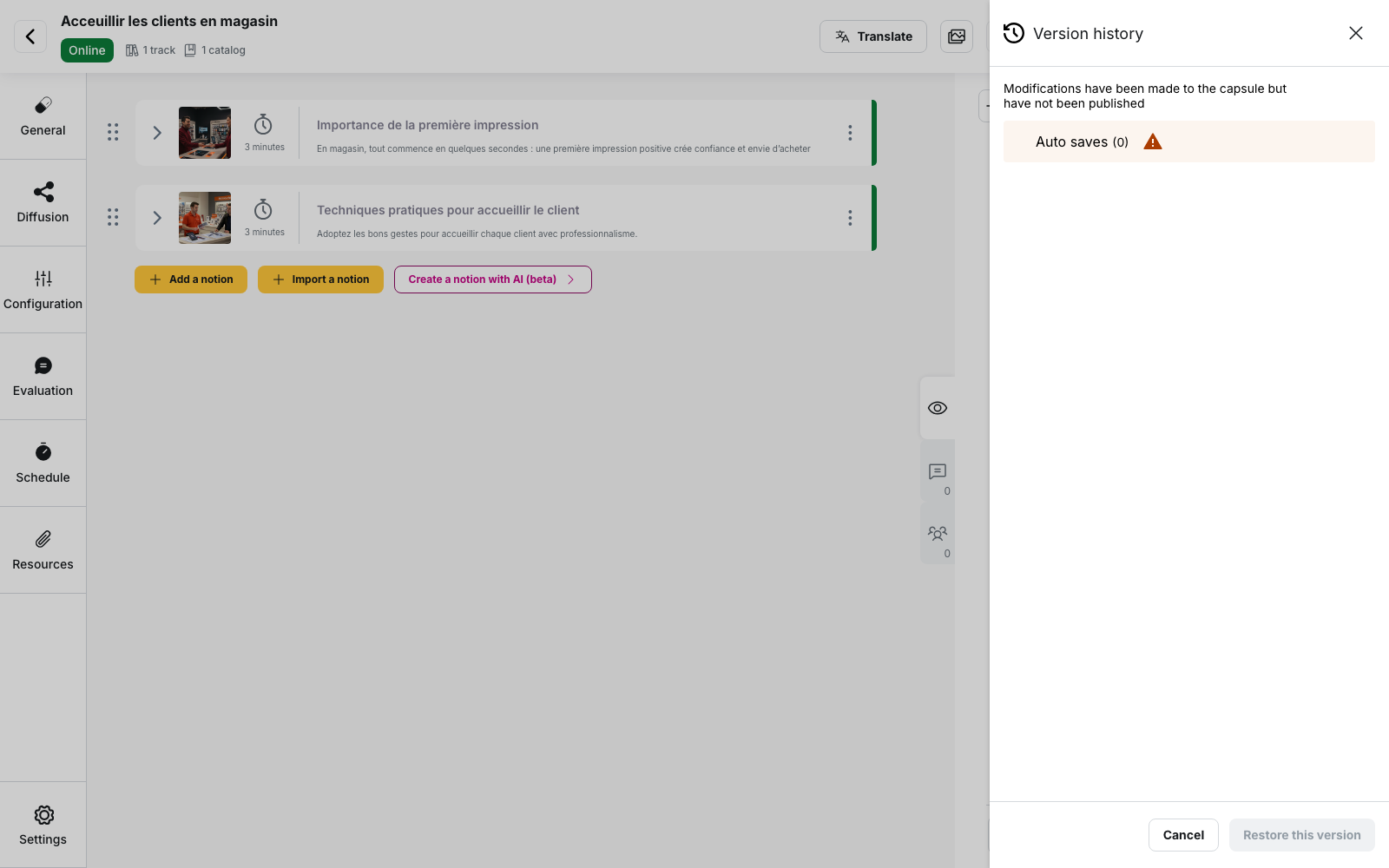
View version history
To open the history, open the capsule in edit mode, then click History at the top of the screen.
The Version history panel displays two types of information:
- Automatic saves
- versions corresponding to previous saves of the capsule
Automatic saves
The Automatic saves section groups changes made since the capsule was last saved.
The number of changes concerned appears in parentheses.
You can expand this section, but it is not a version that you can recover. These changes correspond to what you have done since the last save and are used by the Undo and Redo buttons next to Update capsule.
💡 Good to know: unsaved changes are not necessarily lost if you close the editor. When you reopen the capsule, Beedeez may reapply changes that had not yet been saved.
Saved versions
Below the automatic saves, the history displays the capsule’s previous saves, from most recent to oldest.
The most recent version is marked Currently deployed version. Previous versions appear as Publication on followed by their date.
Expand a line to see the changes included in that save, along with their time and author.
⚠️ A capsule that has never been saved since it was created has no dated version.
Understand what a version can recover
A dated line represents a save, not the exact state of the capsule at that date.
When you select a version and click Recover this version, Beedeez restores the capsule to the state it was in just before the selected save.
In other words, to recover the content corresponding to a specific date, select the line just above that date.
Example
Imagine that the capsule was saved on May 3, 5, and 8.
The history displays:
- Currently deployed version: saved on May 8
- Publication on May 5
- Publication on May 3
In this case:
- Publication on May 5 recovers the content as it was after the May 3 save
- Publication on May 3 recovers the content that existed before the first save
- the content corresponding to the May 5 save cannot be recovered directly because the line representing it is Currently deployed version, which cannot be selected
💡 Good to know: recovering a version and then saving it creates a new entry in the history. Previous versions are not deleted, so the recovery itself can be undone by recovering an earlier version.
Recover a previous version
To restore a saved version:
- Open the capsule in the editor
- Click History
- Select the version you want
- Click Recover this version
- Check the recovered content in the editor
- Click Update capsule to save the changes
- Republish the capsule if you want learners to see this version
⚠️ Recovering a version does not publish the capsule. The content is only restored in the editor. It must then be saved and published separately.
See Publish and unpublish a capsule.
What recovering a version does not change
Learner data is preserved
Recovering an earlier version does not reset learner data.
Completions, scores, and statistics remain unchanged, including those obtained on a version of the content that you have just replaced.
A version cannot be previewed from the history
The Version history panel does not allow you to view the content of a version before recovering it.
If you only want to view a saved version without changing the capsule, use the preview link and its Version to share setting.
See Test a capsule before publishing it to everyone.
Watch for changes waiting to sync
A counter may appear below the History button with the message sync pending.
This means that some changes have not yet been sent to the server.
⚠️ These changes are not yet available in the history and cannot be recovered from it.
Wait until the counter disappears before closing the tab to make sure your latest changes have been synchronized.
Restore a deleted capsule
History only applies to capsules that still exist in your space.
If you have deleted a capsule, you may be able to find it in the list of deleted capsules.
Open See deleted capsules to access the Restore capsules screen.
The most recently deleted capsules appear first.
You can also search for a capsule or filter the list by learning path.
To restore a capsule:
- Select the capsule you want to recover
- Click Restore or Restore selection
- Confirm the restoration
What is the status of a restored capsule?
⚠️ The confirmation window refers to a “draft”, but the restored capsule actually returns with the status “Awaiting publication”.
In any case, it remains invisible to learners until you republish it.
See Publish and unpublish a capsule.
Where can you find the restored capsule?
The capsule keeps its association with the learning path or learning paths it belonged to when it was deleted.
If it was not associated with any learning path, you can find it under No associated learning path.
How long can a deleted capsule be restored?
⚠️ Deleted capsules are not available in the restoration list indefinitely.
The retention period depends on the retention setting configured on your platform. It is six months by default.
Once this period has expired, the capsule no longer appears under Restore capsules and cannot be restored from the back office.
💡 Tip: if you are unsure whether to delete a capsule, consider unpublishing it instead. An unpublished capsule can be republished directly, without using the deleted capsules list or depending on a retention period.
History or restoration: what is the difference?
These two features serve different purposes:
| You want to… | Use… |
|---|---|
| Return to an earlier version of an existing capsule | History |
| Undo recent unsaved changes | Undo or Redo |
| Recover a capsule you deleted | Restore |
| Keep a capsule without making it available to learners | Unpublish |
In all cases, make sure to check the recovered content before republishing it.