Memos
Prerequisite: the Tips feature must be enabled on your account. Without this feature, the Tips tab does not appear under Content.
Mémos
Prerequisite: the Tips feature must be enabled on your account. Without this feature, the Tips tab does not appear under Content.
Required permission: you need the Create and edit tips permission.
A mémo is a short piece of content that learners can consult when they need to quickly find information or a reminder.
⚠️ To create a mémo, create a tip, then choose the format that best suits your needs.
In most cases, a mémo will be created as an Information tip. If the reminder already exists as a file, you can also use a Document tip.
See: Why can’t I see this feature? / Tips and their variants / Assign permissions
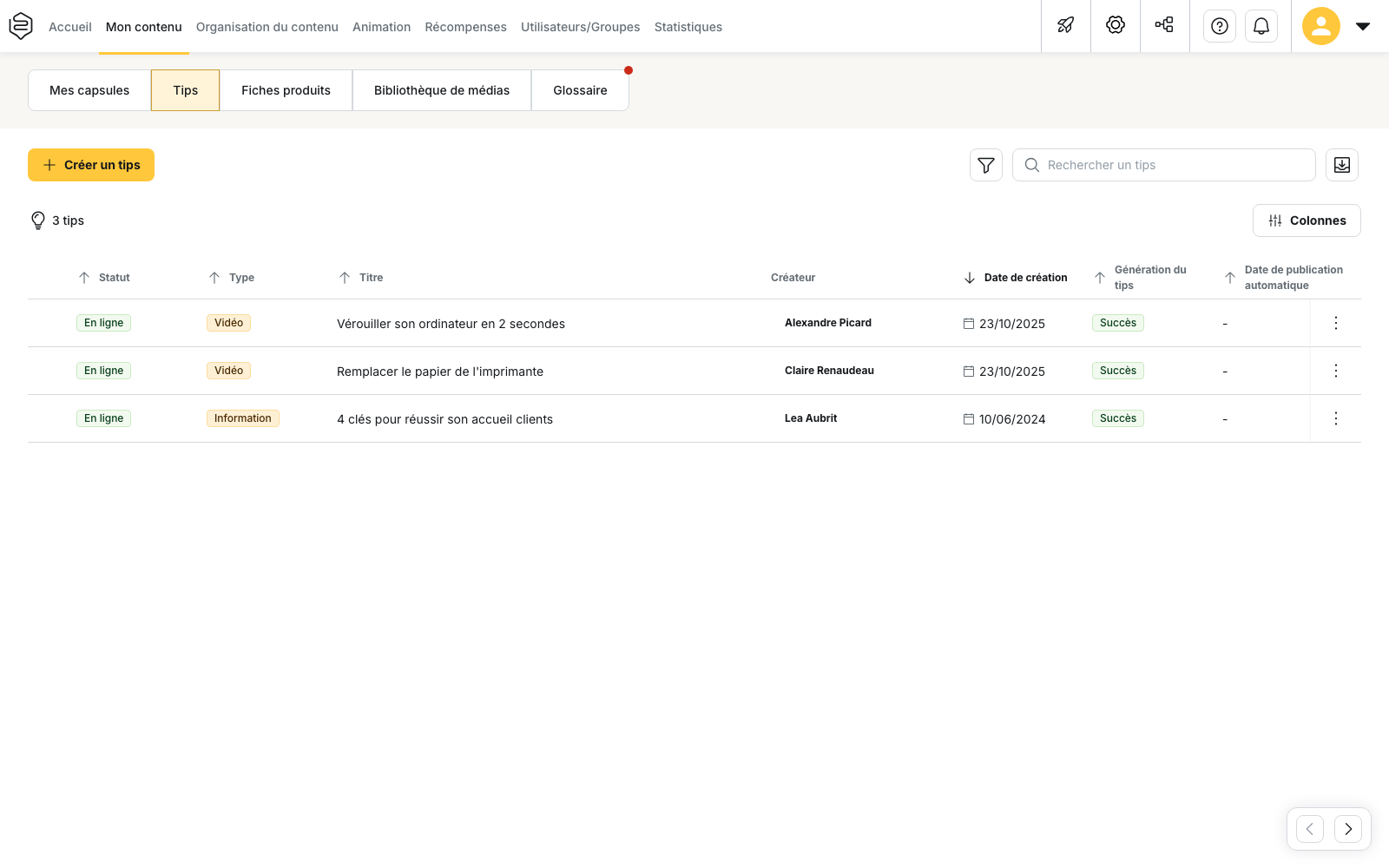
Choose the mémo format
From Content > Tips, click Create a tip.
Four tip types are available:
- Information tip
- Question tip
- Video tip
- Document tip
The selected type determines the format of the content you can create and how it will be displayed in the application.
⚠️ The type is permanent. It is selected when the tip is created and cannot be changed in the editor. The selected type is displayed in the Type column of the tips list.
If you want to turn an Information tip into a Document tip, for example, you must create a new tip.
Which format should you choose?
For a mémo, we recommend:
- Information tip for a reminder written directly in Beedeez
- Document tip when the information already exists in a PDF document
The other formats are designed for different purposes:
- Question tip to ask learners a question
- Video tip to share information in video format
What does the tip type change?
The tip type mainly determines three things:
- the available editor and therefore the content you can add
- how the tip can appear in the learner feed
- the rules allowing learners to publish this type of tip themselves, configured under Social Learning > User content
⚠️ However, the type does not change the content distribution rules.
Groups with access to the tip, categories, associated skills and statistics work in the same way for the different tip types.
Make your mémo easy to find
A mémo is most useful when learners can find it when they need it.
Two elements are particularly important: the title and categories.
Choose a clear title
The title is used in learner-side search, just like capsule titles.
💡 Tip: use the words learners are actually likely to use when searching for the information.
For example, prefer:
What should I do if a valve is leaking?
over a purely internal title such as: Instruction 4.2
The first title makes it easier for learners to find the content when they encounter the relevant situation.
Use categories
Categories help organize the mémo so that it can be found more easily.
In the application, learners can filter tips by category and skill.
See Categories.
The approval workflow
Tip approval applies to content that learners can create from the application.
Under Social Learning > User content, each tip type has its own Tips requiring approval setting.
When this option is enabled for a tip type, content created by a learner using that format is given the Awaiting approval status.
It remains invisible to other learners until an administrator publishes it.
The administrator can then set it to Online or Rejected.
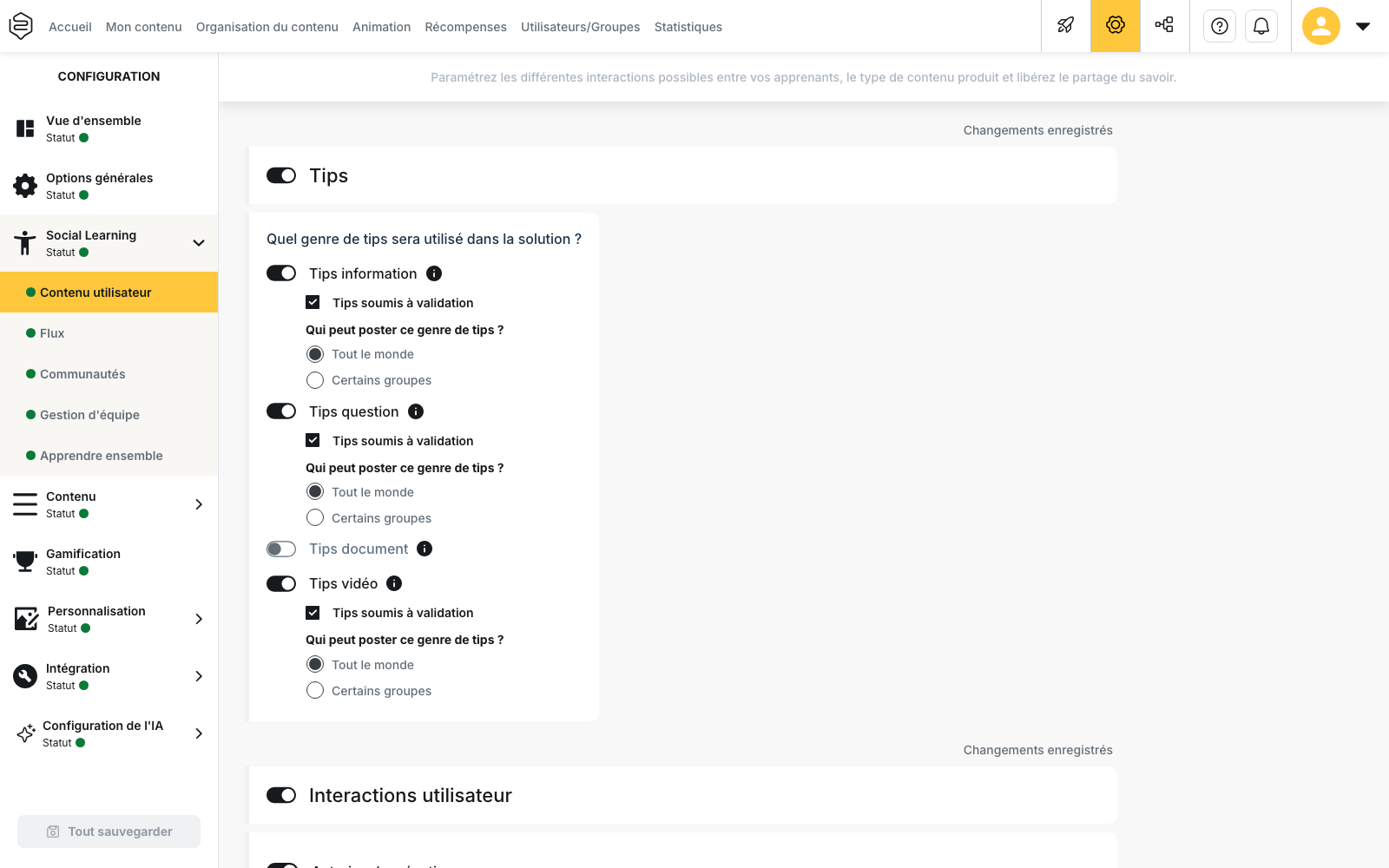
Understand tip statuses
From the Content > Tips list, the Filter by status filter lets you find content according to its status:
- All tips
- Online
- Awaiting approval
- Rejected
⚠️ The “Rejected” status does not necessarily mean that the content was rejected during an approval process. A tip that was already published also receives this status when it is unpublished.
An automatic unpublication produces the same result.
A tip that has never been published does not display any status. The corresponding cell remains empty.
💡 A mémo listed under Rejected tips may therefore simply have been unpublished.
Put a mémo back online
A mémo that has been rejected or unpublished can be published again.
From Content > Tips:
- Find the mémo in the list.
- Click Publish tip on its row.
The mémo then becomes Online again and receives a new publication date.
⚠️ Editing the content is not enough to put a mémo back online.
If the tip is offline, you must use Publish tip to make it visible to learners again.
What to know about approval
⚠️ The approval workflow only applies to tips created from the learner application.
A mémo created from the administration platform does not go through the Awaiting approval status.
It simply remains invisible to learners until it is published.
When you use Publish tip, it becomes Online directly.
What Mémos cannot track
No proof of consultation
A tip is not a learning activity.
It therefore does not generate completion data and cannot be included in a learning path to verify that a learner has completed the content.
You can still find certain interactions with the tip in the statistics, such as views, reactions, comments or shares.
⚠️ If you need to demonstrate that information has been completed or understood, use a capsule included in a learning path with completion tracking instead.
No version history
Tips do not have version history.
When you edit a mémo and save it, the existing content is replaced by the new version.
You therefore cannot retrieve an older version of the text from the editor.