Adding Edflex content to a capsule
⚠️ Prerequisites: the Edflex option opened by Beedeez on your account, and an active Edflex contract. The four connection credentials come from Edflex.
Adding Edflex content to a capsule
⚠️ Prerequisites: the Edflex option opened by Beedeez on your account, and an active Edflex contract. The four connection credentials come from Edflex.
⚠️ Rights required: Update customization to reach the account configuration, and your usual capsule editing rights to place the content.
What the integration does
Edflex aggregates training content produced by third-party publishers. The integration does two things: it gives the author a search engine over the resources your Edflex contract gives access to, and it plays the selected resource inside a capsule, connecting the learner to Edflex without any sign-in.
The author selects one resource at a time and places it in a notion like any other card. No content is imported in bulk into Beedeez, and the learner never browses the Edflex library: they only see what an author has placed in a capsule.
Enable and configure Edflex
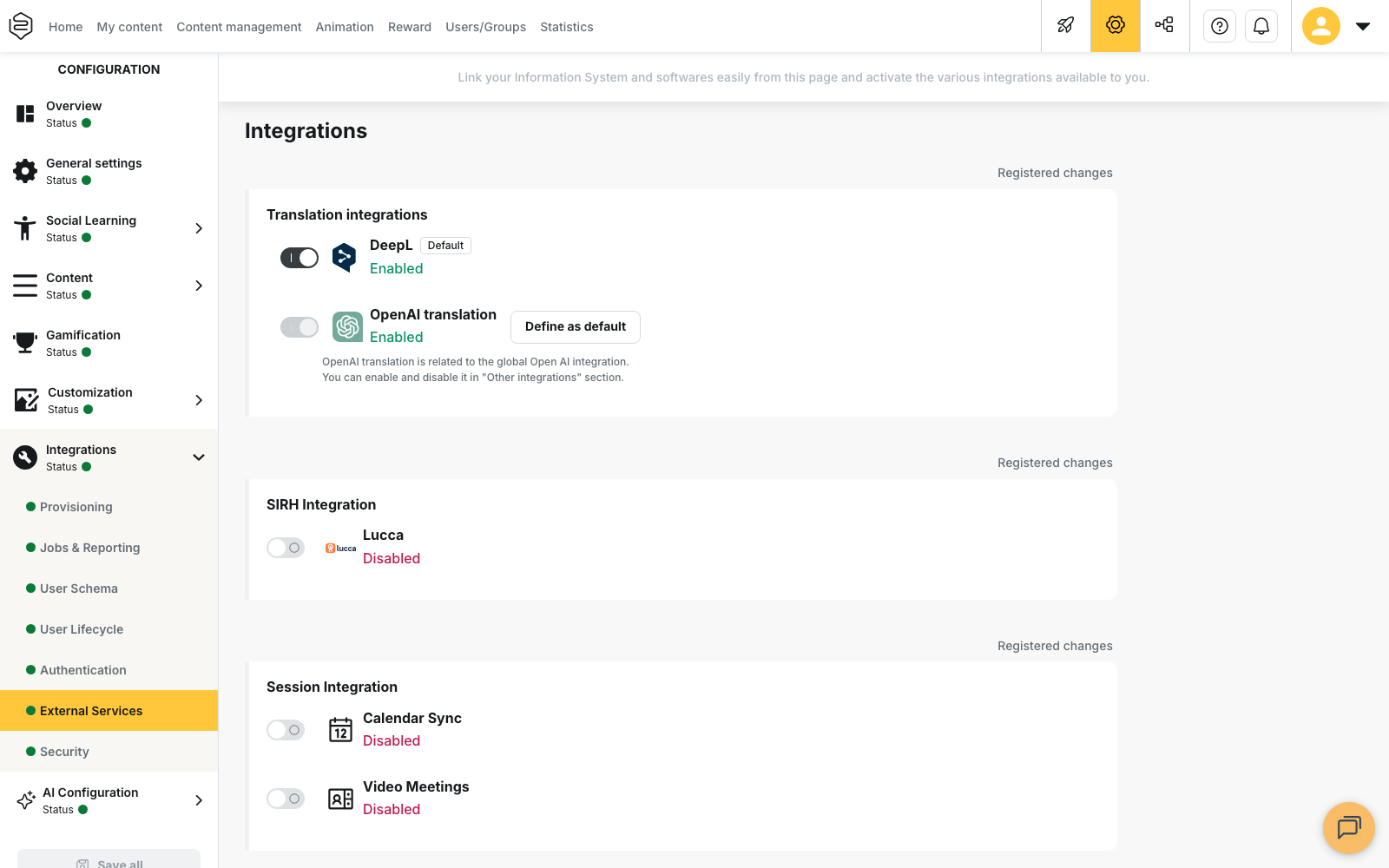
Open Configuration > Integrations > External Services, then the Other integrations section.
- On the Edflex row, switch the button from Disabled to Enabled. The Edflex Configuration button then appears on the row.
- Click Edflex Configuration. The modal opens with four fields, all provided by Edflex:
- Application URL, whose expected format is shown as placeholder text:
https://beedeez.edflex.com/; - Application Id;
- API Password;
- JWT SignKey.
- Application URL, whose expected format is shown as placeholder text:
- Click Validate. On success, the message The connection to the EdFlex account has been established. appears and the modal closes. On failure, the message It looks like the account information is not correct. Try again. appears and the modal stays open.
- Click Save all at the bottom of the configuration page. Until you do, the configuration is not applied.
A successful Validate also sets the Edflex row back to Enabled if you switched it off in the meantime.
💡 Tip: ask your Edflex contact for the four values before you start. They cannot be obtained from Beedeez, and waiting for them can delay your go-live.
What the Validate button checks
The test covers the Application URL, the Application Id and the API Password. The JWT SignKey is not checked.
An incorrect signing key therefore still produces the message The connection to the EdFlex account has been established., still lets the author select resources normally, and only fails when a learner opens the content.
⚠️ After filling in the modal, test a capsule with a real learner account. A successful Validate only proves three of the four fields.
Place a resource in a capsule
In the capsule editor, when you add a card, choose the type Edflex Content.
⚠️ This type only appears in the list if the Edflex option is open on your account, the Edflex row is enabled and a successful Validate has been saved. As long as one of these three conditions is missing, the type is absent, with no explanatory message.
The search screen offers a search field, a Catalog list displayed only if your contract exposes several of them, and a Categories list.
Results are displayed in pages of twelve resources, which you browse with the pagination buttons below the list. When no resource matches, No result found is displayed.
Open a result to see its detail, with its Description and its Syllabus, then choose Choose another resource or Add to notion. Once the card is placed, the Choose another resource button lets you replace the resource.
⚠️ The screen displays the following warning: Warning, some EdFlex content may not be optimized for mobile devices. Please check the content before adding it to your capsule. Open the resource on a phone before selecting it.
Distribute the capsule
The Edflex card lives in an ordinary capsule: the capsule is what you distribute, with your usual rules, and what you add to a track. There is no distribution screen, filter or column specific to Edflex anywhere else in the back office.
What the learner sees
The resource opens inside the capsule, full screen, served by Edflex. The learner has nothing to enter: Beedeez identifies them.
In a browser, the embedded display requires third-party cookies to be allowed. Otherwise, the app displays the corresponding message and offers Access resource from another tab: the resource then plays outside Beedeez.
Moving to the next card stays blocked until Edflex reports the resource as completed.
⚠️ The resource is served by Edflex when it is opened. A learner without a connection cannot consult it. See Offline mode.
What Edflex reports in the analytics
The signal returned by Edflex is only used to unlock the next card. It does not become a score or a success.
No score, duration or assessment from Edflex is recorded in Beedeez. The completion and success displayed remain those of the capsule, established from its own cards and its own quiz. As with any external content, Beedeez does not recalculate what the learner app declares to it: see Reporting completion from a third-party tool.
The capsule therefore reads like an ordinary capsule, with its Completion rate and Success rate. There is no column, no filter and no export specific to Edflex, either in the analytics or in the capsule list.
The limits of the integration
- No synchronisation. No scheduled job, no periodic import and no update button refreshes the resources. What the author selected is copied into the capsule at the moment of selection. A title, a duration or an image changed at Edflex keeps its former value in the capsule.
- No automatic removal. A resource that leaves your Edflex offer is neither deleted, nor greyed out, nor flagged. The capsule still carries it, and the learner discovers that it no longer opens.
- No exposure filter. You do not set what the account makes visible: you select one resource, once, in a card. The Catalog and Categories lists filter the author’s search, not what learners see.
When the credentials or the contract expire
Beedeez does not detect this expiry. No alert and no deactivation is triggered: the integration is still displayed as valid, and the Edflex Content type is still offered in the editor.
The search, however, returns the message An error occurred while fetching the content. Please try again later., and the resources already placed stop opening for learners. At the end of a contract, capsules keep their Edflex cards, with no content to consult. Replace those cards before the deadline, capsule by capsule: no screen lists them.
Going further
- External content sources: the generic building block, for a provider that is not already connected.
- Activity formats: where Edflex Content sits among the other card types.
- Reporting completion from a third-party tool: the result feedback that Edflex does not provide.
- Content analytics: the indicators carried by the capsule that holds the card.