Challenges
Alongside points, badges and battles, learners have two ways to challenge themselves on their own: Sprint and Memorize. Neither has settings of its own in the back office. What you configure is what brings the learner back to them. See Gamification and engagement.
Challenges
Alongside points, badges and battles, learners have two ways to challenge themselves on their own: Sprint and Memorize. Neither has settings of its own in the back office. What you configure is what brings the learner back to them. See Gamification and engagement.
Sprint and Memorize ship with the app. They can be removed from it on request to Beedeez, both together and never one without the other.
⚠️ Rights required: access to Configuration to publish the feed widget, and Can send / edit notifications and emails to send the notification. See Assigning rights.
Sprint: learning for a chosen stretch of time
The learner sets a slider between 5 and 25 minutes, in steps of 5, then starts the session. A countdown stays visible at the top of the capsule, and the Sprint stops when the time runs out.
Sprint chains capsules the learner has not completed yet, in their display order. It leaves out four families:
- capsules whose play mode is Battle mode;
- capsules limited to a single attempt, so those where Limit the number of attempts is set to 1;
- capsules carrying This capsule has a minimum time limit.;
- capsules that are not Always visible and accessible, so those gated by a visibility or activation condition.
A capsule that allows several attempts without being unlimited stays eligible.
If no capsule meets these conditions, the app shows a message instead of opening the Sprint screen.
Memorize: replaying quizzes already seen
The platform re-asks questions drawn from the quizzes of capsules the learner has already completed at least once. The learner sets a duration, then picks Random quizzes to start straight away, or Filter quizzes to narrow the questions down to one or more categories.
Each correct answer is worth one point, added to the learner’s total in the same way as capsule points. See Points and avatars.
Survey and diagnostic questions are never included in a memorization session.
If the learner has not yet completed a capsule containing at least one quiz, the app shows a message instead of opening the memorization screen.
Where the learner finds them
On a phone, two round buttons sit either side of the avatar on the home screen: Sprint on the left, Memorize on the right.
⚠️ On a phone, AI Agents take Sprint’s place. When AI Agents are available on the account, the left-hand button becomes AI Agents. Sprint then has no entry point on the phone home screen; only Memorize stays visible.
On a large screen, the profile column to the right of the home screen shows Sprint and Memorize, and adds AI Agents above them when they are available on the account. On this screen the three coexist: AI Agents does not take Sprint’s place.
Bringing learners back to a session
Two settings lead the learner to a short session.
In Configuration > Social Learning > Feed area, select Add a widget, then Launch a memorization to publish a card in the feed. Set a Frequency, which can be every day, every week on the days of your choice, or once a month, and a Time. See The feed.
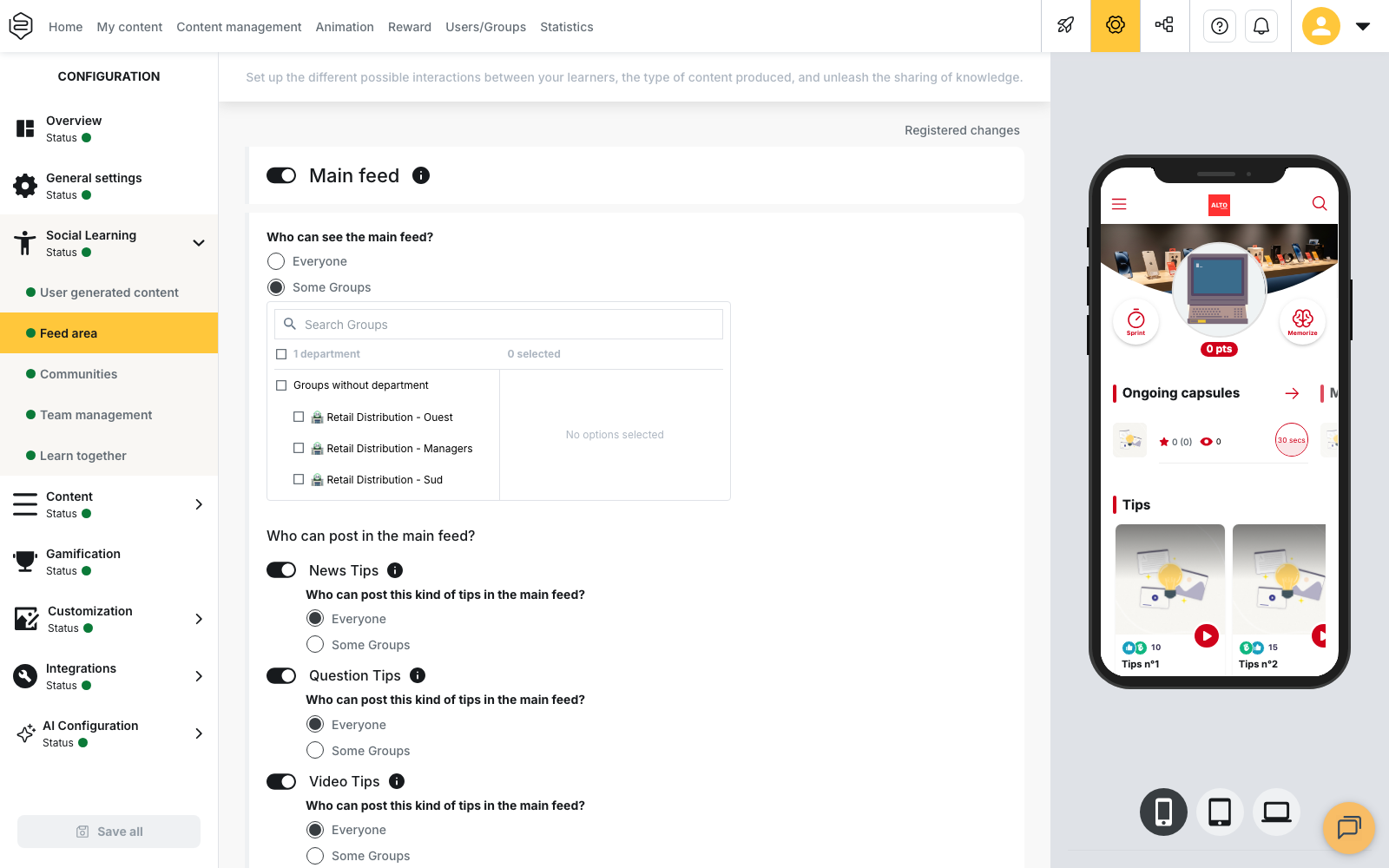
⚠️ The display time is stored in UTC. It is converted from your browser’s timezone when you save it. Because the stored time does not follow daylight saving, the widget appears an hour earlier or later for learners after a time change.
A notification can also take The memorization as its destination. It opens the revision screen directly, with no content to pick. See Notifications.
The action-widget block is only available at account level. When you work from an academy, it does not appear on the Feed area page: the memorization widget is set once, for the whole account.
What Sprint and memorization do not offer
Neither Sprint nor memorization can be scheduled, closed or reset. They have no start date, no end date and no dedicated ranking. The points won are added to the learner’s total and are never taken back.
To reward learners who come back regularly, use the badges in the Regularity category, activated in the badge grid. See Badges.
Going further
- Badges: the Regularity category rewards coming back.
- Points and avatars: where the points won in memorization go.
- The feed: the page where the widget that launches a memorization is set.
- Notifications: the other way to open the revision screen in one tap.