Configuring a simulation
A simulation puts the learner in a conversation with an AI persona, then scores that conversation against the objectives you define. You write it in the back office, try it there, and only then publish it to your learners.
Configuring a simulation
A simulation puts the learner in a conversation with an AI persona, then scores that conversation against the objectives you define. You write it in the back office, try it there, and only then publish it to your learners.
⚠️ Prerequisites: the AI Agents option opened by Beedeez, then, under Configuration › Content, the AI Agents enabled toggle and Simulation Agent ticked under Select which AI agents are available. Without the option the block does not appear; without the agent, neither does the tab you author in.
⚠️ Rights required: Can access the AI Agents tab. See Assigning rights.
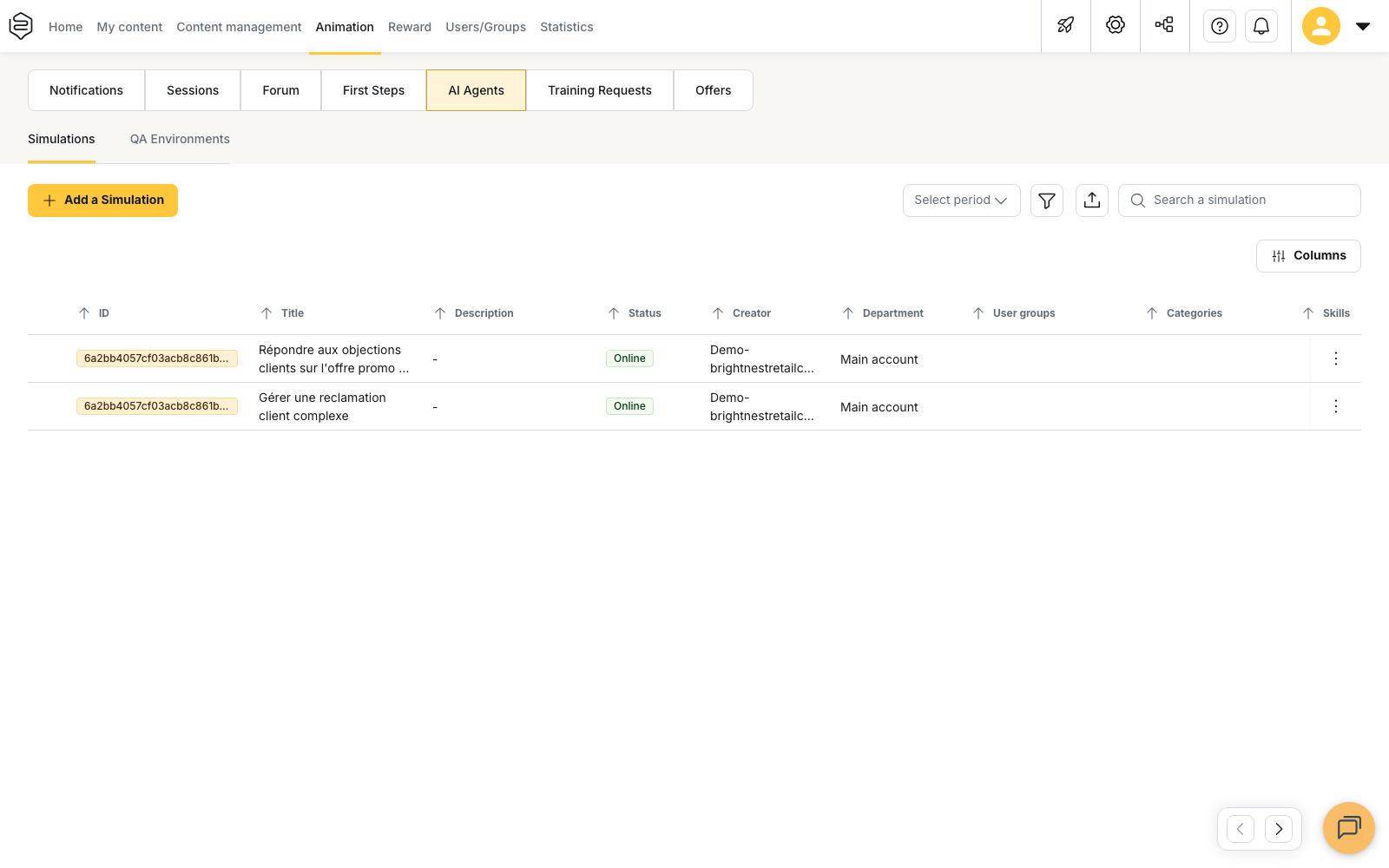
Authoring then happens under Animation › AI Agents › Simulations. Add a Simulation opens a wizard, and clicking a simulation in the list reopens Edit Simulation, a panel with five tabs: Subject & contents, Scenario, Learning objectives, Personas and Test.
Subject and contents
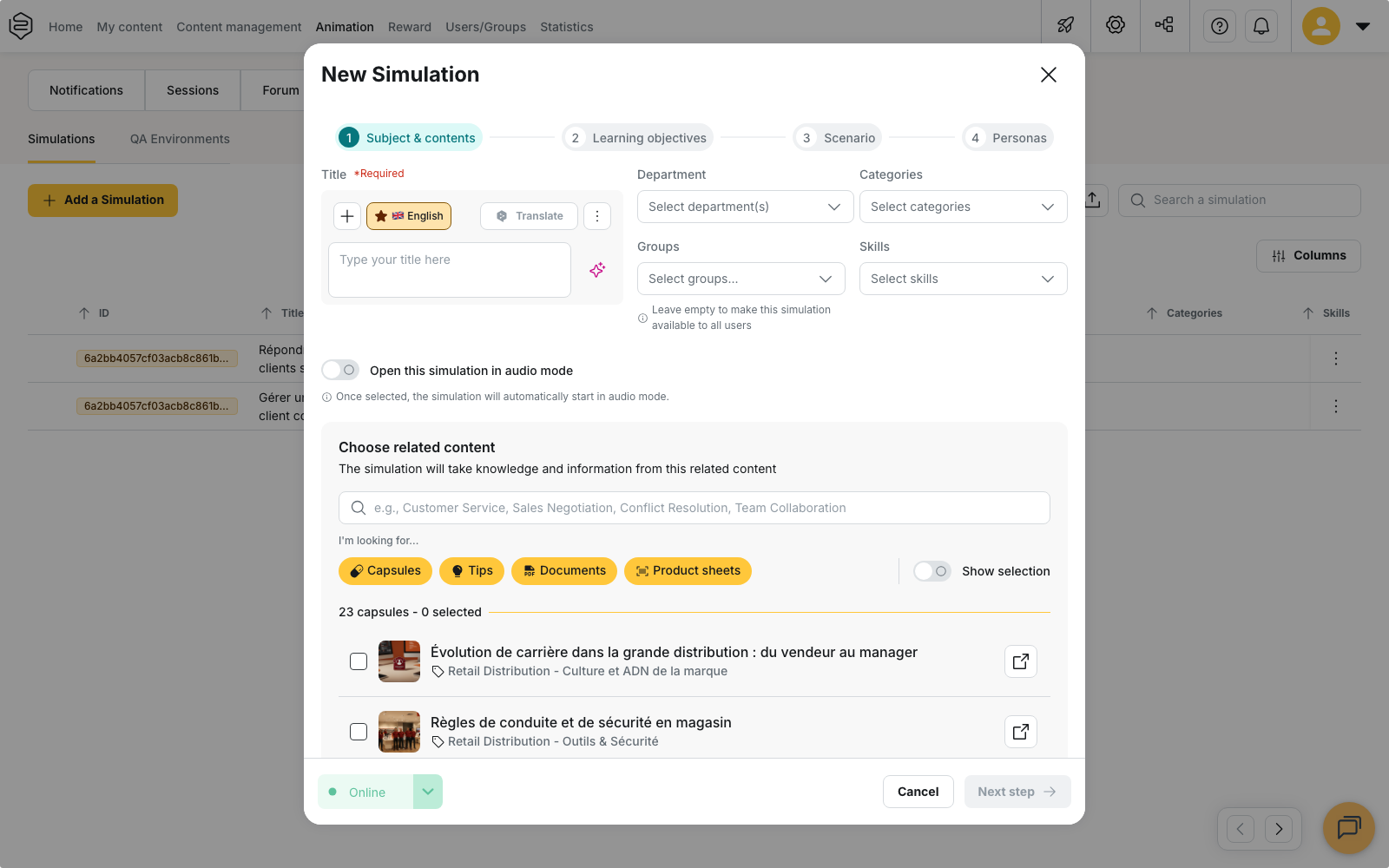
Title is required. Department, Groups, Categories and Skills file and distribute the simulation, and Open this simulation in audio mode starts it directly in voice. Choose related content is the second condition for moving on: you type a Topic, the list offers your capsules, your tips, product sheets and your PDF documents, and you keep at least one of them. The wizard footer lists whatever is still missing under Complete to continue:.
Scenario
Scenario is required: where the scene takes place, and what has just happened. Learner instruction is the text shown before the start; left empty, it is written from the scenario. Do’s and Don’ts collect your guidelines, one per line. Tutor coaching style is a four-position slider: Immersive (no tutor interruption during the simulation), Light, Balanced, Supportive (deliberately very present, interruptions are frequent). Offensive content triggers the tutor whatever this setting says.
Learning objectives
This tab holds two things: your list of objectives on the left, and the settings of the one you selected on the right. Add learning objective creates one, and the handles on the left of each row let you drag them into another order.
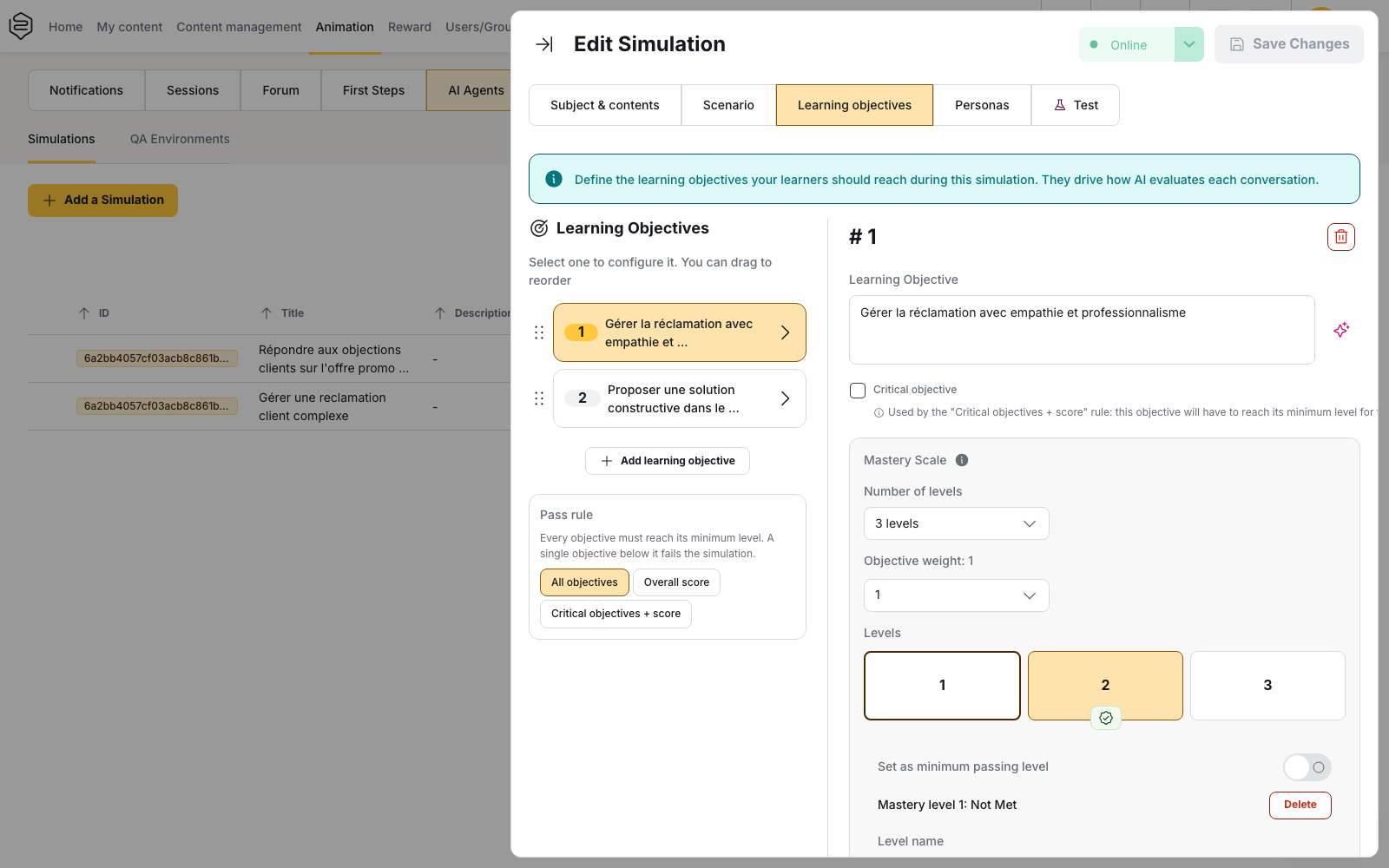
Each objective is written as one sentence in the Learning Objective field, then tuned in its Mastery Scale block: a Number of levels from 2 to 5, an Objective weight as a whole number from 1 to 10 relative to the other objectives, and for each level a name, a descriptor and examples. The Set as minimum passing level button marks the level to reach.
At the end of a conversation, each objective is placed on a level. The overall score is the average across objectives, weighted by their Objective weight and brought back to 100.
Choosing the pass rule
The Pass rule card, below the list of objectives, decides what makes the simulation a pass or a fail. The three rules are exclusive: you pick one.
- All objectives: every objective must reach its minimum level. A single objective below it fails the simulation.
- Overall score: only the weighted score counts, and it must reach the threshold you enter.
- Critical objectives + score: the score must reach the threshold, and the objectives you marked as critical must also reach their minimum level.
The last two rules reveal a threshold field, expressed as a percentage and capped at 100. A simulation on which you never open this card uses All objectives.
Marking an objective as critical
The Critical objective checkbox sits just below the Learning Objective field, before the Mastery Scale block. It is used only by the Critical objectives + score rule. Tick it on the objectives a learner cannot afford to miss: they will have to reach their minimum level even when the overall score would otherwise be enough.
⚠️ With the All objectives and Overall score rules, this checkbox changes nothing. A ticked objective stays without any particular effect until you choose Critical objectives + score.
Personas
The persona is who the learner faces.
It carries a Persona name, a Voice (with an audible preview) and six fields: Persona profile and goals, Interests and expectations, Situation summary, Persona’s initial request (the line the conversation opens on), Facts to give when asked and Possible objections.
⚠️ A persona whose fields are poorly filled or left empty answers at random.
Automatic persona selection decides whether the learner gets to choose: on, a persona is drawn at random at launch; off, the learner picks one among all the personas attached to the simulation.
You can also bring a persona over from another simulation with Import persona, and build on the ones you have already written.
Test
The Test tab plays the simulation from the back office, without going through a learner account.
⚠️ The Personas and Test tabs stay inactive until the simulation is saved with a filled-in scenario. Complete the earlier tabs and save from the panel header, then come back here.
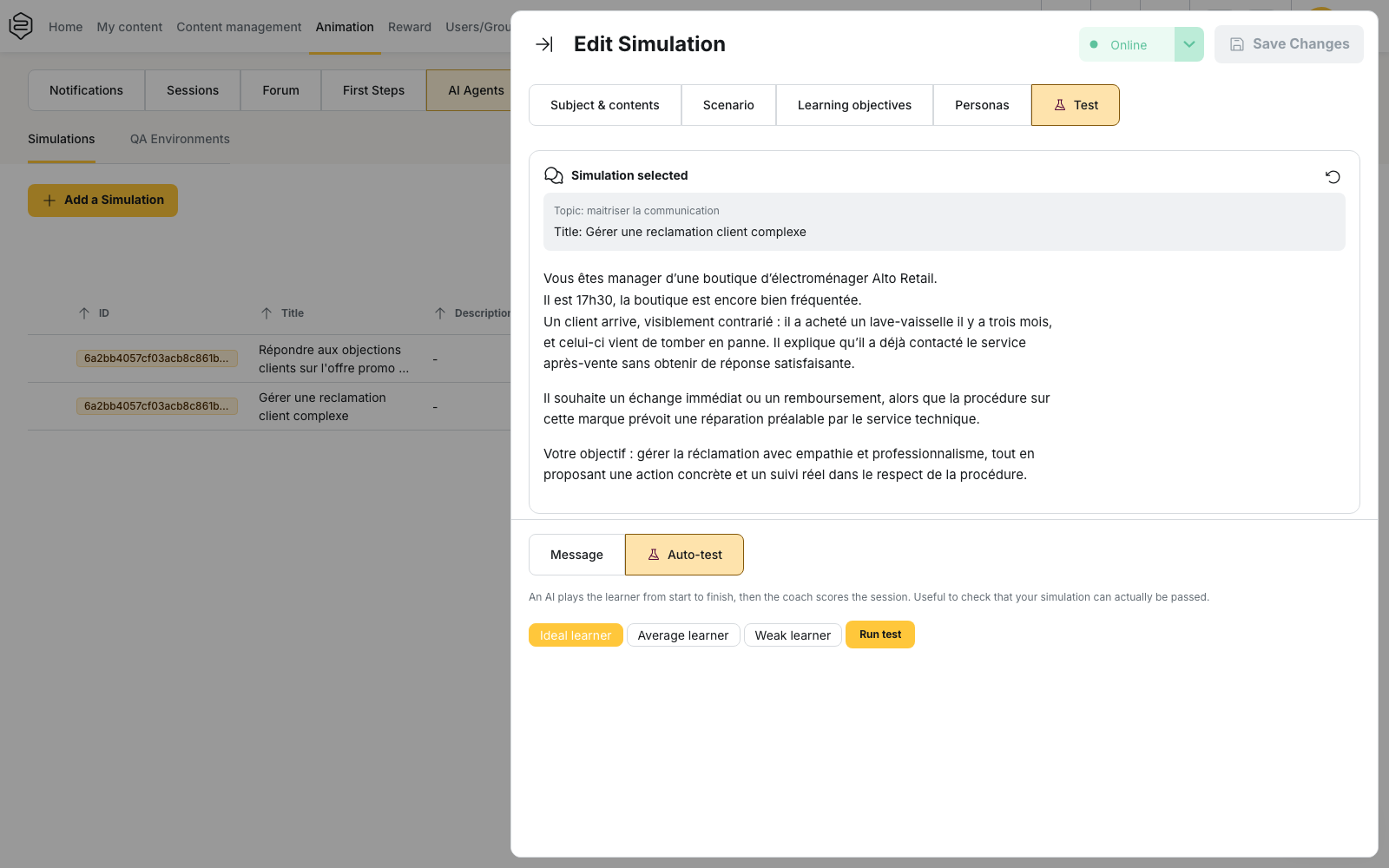
It recalls at the top the simulation you are testing, with its topic, its title and its scenario, then offers two ways to try it: manually from the Message tab, or automatically from the Auto-test tab.
Running the conversation yourself
From the Message tab, type in the Type a message to send to the simulation… field to answer the persona turn by turn. This is how you check the persona’s tone and the way the tutor steps in. When the simulation holds several personas, a selector above the conversation lets you choose the one to face.
Letting the AI play the simulation
Auto-test plays the simulation in your place, from start to finish, then the coach scores the session. First choose the profile the AI should play, then click Run test:
- Ideal learner: answers the way you hope. If this profile fails, the simulation cannot be passed as it stands.
- Average learner: does reasonably well without being perfect, which tells you where your pass threshold sits.
- Weak learner: answers poorly. If this profile passes, your requirements are too low.
The conversation appears turn by turn while the test runs, and the message field stays disabled until it ends. At the end, the run summary is generated and opens over the conversation: it holds the overall score, the pass or fail, the coach’s summary and the result on each objective. Close it to go back to the conversation; the result stays available below.
💡 Advice: this is the quickest way to check that your objectives and your pass rule are set at the right level. Run the ideal profile, then the weak one, and check that the first passes and the second fails.
Publishing and distributing
A simulation is always created as a Draft, whatever status the wizard footer showed. Open it, move it to Online from the edition panel header, then save. Learners only see simulations that are Online.
Groups sets the audience: left empty, it opens the simulation to every learner who belongs to at least one group, and a learner in no group sees none at all. Each row in the list can be Duplicated and Exported as a ZIP (Include capsules, Include tips, Include medias).
Embedding it in a capsule
The Simulation activity format attaches a simulation to a capsule page. There you set the Minimum score to complete, chosen among 0, 25, 50, 75 or 100% (0 means finishing the simulation is enough), and Points awarded, granted in proportion to the score obtained.
Three numeric settings not to mix up
Three settings look like a threshold, in different units.
- Objective weight is a whole number from 1 to 10, with no relation to a percentage.
- The Pass rule threshold is a percentage, and it applies to the simulation score.
- Minimum score to complete, in the capsule, is a percentage too, but it decides whether the capsule page is completed.
⚠️ Typing 3 while thinking “3 out of 5”, or 75 while thinking of a weight, grades something other than what you meant.
What the back office does not do
- There is no draft running alongside the published version and no history: the panel edits the document in place, and two people saving one after the other overwrite the first one’s work.
- Editing the objectives does not rewrite past attempts: each one keeps the objectives and thresholds of the day it was played, so two attempts either side of a rework are not comparable.
- Finally, a run from the Test tab does not replace a check on the learner side: to see the simulation as it will be experienced, move it Online and open it with an account attached to a targeted group.
Going further
- Simulation agent and voice mode: what the learner experiences.
- Activity formats: the pages a capsule can hold.
- AI agent analytics: scores and simulations played.
- Common problems: what blocks an agent most often.