Simulation Agent and voice mode
A simulation puts the learner in a conversation with a virtual customer, then scores that conversation against the objectives the author defined. This page covers what the learner sees and does, how the result is decided, and what is kept afterwards. Building the simulations is described in Configuring a simulation.
Simulation Agent and voice mode
A simulation puts the learner in a conversation with a virtual customer, then scores that conversation against the objectives the author defined. This page covers what the learner sees and does, how the result is decided, and what is kept afterwards. Building the simulations is described in Configuring a simulation.
⚠️ Prerequisites: the Simulation Agent enabled on your account, and at least one simulation online. Voice mode depends on a further account option, switched on by Beedeez.
⚠️ Rights required: none on the learner side. Reading a learner’s exchange afterwards requires the AI Agents Statistics right.
Starting a simulation
In the app, open the AI Agents menu, then the Simulation card. The agent lists the simulations the learner is entitled to. Each one opens on its context, then on Start simulation.
Inside a capsule, a Simulation notion starts on its own. The capsule’s Continue button stays inactive until the simulation is finished.
In voice mode, how the exchange is driven depends on the Allow learners to re-listen or re-record their voice message before sending option. When it is on, each turn ends on an action bar: after the coach speaks, the customer waits and only takes their turn again on Continue simulation. Retry last interaction replays the last exchange, and Finish simulation appears once the customer has said their first line. When the option is off, the answer is sent as soon as the recording ends and the dialogue runs on without those intermediate confirmations.
Finishing a simulation
The learner can stop the exercise themselves with Finish simulation, but that is not the only way it ends. A simulation can also end on its own: when the scenario reaches its conclusion, the exchange closes without any action from the learner, the Simulation finished message appears and the results are generated straight away.
What follows is the same either way: the conversation is assessed, the results card opens, and the notion inside a capsule is unlocked.
The tutor coaching style
During the exchange, an AI coach can interrupt the conversation to correct an answer or reinforce a good one. How often depends on the Tutor coaching style chosen on the simulation.
| Tutor coaching style | What the coach does |
|---|---|
| Immersive | No tutor interruption during the simulation. The exchange stays between the learner and the customer, and the feedback only comes at the end. |
| Light | A few hints, but very few interruptions. |
| Balanced | Regular interruptions. |
| Supportive | Deliberately very present, interruptions are frequent. |
Unsafe or offensive content always brings the coach in, whatever the style, Immersive included.
On Immersive, since the coach never takes the floor, the learner has no customer to restart after an intervention: the actions above only appear where they have something to act on.
Immersive is also the only style that can use the Realtime voice engine, which lets learners interrupt the AI live. When your account has that engine, there is nothing further to request: select Immersive on the simulation and the Enable the realtime engine setting appears just below the style picker. Switch it on for that simulation. With every other style, the exchange goes through the Hybrid engine, which handles the interactions step by step.
Using voice mode
Voice mode is available in a browser and in the iOS and Android apps alike. It needs a microphone available on the device: if none is detected, the button does not appear.
On the administrator side, Enable voice mode for simulations and Allow learners to re-listen or re-record their voice message before sending are set under Configuration > Content > AI Agents. The Open this simulation in audio mode option is set simulation by simulation: that simulation then starts straight in voice mode.
The learner can switch at any point: Go to voice mode from the message box, Switch to text from the voice screen. On the first switch, microphone access is requested. If it is denied, the message Microphone access is required for voice mode appears and the simulation carries on in text, losing nothing of the exchange.
The voice screen shows Your briefing, a Live transcription and the I am done button to send the answer. The learner can pause a take and restart it with Resume, and change the speed at which the customer’s voice is played back between Slow, Normal and Fast.
⚠️ The app offers no microphone picker. It takes the device’s default input, and a headset plugged in afterwards does not replace it. Change the input in your browser or system settings, then start the simulation again.
💡 Tip: when replay is switched on, the learner sees Review your answer before sending, with Record again and Send. It is the transcribed text, not the sound, that goes into the conversation.
Reading the simulation results
Simulation results opens on Passed or Needs improvement, then shows an Overall score as a percentage alongside an Overall level. Objectives follow, one by one, each with its Level, its Score, some Feedback, Evidence taken from the exchange and a Next milestone. Levels run from Not met through Emerging, Developing, Proficient and Exemplary. The card ends with Key strengths, Areas for improvement, Coach recommendations and Warnings.
Restart the simulation replays the same exercise from the beginning. If the result fails to generate, the simulation pauses and offers Resume, losing nothing of the exchange.
The Overall score is not an average of raw marks. Each objective is first scored against its own scale, then converted into a share of that scale. Those shares are then weighted according to the weight given to each objective in the simulation: the heavier an objective, the more it counts towards the final percentage. The size of the scale plays no part: at equal weight, an objective on a three-step scale counts as much as one on a five-step scale.
How Passed or Needs improvement is decided
The verdict on the card is decided by the Pass rule chosen on the simulation, and it is computed from the objective results shown just above it, so the banner and the objectives list cannot contradict each other.
The rule is chosen in the back office, under Animation > AI Agents > Simulations: open the simulation, then the Learning objectives tab. The Pass rule card offers the three options below.
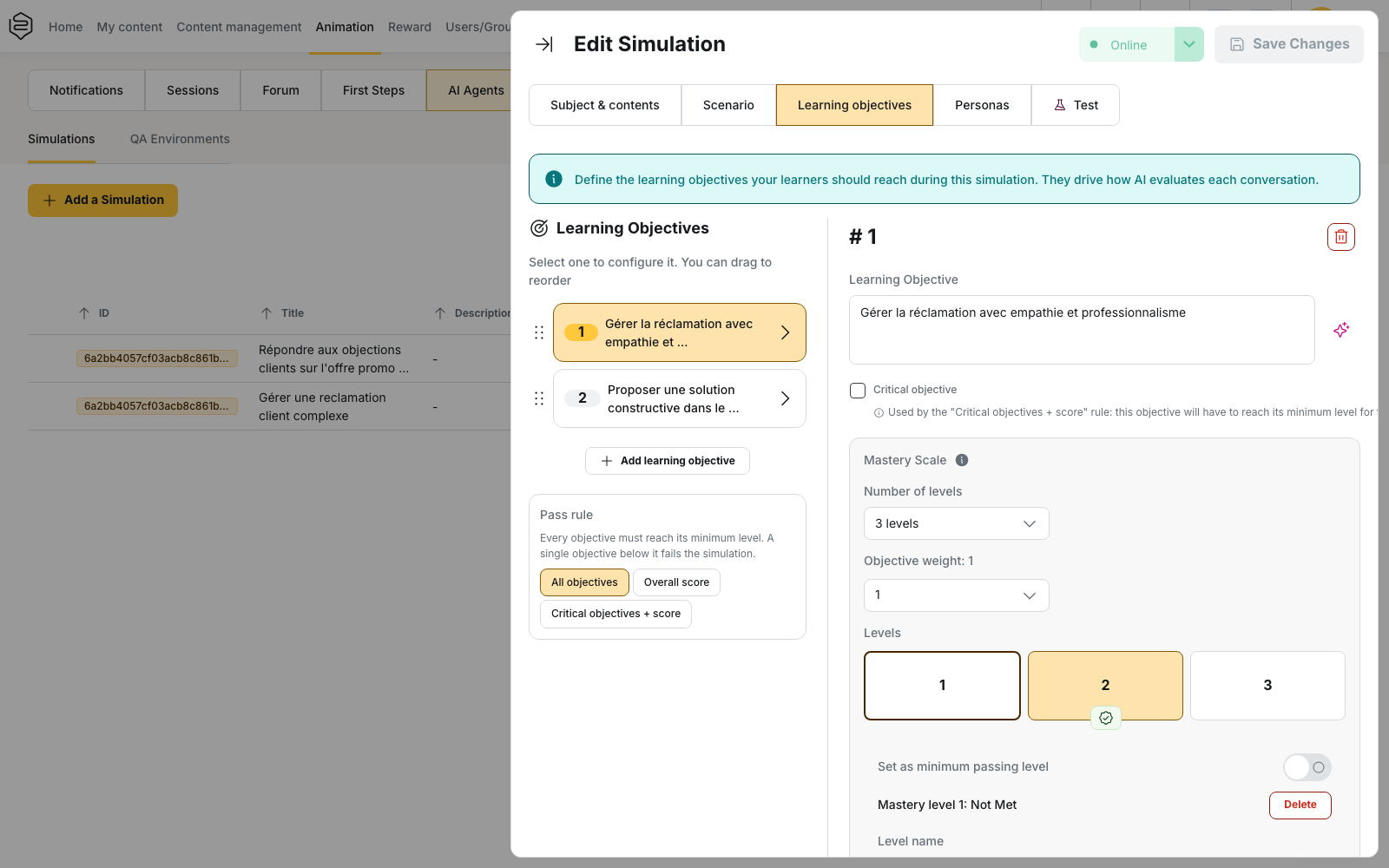
| Pass rule | What has to be true |
|---|---|
| All objectives | Every objective reaches its minimum level. A single objective below it fails the simulation. |
| Overall score | Only the overall percentage counts: it must reach the Minimum score (%), even if an objective stays below its minimum level. |
| Critical objectives + score | Every objective marked Critical objective reaches its minimum level, and the overall percentage reaches the Minimum score (%). |
Two cases fall back to All objectives: a simulation written before the Pass rule setting existed, and a rule based on a threshold that was left without a Minimum score (%). Objectives that carry no minimum level are not part of the check.
⚠️ Two verdicts coexist and they can disagree. Inside a capsule, what validates the notion is the percentage compared to the Minimum score to complete set on the notion, which can also be left on Finishing the simulation is enough. The card can therefore announce Needs improvement while the notion counts as validated, and the other way round. Either way, Continue becomes available as soon as the simulation is finished: progression through the capsule never looks at the score.
What the assessment does not cover
The assessment does not cover delivery. Speech is transcribed into text before anything is assessed, and the assessment covers what was said: hesitations, pace and accent count neither for nor against. An objective about speaking fluency therefore cannot be scored.
What is kept, and who can read it
The whole conversation is kept in written form, with the score and the level of each objective, and it feeds the reports. In the back office, Statistics > AI Agents shows a Conversation column whose View button opens the full exchange, message by message, under the learner’s name.
That reading depends on the AI Agents Statistics right and its scope: all learners, only the learners they manage, or restricted groups. A team leader holding the second scope therefore reads their team’s conversations. Check that scope before opening simulations up.
⚠️ Audio recordings are only kept when the Store learners’ raw voice recordings option is on. Without it, the take is transcribed and then dropped. With it, you are keeping your colleagues’ voices, recorded during an assessed exercise: settle it with your legal team, write it into your legal information, and tell learners.
Going further
- Configuring a simulation: the scenario, the objectives, the personas and the coaching style.
- AI agent analytics: results per simulation and per learner, and the exports.
- Security, GDPR and legal information: what to publish before recording voices.