Generating a capsule with AI
Prerequisite: AI features must be enabled on your account. Three settings are required. If any of them is disabled, the generation option remains visible but is greyed out:
Generate a capsule with AI
Prerequisite: AI features must be enabled on your account. Three settings are required. If any of them is disabled, the generation option remains visible but is greyed out:
- OpenAI integration
- AI content generation
- Enable AI features
Required permissions: permissions to create and edit content.
AI first proposes an outline. You can edit it before generating the content, so you keep control over the structure before any text is written.
If you already have a reference document, you can also Generate a capsule from a PDF or Configure AI.
Start the generation
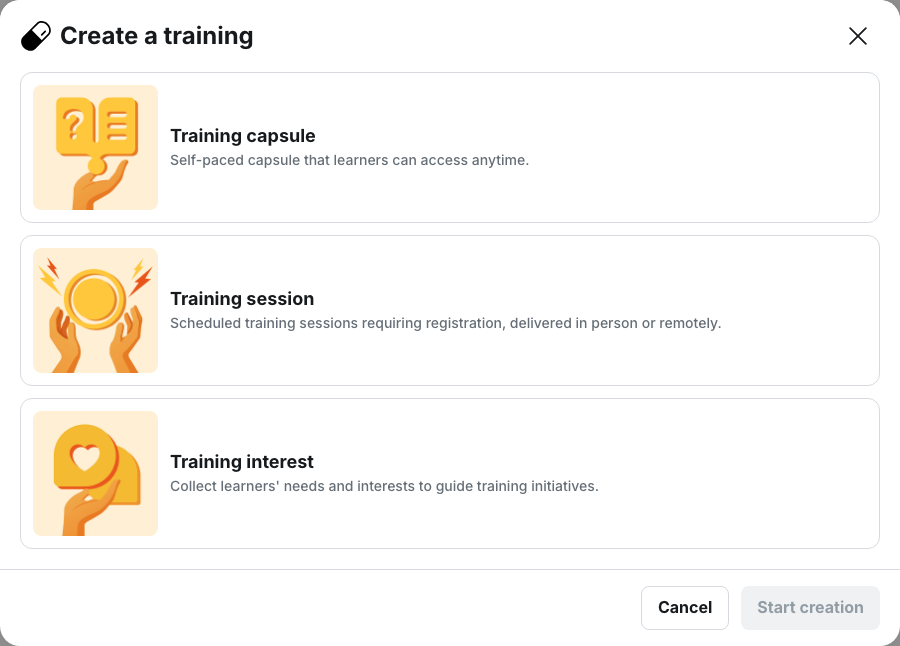
From My content > My capsules, click Create a training.
In the Create a training window, select Training capsule, Generate with AI, then Start creating.
The same option is available when creating a Training session.
If you do not want to add any resources, click Skip to configuration to go directly to the settings.
Add resources
Resources give AI information to use when building your capsule.
In External resources, you can provide a PDF or a web page.
You can add only one PDF file at a time. The document can contain up to 11,000 words.
In Internal resources, you can also use content that has already been published in your space.
Click Choose related content, then select the resources you want to use from:
- Capsules
- Tips
- Documents
- Product sheets
- Learning paths
💡 Tip: resources have a strong influence on the generated content. Without resources, AI relies on its general knowledge. When resources are provided, AI prioritizes them when building the capsule.
If you have business documents, existing content or reference pages, add them to make the generation more relevant to your context.
Configure the capsule
In the Configuration step, enter the information that will guide the generation.
Required information
You must enter the Topic and Learning objective.
The topic indicates what the capsule will cover.
The learning objective describes what the learner should be able to do or understand by the end of the training.
💡 Tip: phrase the objective as an expected outcome rather than simply naming a topic. For example, describe what the learner will be able to do rather than repeating the subject of the capsule.
Other settings
You can also enter:
- the Target audience, such as a job title or professional context
- the Capsule language
- the Estimated duration (minutes)
- Additional instructions
- the Capsule level: Beginner, Intermediate or Expert
The Estimated duration (minutes) does not represent the actual time required to complete the capsule. It determines the amount of content to generate.
💡 Tip: think of this value as an indicator of content length. A 5-minute duration therefore generates much less content than a 15-minute duration.
The Capsule level offers three options: Beginner, Intermediate and Expert.
⚠️ This setting does not change the difficulty of the generated content. It is only used to label the capsule.
Review and edit the outline
AI does not immediately write the capsule. It first proposes a Capsule outline.
At this stage, the final texts have not yet been generated.
Take the time to check that the structure matches what you want learners to learn.
Edit a notion
For each notion, you can edit:
- the Notion title
- the Notion learning objective
- the planned cards
You can also reorder notions using drag and drop.
Add or remove content
From the outline, you can:
- Add a notion
- Add a card
- delete a notion or card
You can also ask AI to review the content using Regenerate notion or Regenerate all.
To start the generation, the outline must contain at least one notion, with at least one activity per notion.
Once the outline is ready, click Generate capsule.
⚠️ Before starting the generation, the platform reminds you that AI can make mistakes. Always check important information once the content has been generated.
What the generation creates
The generation produces a capsule containing:
- the notions defined in the outline
- the corresponding content cards
The capsule does not automatically contain quizzes. Quizzes must be added separately.
Once the capsule has been generated, you can add questions from the editor using:
- New quiz with AI
- New question with AI
You can also create and edit quizzes manually.
Points to watch
Images are not generated
AI does not create new images to illustrate the capsule.
If your resources contain images, Smart image selection can select images available in your documents.
AI features must be enabled
⚠️ If AI features are not enabled, adding a document may remain stuck.
The progress can stop at 5%, under “Adding content…”, without displaying an error message.
The document then does not appear under Added resources.
The Enable AI features setting is located in the Content section of AI configuration.
If a document was added while this setting was disabled, it must be added again after enabling it.
⚠️ This setting does not only affect capsule generation. It controls AI features more broadly across the platform. Disabling it also removes the advanced search available to learners.
See Configure AI.
⚠️ Closing the generation window removes the resources you added.
The platform displays a confirmation before closing the window.
Likewise, returning to the Configuration step removes the generated outline. A confirmation is also displayed.
Make sure to check your progress before leaving a step.
Edit generated text
Once the content has been generated, you can ask AI to rework existing text using Edit text.
Five actions are available:
- Fix grammar and spelling
- Rephrase
- Adjust to word limit
- More formal
- Custom instructions
Before applying an action, make sure you are ready to replace the existing text.
Review the content before publishing
AI generation produces a draft. It does not replace content review and validation.
Take the time to check the generated content, especially when it covers safety, compliance or internal procedures.
If your organization uses a validation workflow, you can then Have a capsule validated before publication.