Syncing sessions with Outlook or Google Calendar
Calendar Sync connects Beedeez to your organisation's calendar provider. Once a provider is connected, attendees receive a calendar invite when a training session is created or updated.
Syncing sessions with Outlook or Google Calendar
Calendar Sync connects Beedeez to your organisation’s calendar provider. Once a provider is connected, attendees receive a calendar invite when a training session is created or updated.
Only one provider can be active at a time: you connect either Microsoft Outlook or Google Calendar. In both cases the connection is authorised by an administrator of that platform, not by a standard user.
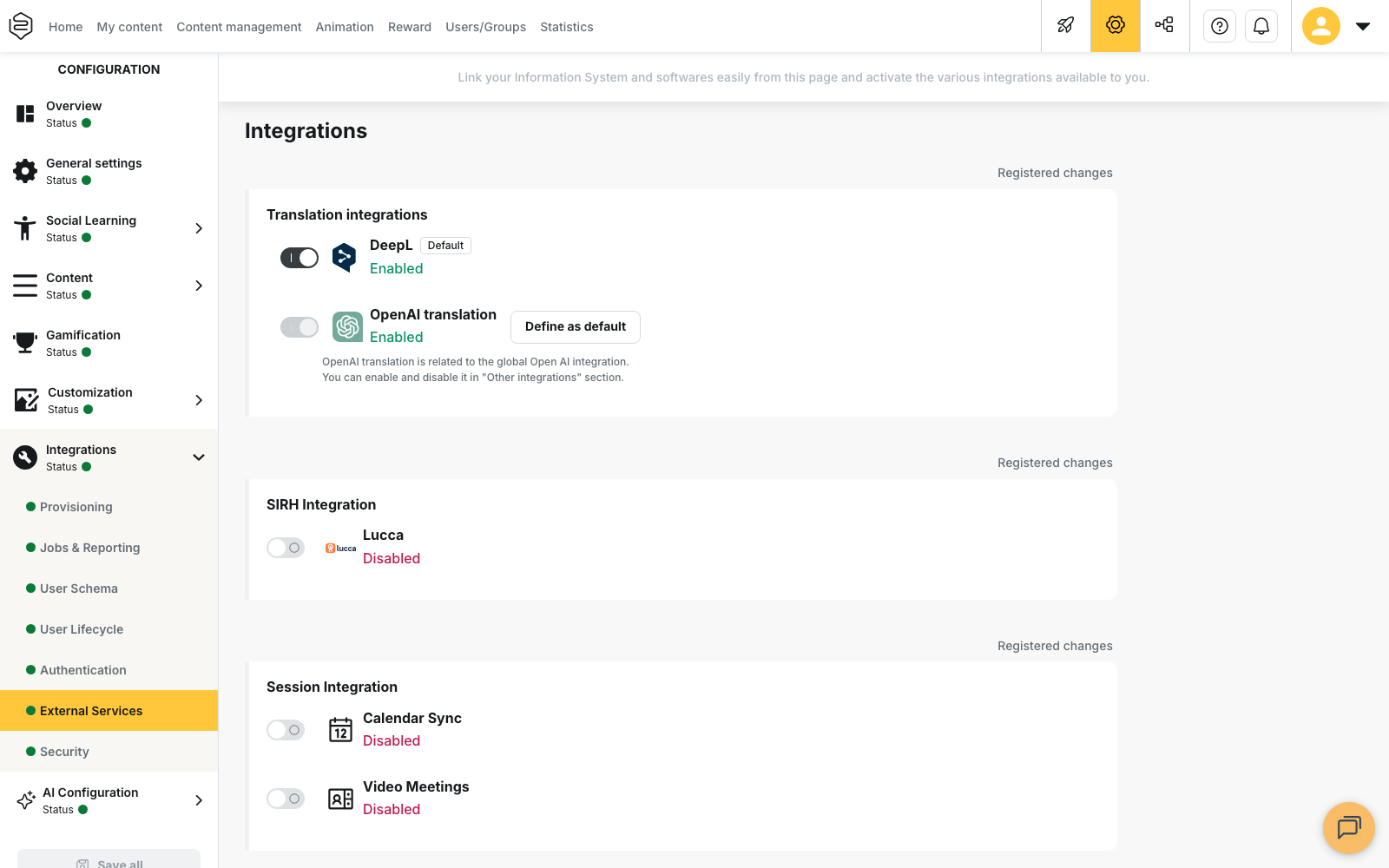
Enabling Calendar Sync
- In the back office, open Configuration > Integrations > External Services.
- In the Session Integration block, turn on Calendar Sync.
- Click Save all to keep the change.
- Click Configure. The Calendar Synchronization window opens on the Calendar providers section, where Microsoft Outlook and Google Calendar each show Connected or Not connected.
To switch provider, you must disconnect the current one first. If you try to connect the second provider while the first is still active, Beedeez displays Disconnect Google Calendar first to connect Microsoft 365 or Disconnect Microsoft 365 first to connect Google Calendar, depending on which one is connected.
Connecting Microsoft Outlook
⚠️ Prerequisite: a Microsoft 365 administrator must approve this connection.
- In the Microsoft Outlook provider, click Connect Microsoft 365.
- Grant the calendar permissions on the Microsoft side. Beedeez redirects you to Microsoft to sign in and authorise them.
- Return to the Calendar Synchronization window. The provider now shows Connected, with Connected on the authorisation date and Authorized by the account that approved it.
Note that account. The connection depends on the authorisation it granted.
Connecting Google Calendar
Google Calendar uses Domain-wide Delegation. A Google Workspace Super Admin must authorise
the Beedeez Service Account once in admin.google.com.
If the Service Account Client ID field shows Not configured, the integration is not set up on the Beedeez side yet. Contact Beedeez support before going further.
- In
admin.google.com, go to Security > Access and data control > API controls > Manage Domain-wide Delegation. - Click Add new, paste the Service Account Client ID and the OAuth scope displayed in the Beedeez window, and save. Copy both values from the Beedeez screen rather than retyping them.
- Back in Beedeez, fill in Google Workspace domain with your domain, for example
acme.com. Enter the bare domain, withouthttps://and without an@. - Fill in Test user email if you want the check to run on a specific account. This field is optional.
- Click Verify and connect. Beedeez confirms that the delegation is active, displays Google Calendar connected successfully, then shows the connected Domain.
Testing calendar access
Once a provider is connected, the Test Connection section checks that Beedeez can reach a real calendar.
- Enter a user email from your organisation. An address is required: without one, Beedeez displays Please enter an email address to test.
- Run the test.
A successful test displays Connection successful! Calendar access verified. A failed one displays Failed to access calendar. Please check the email and permissions.
💡 Tip: run this test before creating a session that matters. A configuration problem then surfaces on your own check rather than on invitations already sent to a group.
Google Calendar error messages
| Message | What it means | What to do |
|---|---|---|
| Please enter a valid workspace domain (e.g. acme.com). | The domain is not in a valid format. | Enter the bare domain, such as acme.com, with no https:// and no @. |
| The test user email must be in the same domain as the workspace. | The test address belongs to another domain. | Use an address inside the Workspace domain you declared. |
| The Beedeez Service Account is not authorized for this domain. | Domain-wide Delegation is missing, or the Client ID or scope registered in Google does not match. | Redo step 2 in admin.google.com and check that both values match the Beedeez screen exactly. |
| The test user was not found in this Google Workspace. | The address does not exist in the Workspace. | Check the email, then try again. |
| Another calendar provider is already connected. Disconnect it first. | Outlook is still connected. | Disconnect Microsoft Outlook, then connect Google Calendar. |
| Google Calendar integration is not configured on the server. | The integration is not set up on the Beedeez side. | Contact Beedeez support. |
| Unable to verify the Google Calendar connection. Please try again. | The check did not complete for another reason. | Try again, then contact Beedeez support if the message persists. |
Disconnecting or switching provider
Click Disconnect on the connected provider. Beedeez confirms with Calendar sync disconnected successfully and the provider returns to Not connected. You can then connect the other one.
⚠️ The connection relies on an authorisation granted outside Beedeez: the Microsoft administrator approval, or the Google Workspace delegation. If that authorisation is removed on the provider side, Beedeez loses the calendar access it was granted. Run the connection test after any change to your Microsoft 365 or Google Workspace administration.