Modelling your organisation
⚠️ Rights required: you need the Edit / add departments right to create, rename or delete a department.
Modelling your organisation
⚠️ Rights required: you need the Edit / add departments right to create, rename or delete a department.
Before you create anything, decide how your real organisation maps onto the platform’s structures. Departments, groups and academies do not answer the same question, and the choice you make here decides who administers what for a long time. This page gives the criteria for that choice; the mechanisms themselves are described in Understanding structure and permissions.
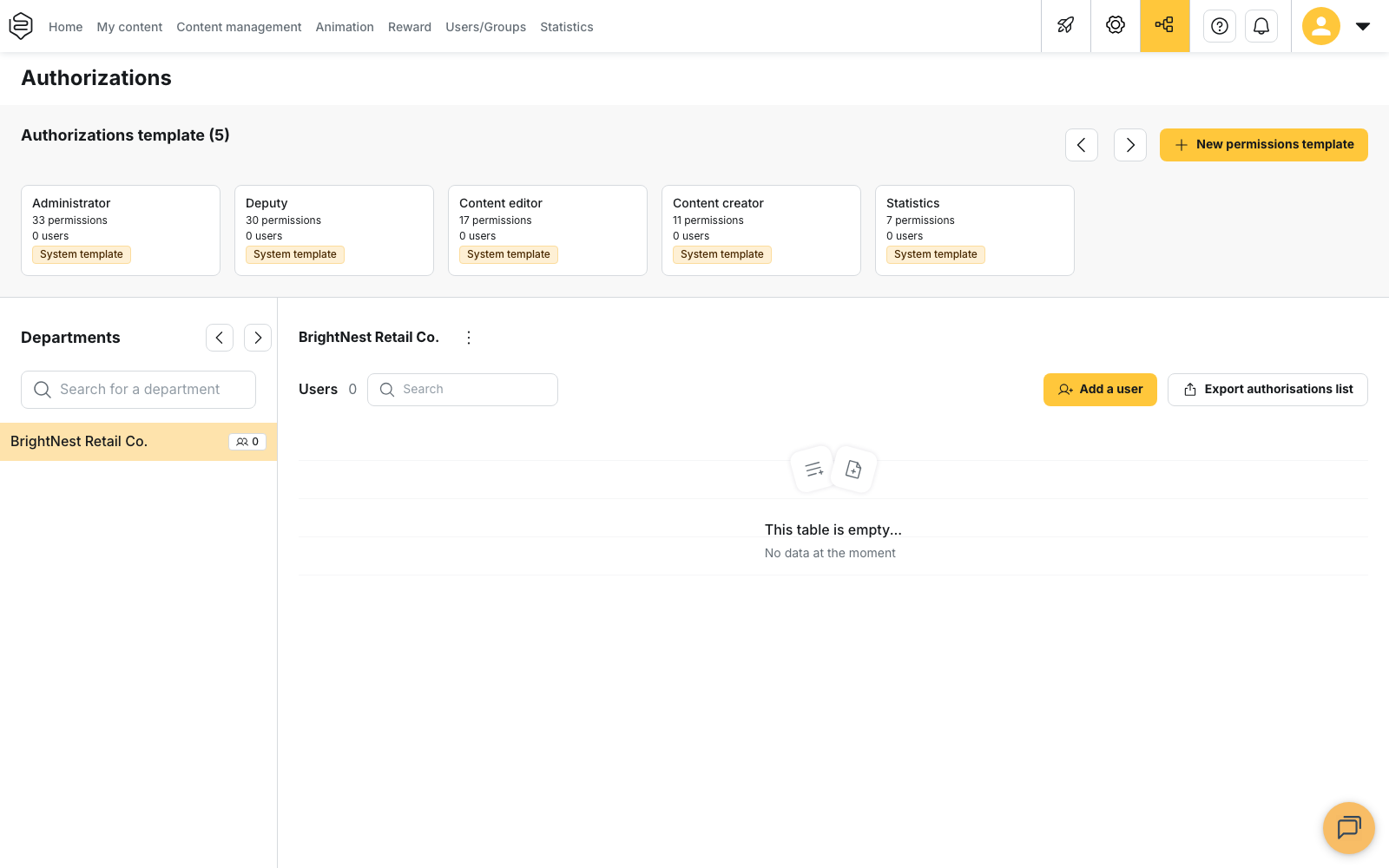
Departments are managed from the Authorizations page, alongside the permission templates.
The three structures available
- The department walls off administration: its own content, groups, analytics and administrators. It is invisible to the learner.
- The group gathers learners to receive content. A group lives inside a single department, never across several.
- The academy is a department whose content distribution is walled off: it also walls off the learner experience, which the learner enters explicitly. See Understanding academies.
The rule that governs departments
You see your department and everything below it. Never sideways, never above. Permissions say what each person can do; the department says on what.
Take an account with Marketing, Customer Success and Sales departments, where Customer Success is split into Customer Success Manager and Support:
- sitting in Customer Success, you see Customer Success, Customer Success Manager and Support; neither Marketing nor Sales;
- sitting in Support, you see Support only.
When to create departments
Create one department per entity that must be walled off: content the other entity must not see, administrators who must manage only their own perimeter, analytics to be read separately. Subsidiaries, brands and countries are the typical cases.
Do not reproduce the org chart for its own sake. Every department level is a wall, not a label: a level that walls nothing off serves no purpose and makes content harder to circulate.
What this choice changes about permissions
On an account organised in departments, the administrator profile is no longer offered when you create a permission: the Deputy template becomes the most complete system template. Organising in departments is therefore a structural decision with consequences on rights, not mere tidying. See Assigning rights.
When not to use them
- If the need is only to decide who receives what, groups are enough. Keep a single department and you will never think about it again.
- If a population spans several entities, a department breaks it: a group cannot straddle two departments.
- If the need is to give each brand its own learner-facing universe, that is an academy rather than a plain department. Tick This department is an academy on the department concerned.
⚠️ Content belongs to the department it was created from. Circulating it elsewhere means pinning or duplicating it, one operation at a time. Every wall carries that cost; see Sharing a track across departments.
Creating and managing departments
The Departments panel of the Authorizations page lists the departments you can act on. Use Search for a department when the list gets long.
- Open the three-dot menu to the right of a department.
- Choose Add a department or Add a sub department, depending on the level you want to create. The first department is the parent account; every other one is created below it.
- Name the department, then confirm.
The same menu gives access to Edit department, Remove department and Manage authorisations.
⚠️ Deleting a department deletes its users. The confirmation is titled Delete this department and states: This action will delete all users in this department, including those in sub-departments, if any exist. Move the learners you want to keep to another department before you confirm.
If a department does not appear in the panel, no permission has been given to you in it: the list shows only the departments where you hold one.
Going further
- Understanding structure and permissions: the mechanisms this page has you choose between
- Understanding groups: segmenting learners inside a department
- Understanding academies: walling off the learner experience, not just administration
- Sharing a track across departments: circulating a common base despite the walls