Generating a capsule from a PDF
Prerequisite: the account's AI features must be enabled. See Configure AI.
Generate a capsule from a PDF
Prerequisite: the account’s AI features must be enabled. See Configure AI.
Required permissions: permission to create a capsule.
You start with an existing PDF: AI reads the pages you select, proposes an outline, and only writes the content once you have approved the outline. The alternative Generate a capsule with AI starts from a topic you describe, without a source document.
⚠️ If the account’s AI settings are incomplete, the Generate from a PDF, with AI tile remains greyed out without an explanation. Several account settings control access to this option. If the tile is greyed out even though you can create a capsule, ask the person managing the AI configuration to check the settings.
How it works
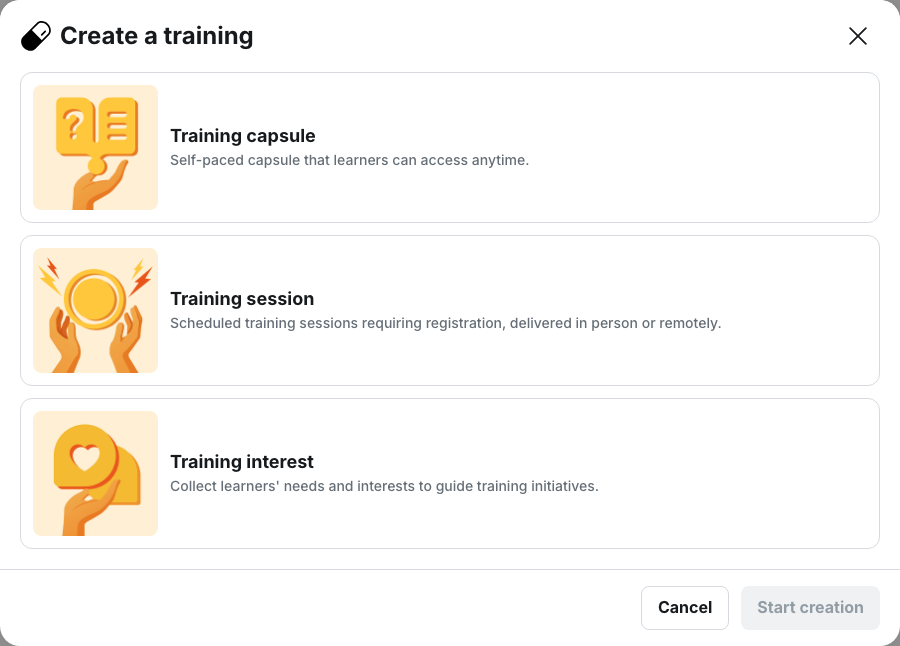
- From the capsule list, select Create a capsule. In the Create a training modal, select Training capsule, Generate from a PDF, with AI, then Start creating.
- Insert a PDF: add one file from the Import tab or from the Media library. The import message states: “You can import a single file with a maximum size of 1 GB.”
- Select slides to import: select the pages you want to provide to AI, or choose Select all slides. Enter the Language, then select Start generation. There are no other settings at this stage.
- Analyzing the structure of your document… appears while the document is processed, then the outline is displayed. Review and edit it, then select Generate capsule.
- If the document contains images, Smart image selection offers Let AI choose the images or Skip this step.
The result is a capsule in Draft status, containing the title and description from the outline, the notions and their cards, and one quiz per notion. At the end, you can choose between View editor, Manage images, and Back to capsule outline.
The outline is your main checkpoint
Correcting the outline takes less time than correcting content that has already been generated, so this is the step worth reviewing carefully.
You can edit the Capsule title, Capsule description, and Capsule outline. Select a notion to edit it: each notion has a Notion title, a Notion learning objective, and one or more Learning content blocks.
The screen also includes Add a notion, Add a card, Regenerate notion, and Regenerate all. You can delete both notions and activities.
The outline follows the structure of the document: each notion and card is linked to the pages it comes from, and the content is then written based on those pages. A notion that you move or rewrite in the outline therefore remains grounded in the document rather than in the model’s general knowledge.
The proposed outline contains up to 15 notions and up to 8 cards per notion. A document covering a broader range is condensed rather than split into several capsules.
💡 If your document is too extensive to be handled correctly within these limits, generate several capsules from different page selections rather than creating one dense capsule. Learners generally find shorter learning sequences easier to follow.
What the generation does not do
Generation does not publish anything. Making the capsule visible is a separate step, described in Publish and unpublish a capsule.
It accepts only one PDF. You cannot add a second document during the process, and this option does not support other file formats.
It does not create images. The suggested visuals come from the document. To add or change them, use Manage images.
Points to watch
The generation runs within the open tab. No notification is sent when it finishes.
Closing the modal requires confirmation: “By closing this modal, you will lose the progress of your capsule creation.” Closing the browser tab has the same result, without confirmation.
A notion that fails to generate disappears without an error message. Compare the outline you approved with the content generated in the editor: a missing notion does not trigger an alert.
A page that AI cannot read is returned empty, so the outline is built from less source material than expected, again without an alert. Check the result carefully, especially for pages containing a lot of information.
💡 The platform displays a reminder during generation: “AI can make mistakes. Remember to check important information once the content has been generated.” For safety instructions or business rules, proofreading is essential.
Adapt the generated draft
A PDF is usually designed to be read on a large screen or on paper, rather than on a phone. The generated draft is therefore a starting point to refine:
- Split overloaded cards into several cards so that each screen focuses on a single idea.
- Add a title, description and visual to each notion so learners know what it covers.
- Do the same for the capsule title, description and visual.
- Review the generated quizzes: they reinforce key information and provide understanding statistics, provided they focus on what really matters.
Make AI write in your terminology
Two account settings influence the content of cards and quizzes: the Glossary, where you define product names, acronyms and business terms, and the AI tone and AI behavior settings in AI configuration.
Neither affects the document structure analysis. The notion breakdown does not use the glossary or tone settings; the outline you edit manually is what determines the structure.
Further reading
- Generate a capsule with AI: the other generation method, when the content does not exist yet.
- Configure AI: account settings that enable generation and define the tone.
- The glossary: define the terms AI should use as written.
- Publish and unpublish a capsule: what to do once the draft has been reviewed.