Podcasts
Would you like to share audio content in a card as unique content or to go with other formats? Podcasts make it possible!
Source: https://support.beedeez.com/fr/en/podcasts
Podcasts
Would you like to share audio content in a card as unique content or to go with other formats? Podcasts make it possible!
With this type of content, you can share recordings of podcasts directly to your learners in your capsule!
Playback of these podcasts can be managed directly from the phone’s notifications menu. This means that even when the phone is locked, playback will continue and remain easily accessible.
This format is ideal, for example, if you have learners who are away a lot as part of their job. They will be able to easily launch the podcast you have made available to them!
The required format is mp3.
Contents
- What does a Podcast card look like?
- How to create a Podcast card
- My podcast is not working, what can I do?
What does a Podcast card look like?
**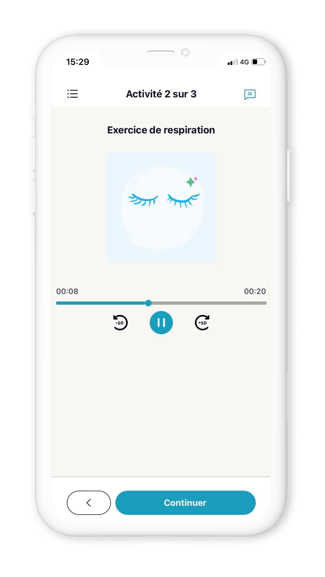 ****
****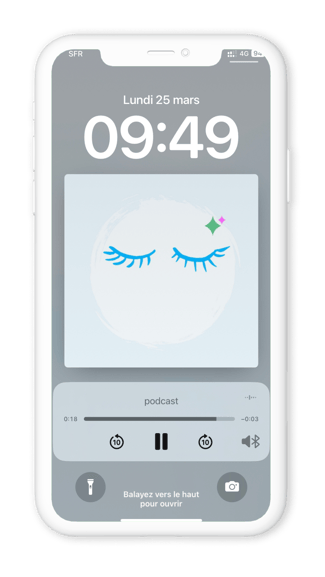 **
**
💡 You can also dress up your podcast by adding a visual cover!
How to create a podcast card?
👉 New author tool: click here.
-
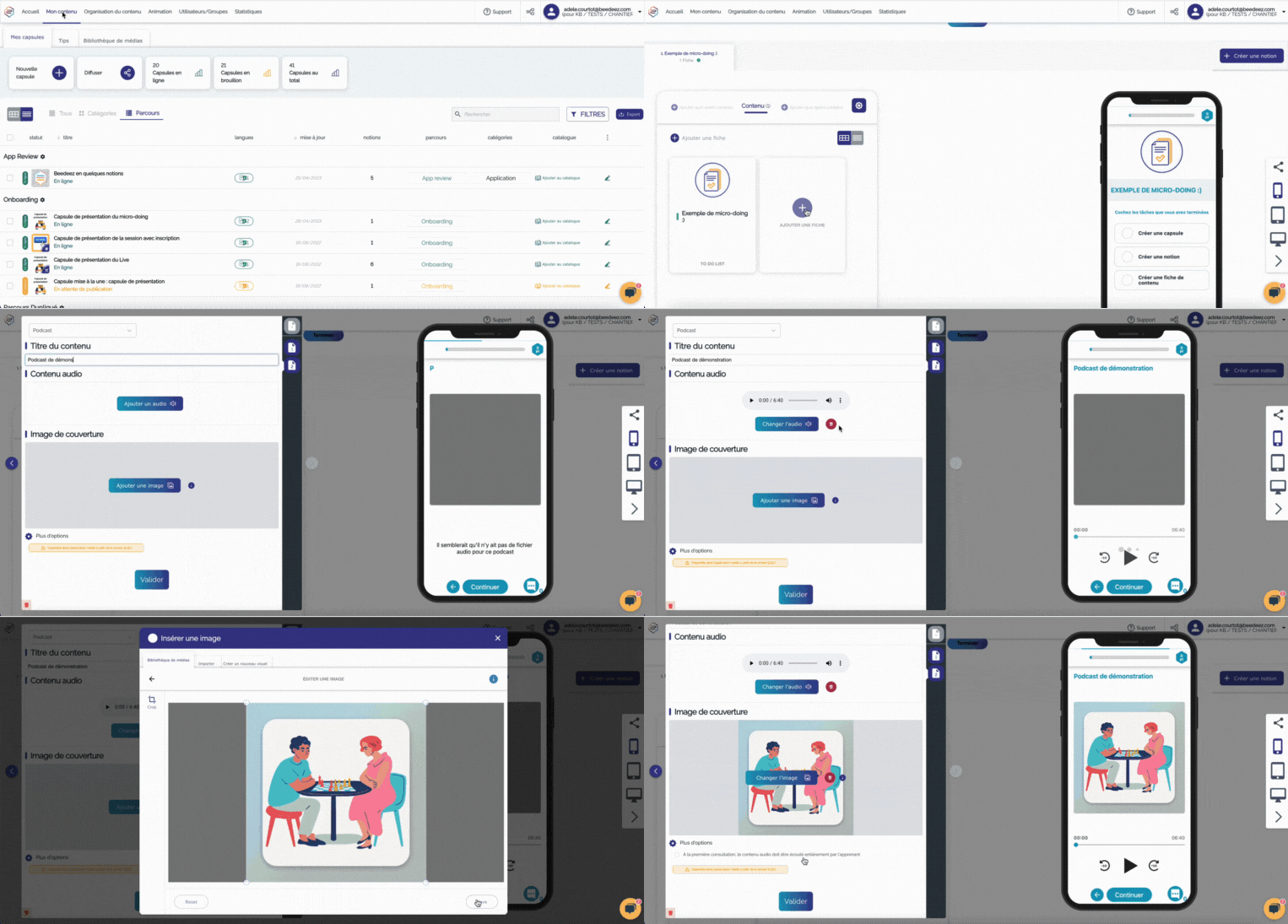
From the “My content” tab in the back office, search for the capsule in which you want to add a Podcast card, or create a new capsule.
-
Click on the notion to which you wish to add a podcast card, or create a new notion. If it is a new notion, click on “Create a mixed notion”.
-
In the “Content” section, click on “Add a card”.
-
A window will open, select “Podcast” and:
- Give your podcast a title
- Add the audio content that will be used, from the media library or import it from your computer.
- If you wish, you can add a cover image to dress up your podcast.
- If you wish, you can click on “More options” and select “Learners must listen to the entire podcast on the first listening”.
-
Click on Validate.
-
Do not forget to save by clicking on “Update capsule”.
NEW AUTHOR TOOL
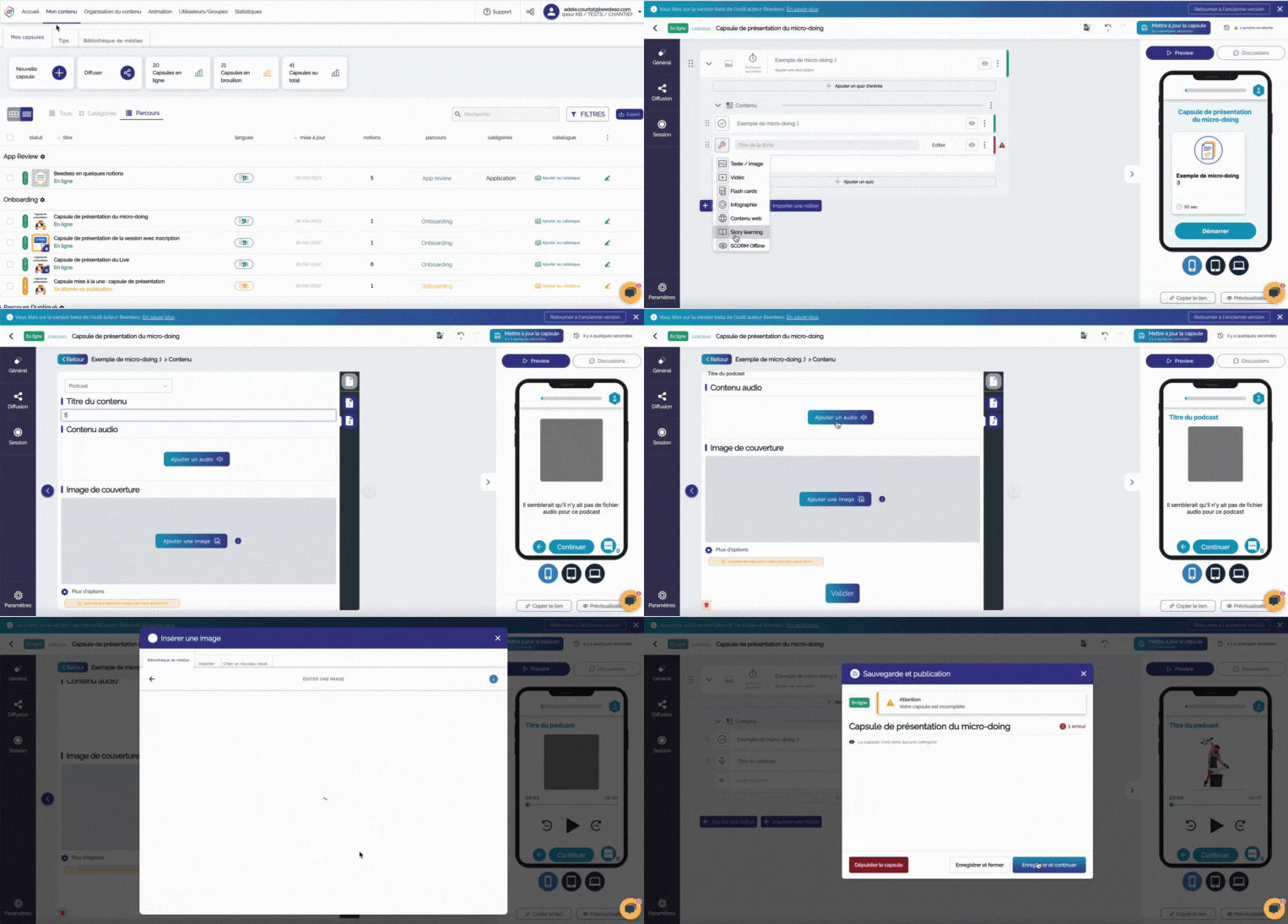
- From the “My content” tab in the back office, search for the capsule in which you want to add a Podcast file, or create a new capsule.
- Expand an existing notion, or create a new one.
- Then expand the “Content” section, and click on “Add a card” or “Add content” if you have just created the notion.
- A new line will appear, on which you can click on “Edit” to display the different format options.
- A window will open, select “Podcast” and:
- Give your podcast a title
- Add the audio content that will be used, from the media library or import it from your computer.
- If you wish, you can add a cover image to dress up your podcast.
- If you wish, you can click on “Learners must listen to the entire podcast on the first listening”.
- Click on Validate.
- Do not forget to save by clicking on “Update capsule”.
Add a transcript to your podcast
For reasons of both practicality and accessibility, it is important to be able to offer your learners a text transcript of your podcasts. Just as you can add subtitles to your videos, you can use the AI built into your author tool to generate the audio description.
The learner can directly read and scroll at their own pace, with or without reading the podcast.
- Open the capsule containing the podcast to be transcribed.
- Open the notion containing the podcast and edit the selected card.
- At the bottom of the card, you will see a “Generate transcription” option; click on it.
- Your transcript will be displayed in the text field that appears.
- This text can be edited and reworked at will. If you are already using external tools to generate transcripts, you can simply paste the text.
- You can also download the generated text in .txt format.
Your podcast is not working: what can you do?
Sometimes you may need to re-encode your file by converting it so that it works.
You can do this via the free website “FreeConvert”: https://www.freeconvert.com/audio-converter and select mp3.
And now it’s up to you !
👉 To find out more about how to create a capsule, click here.
👉 To discover the other formats, click here.