Order Quiz
Before or after your topic, add an "order" quiz where your learners must rank the propositions.
Source: https://support.beedeez.com/fr/en/order-quiz
Order Quiz
Before or after your topic, add an "order" quiz where your learners must rank the propositions.
What does an Order question look like ?
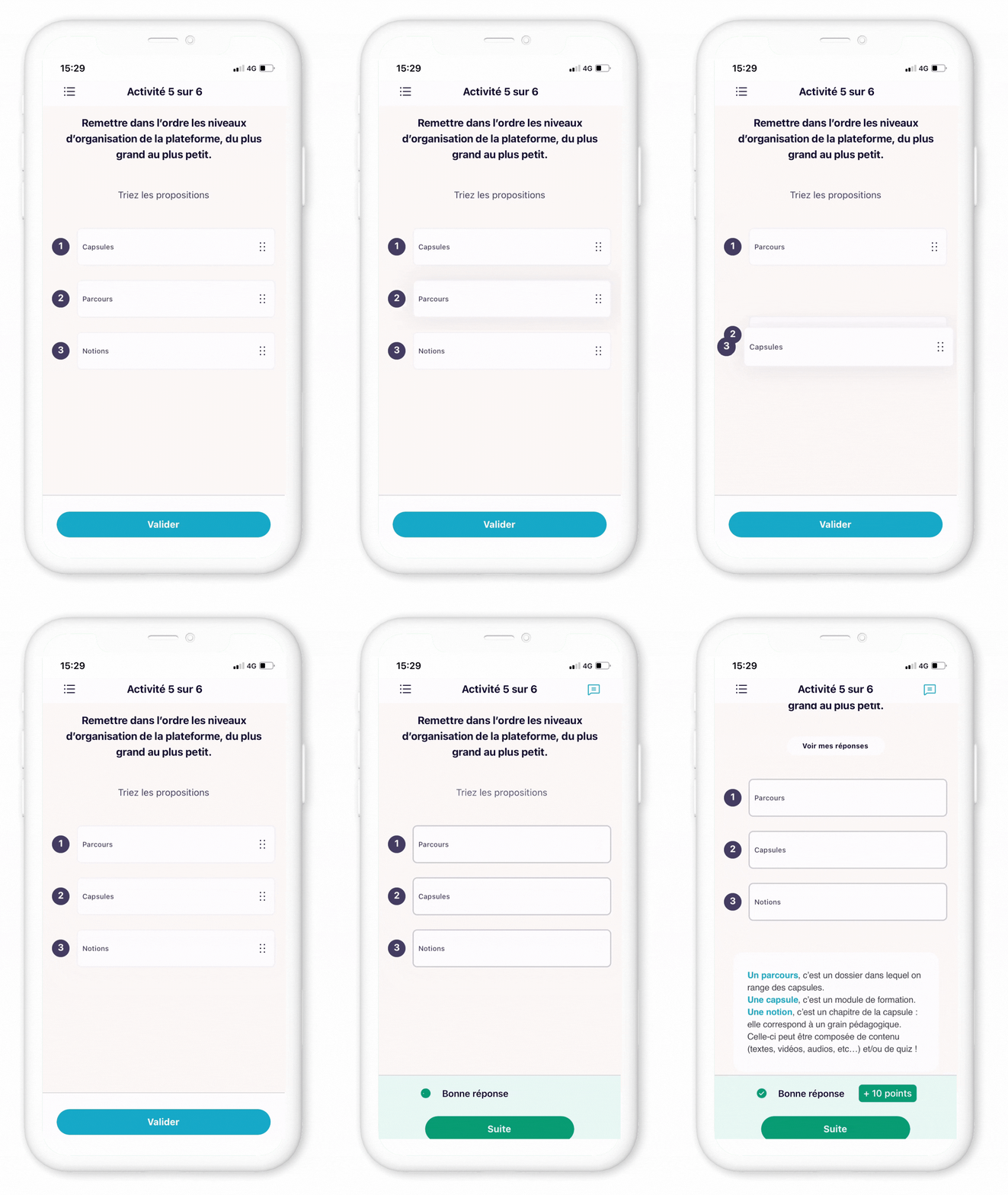
What are the specificities of Order Quiz ?
- This is a question with answers to be put in the right order
- You can put as many suggestions as you like.
⚠️ Be careful not to put too many if your learners are mainly using mobile phones: a smartphone format means a small screen! If you put in too many answers, they will go off the screen. - This format is available for both classic and life quizzes
💡 Use cases :
- Recapitulating an internal process or the use of a tool
- Presenting a recipe
- Guess an order of magnitude, ascending or descending.
How do I create an Order question ?
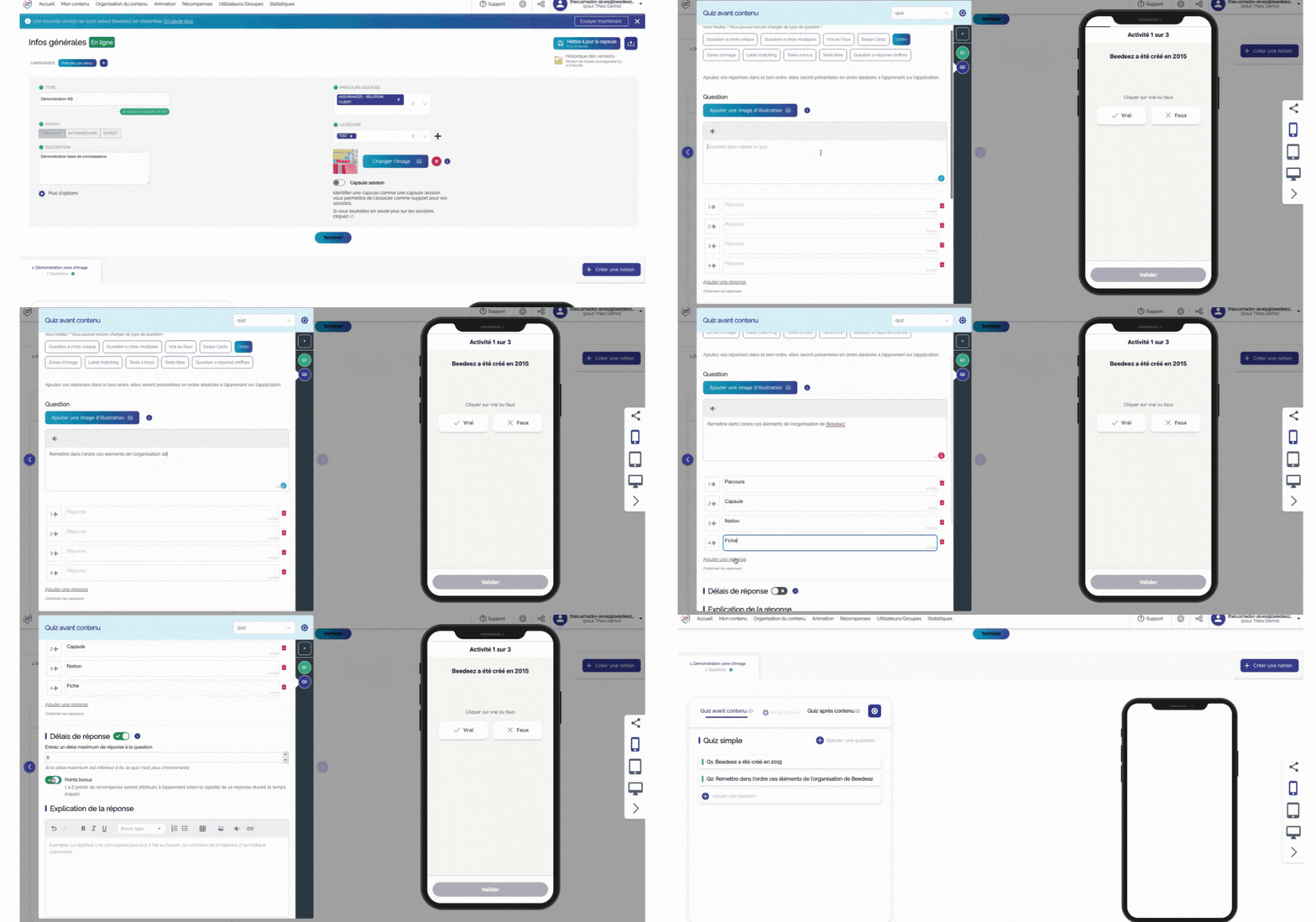
- From your back office, click on the "My content" tab: from the page for creating and editing a capsule, select the notion in which you wish to add this question.
- In the "Quiz before content" or "Quiz after content" section, click on "Add a question".
- Click on "Create a quiz", then select the quiz type "Order".
- The window for editing the order quiz will open: fill in each answer in the correct order. If necessary, you can change the order of the answers by clicking on one of the suggestions and dragging and dropping it to the desired position.
New authoring tool
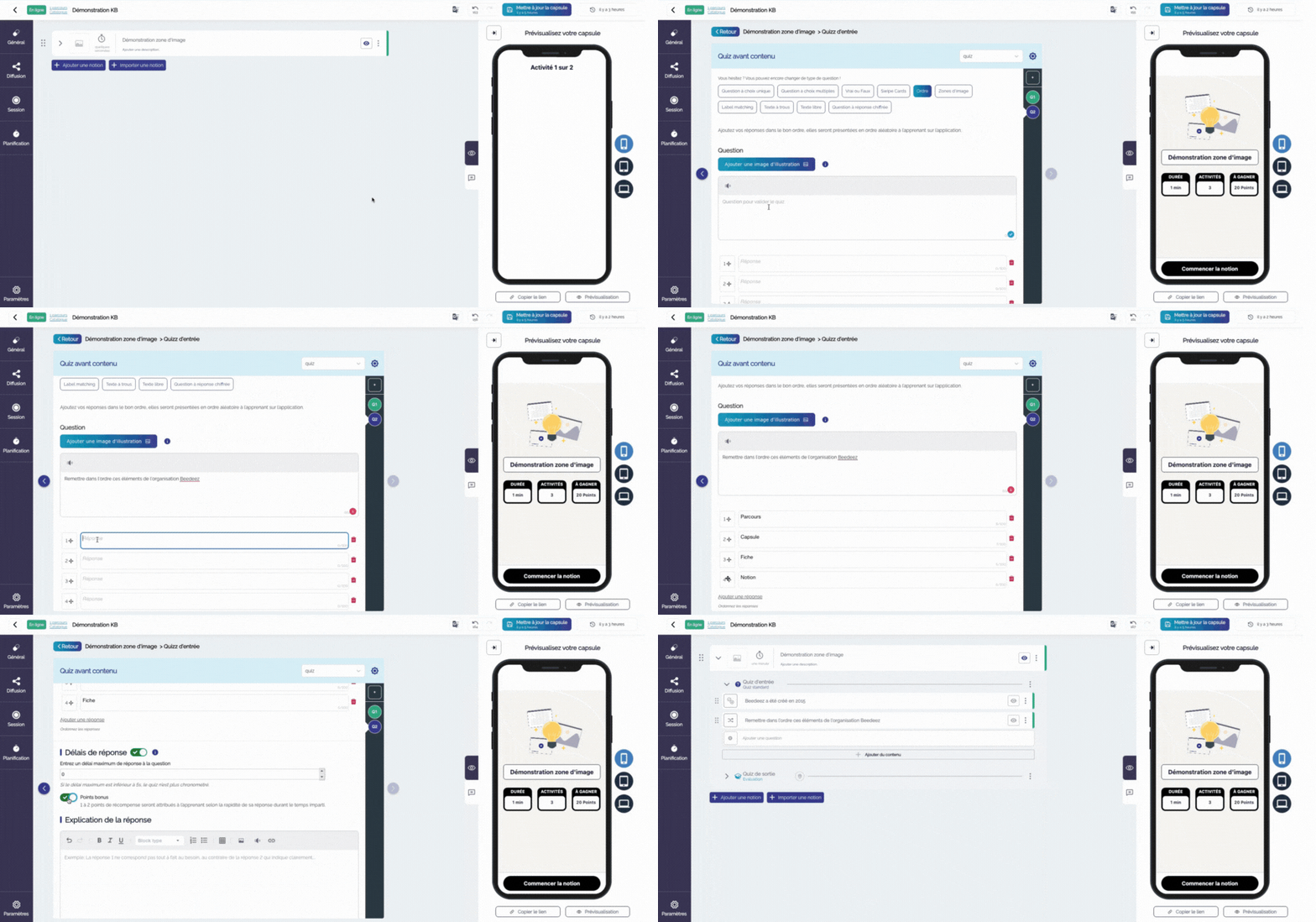
- From your back office, click on the "My content" tab and choose the capsule in which you want to add a quiz order, or create a new capsule.
- Unfold the notion in which you want to add this question.
- In the "Entry quiz" or "End quiz" section click on "Add a question".
- Click on the wrench symbol, and select the quiz type "Order".
- Then click on edit to finalise the question: give your title and complete each answer in the correct order. If necessary, you can change the order of the answers by clicking on one of the suggestions and dragging and dropping it to the desired position.
⚠️ The platform will always present the answers randomly to the learner.
- If needed, you can add more answers by clicking "Add an answer"
You also have the possibility to:
- choose to have the answers appear in random order on the application, by checking the box "Answers are displayed randomly"

- add a response time. A progress gauge will then appear on the application side when the learner is on the Swipe Cards. The learner will have to respond within the time limit.

- add a short explanation to clarify or specify the answer

The explanation will then appear on the application side below the answers once the learner has clicked on "Validate". This explanation will automatically be seen by your learners.
Now it's up to you !