Add teaching activities to your content
Add teaching activities to your content
To make a capsule’s content more fun and easier to remember, add teaching activities to your notions ! Just follow our guide :
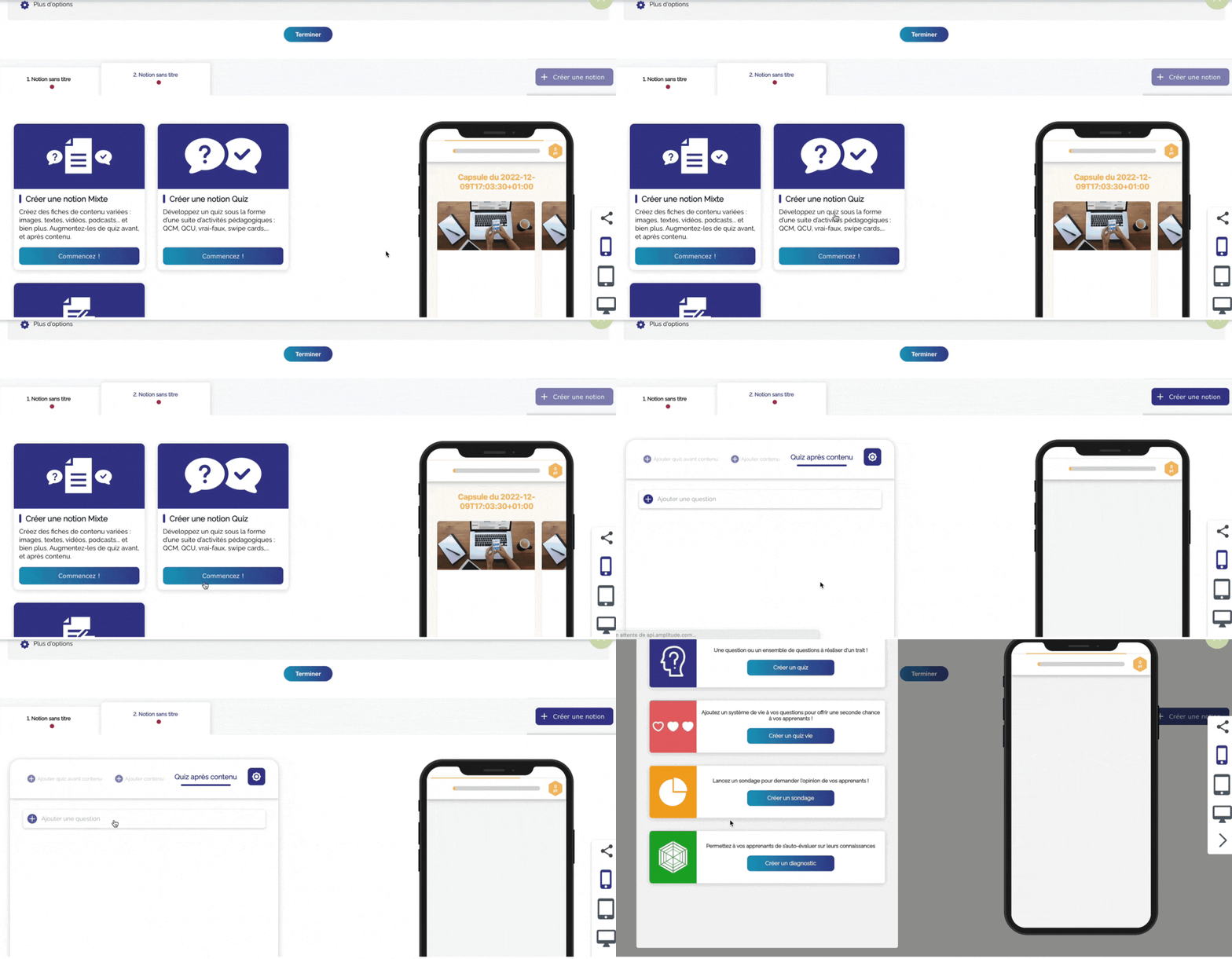
Add a playful touch to your notions ! You can add a quiz before the content of the notion and/or after it. Go to your capsule editor !
A quiz is a series of educational activities.
To create a quiz before or after content in your previously created notion : click on “Quiz before content” or “Quiz after content” according to your objective, then pick the type of quiz you want.
New author tool :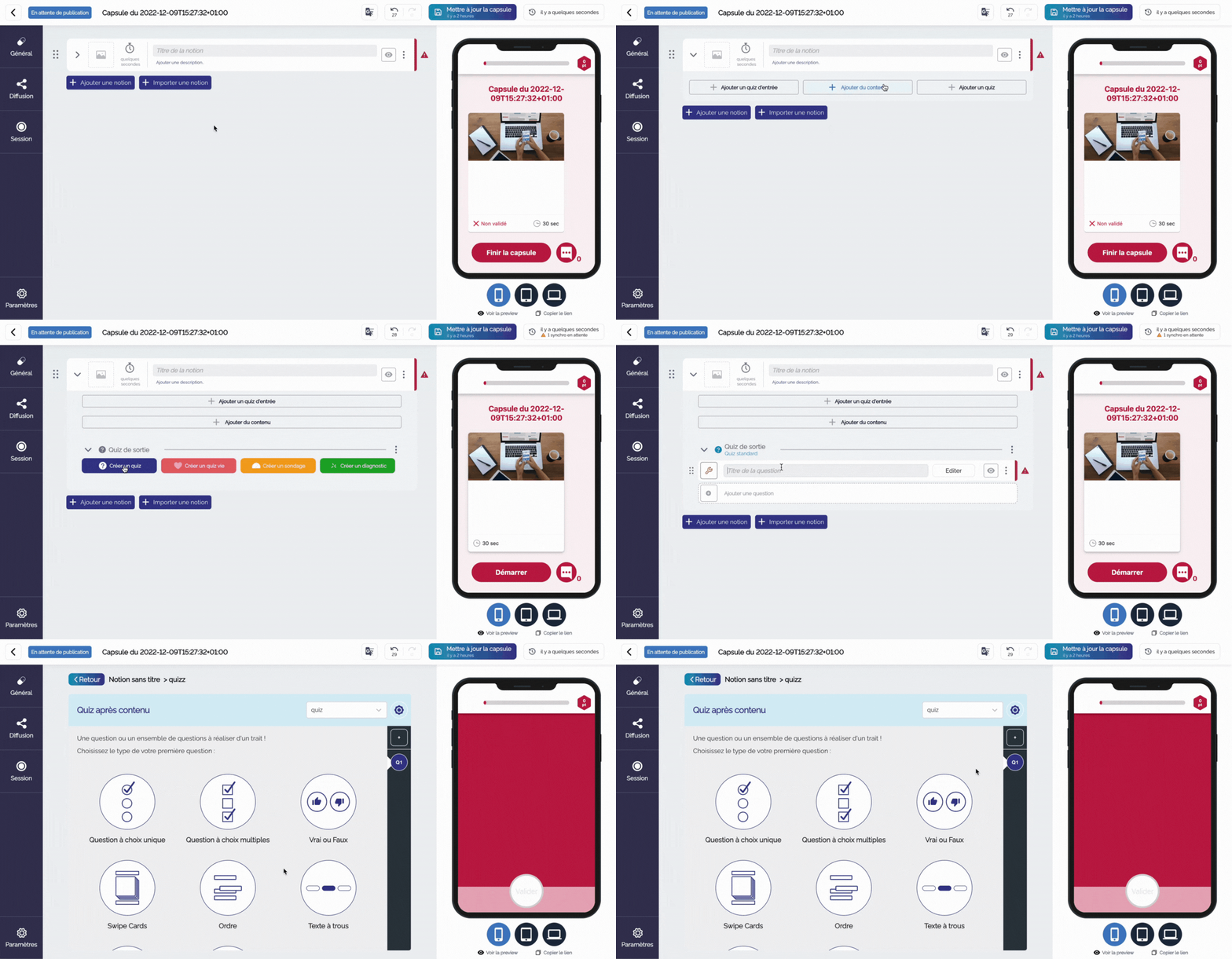
**You can add as many quizzes as you like.
**
From 4 questions, choose to make a random quiz ! You choose the number of questions that will be shown to your learner, so they will not get the same questions every time they do the capsule to train themselves on each attempt. Particularly useful for battles 😉 To find out more, check out our knowledge article .
Select the type of quiz :
Whether using the classic author tool or the new one, the choice of quiz type remains the same.
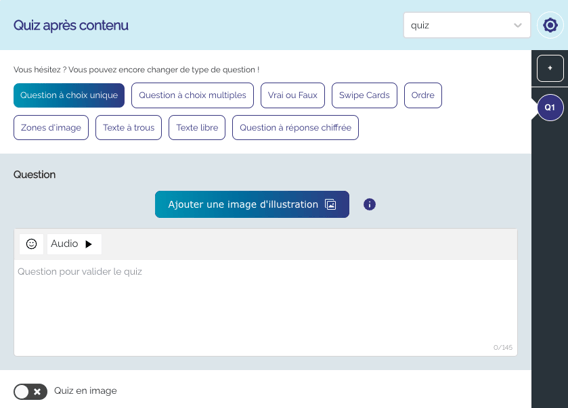
- UCQ - Unique-Choice Question
-
- Fill in your question
- Add an illustrative image to your quiz if you wish
- Fill in the various options, and mark the correct answer by ticking it on the left
You can use images instead of text by ticking the “Image quiz” box.
- MCQ - Multiple-choice questions
You have the same options as for the SCQ, but this time you can tick several correct answers.
Here too, you can turn your propositions into images to vary your questions’ visual aspect and make your capsule more dynamic !
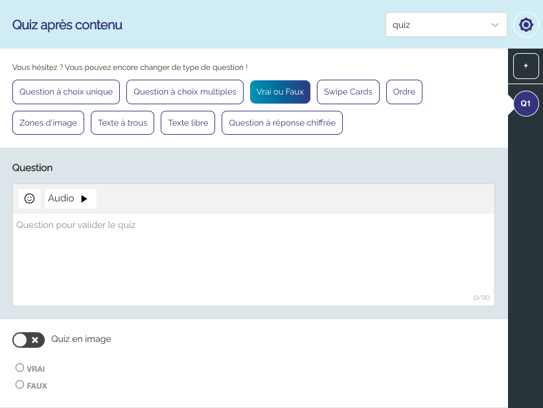
- True / false
-
- Fill in your text
- Indicate the correct answer
- For this type of question, you can add an image below the text by ticking the “Image quiz” box.
- The text must be a statement, not a question.
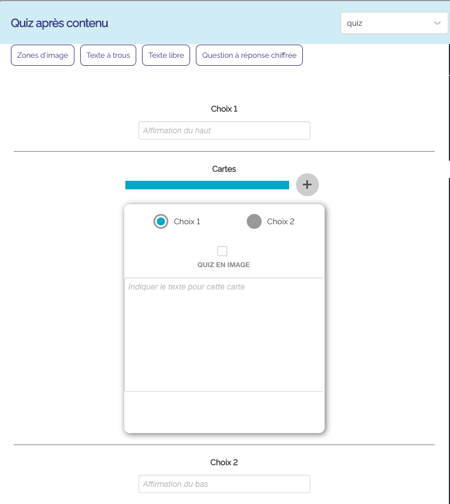
- Swipe card - stack of cards to be sorted into 2 groups :
-
- Fill in the two statements of your question in the “Choice 1” and “Choice 2” inserts.
- Add as many cards as you like by clicking on the +, and indicate for each card its title and whether it belongs to choice 1 or 2.
-
Once again, you can choose to use images instead of text by ticking the “image quiz” box.
-
The fun aspect of this type of question is that there are several cards. Having just one would be frustrating for your learners. On the other hand, having 20 might be a bit long and redundant.
-
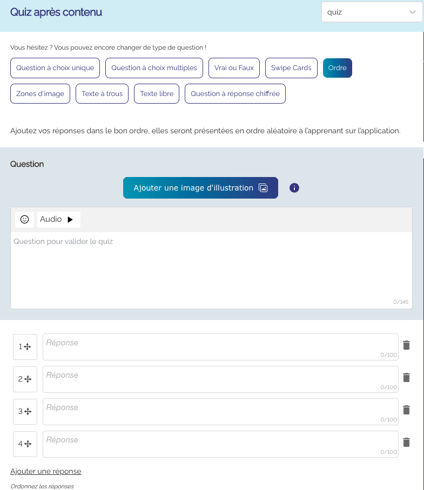
Ranking question - Rank answers correctly
-
- Fill in the various suggestions in the right order
- You can add suggestions by clicking on the “Add an answer” button.
There is no technical limit to the number of answers you can insert, but bear in mind that phone screens are small, so having too many suggestions and forcing your learners to scroll up and down the screen is not optimal.
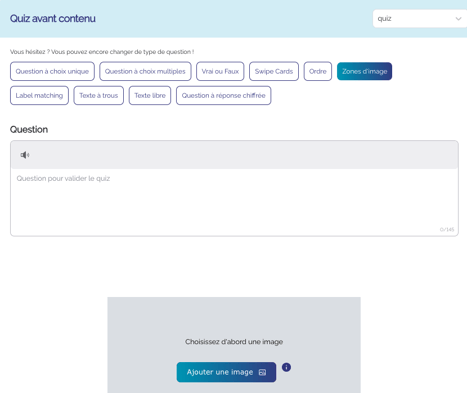
- Image Zone - A question asking you to find particular points on an image
-
- Indicate in the question the area or areas that your learners have to find.
- Insert an image
- Define the zones on the inserted image
- Adjust the number of possible lives
-
You can insert several image zones, but make sure that the zones are not too small !
-
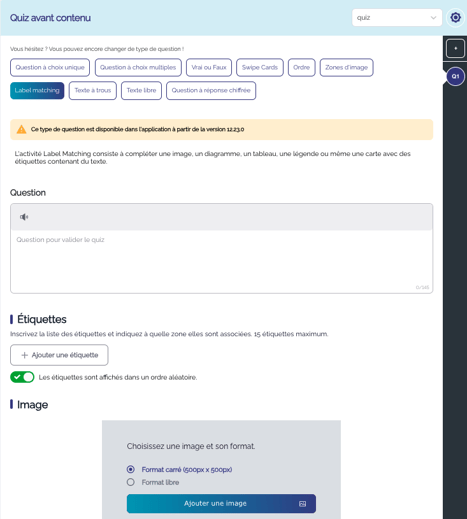
Label matching - Match labels to image zones
-
- Write your question
- Add the labels you need
- Add the image you want to use
- Place the labels on your image
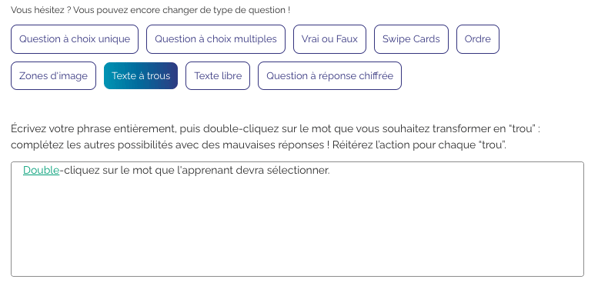
- Fill in the blanks - Find the right words to complete the sentence.
-
- Write your sentence in full
- Double-click on the words for the learner to select. You will then have up to three opportunities to add wrong words.
There is technically no limit to the number of words you can select, but you must not put in too many so that the meaning of the sentence remains understandable.
The options available for each type of question :
You will find these two options on any type of question, which you can activate or not depending on the purpose of the question :
- Response times :
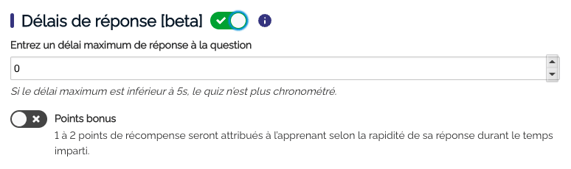
To make your question even more challenging, add a maximum time limit for answering it. At the end of the time limit, if the learner has not answered the question, the answer will be considered incorrect.
Adjust the maximum time limit to the size of your question and the information to be taken into account when answering it. For example, if you have a swipe card question containing 10 cards, having a maximum time limit of 10 seconds would be too tight.
- Explanation of the answer :
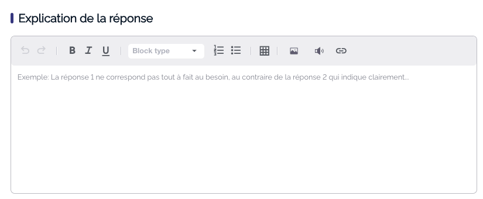
The aim of this explanation is to give your learners additional information about the question, for example an anecdote, a clarification, etc.
Learners will inevitably see it before moving on.
If everything is already well explained in your content card, you do not necessarily need to include an explanation.
On the other hand, if the explanation is particularly important for your capsule, you may prefer to integrate it into a content card so that it is more easily accessible.
A few tips on teaching activities :
Add as many quizzes as possible to each notion :
To keep your learners as active as possible in your capsule, we advise you to add quizzes to each of your notions. Quizzes have a number of advantages in addition to adding a touch of fun to the capsule :
- Emphasise the main information in your notion, and thus help to anchor it in the memory.
- Gather statistics to determine your learners’ level of understanding
Vary the types of question :
At Beedeez, we have made it a rule never to use the same type of question twice in a row. The learner will not get used to the questions and will be much more active in improving their skills, and retention will be all the better for it !
With practice, you will notice that it is always possible to adapt a question to use another format.
In this article we looked at how to add learning activities to a classic quiz, but the way life quizzes work is exactly the same, you just need to define the number of lives for the quiz in question. To find out more, take a look at our knowledge article.
There are also other types of quiz :
- Survey mode
- Diagnostic mode
Now it’s up to you !