How to create a group/period filter on statistics ?
If you regularly need to perform statistical analyses on one or more learning groups and/or over a specific period of time, just create a customised filter !
Source: https://support.beedeez.com/fr/en/can-i-view-statistics-for-a-single-user-group
How to create a group/period filter on statistics ?
If you regularly need to perform statistical analyses on one or more learning groups and/or over a specific period of time, just create a customised filter !
What is a filter for ?
A filter is for getting statistical data only on one or more groups, and/or over a specific period of time. If these are filters and analyses that you need to do regularly, you can save them in order to apply them with just one click next times !
You can create a filter on any statistics tab.
You will thus be able to analyse the same data on different populations, for example your headquarters populations and your field populations, the populations according to your different departments or regions, etc. You will thus be able to compare them, or even highlight differences : the best-rated content, the topics that people like the most, connection days, etc. you will then be able to adapt your next moves based on these results.
How to filter or create a custom filter ?
Go to one of your statistics tabs. You then have two options :
Create a one-time filter :
-
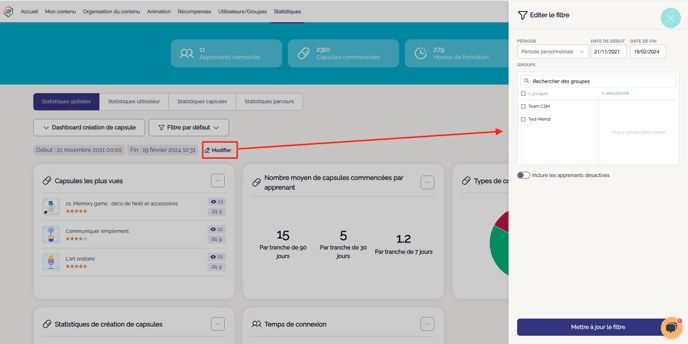
To do this, click on the Modify button. A window opens, from which you can choose :
-
the time period to apply,
-
the department (if you have the advanced hierarchy option, and you are logged in from a department with sub-departments, or from the parent account),
-
the group(s) if you want to.
-
You will also have the option to include learners who are currently deactivated, but who have made content over the selected period.
-
Then click on Update filter
-
When you change tabs, this filter will not be saved, and you will therefore have to set it up again if necessary.
💡 To learn more about deactivated users, check out this knowledge article.
Creating a customised filter :
- Click on the Default Filter button, here you will find all your customised filters
- To create a new one, click on Create a filter, you will then have exactly the same choices as for a one-off filter, plus the obligation of giving a title to this filter
- Then click on Create filter
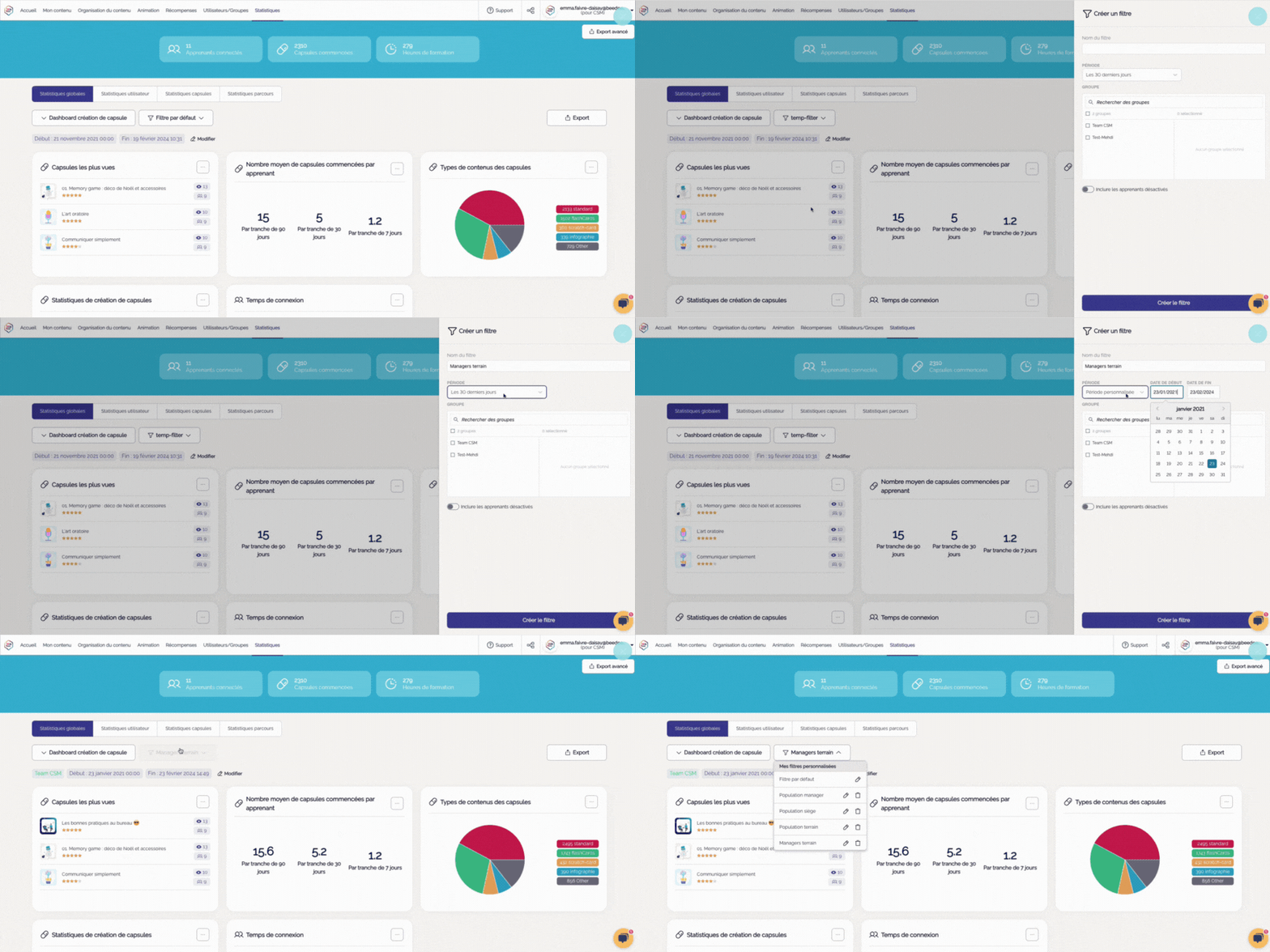
💡 To edit or delete a custom filter, simply click the pencil or trash can next to the filter name, after clicking the "default filter" button.
⚠️ The filter will be saved on the statistics tab from which you created it. If you need to reuse the same filter on another tab, you will need to create it again on the other tab.
And now it's up to you !