Notion content : discover the cards !
Notions are the chapters of your capsule. Ideally, each one contains a single key idea to convey to your learners : choose the best type of content for your card !
Source: https://support.beedeez.com/fr/en/the-content-of-the-topics-discover-the-cards
Notion content : discover the cards !
Notions are the chapters of your capsule. Ideally, each one contains a single key idea to convey to your learners : choose the best type of content for your card !
Your capsule can be broken down into several notions. These correspond to the chapters in your capsule : each of these notions is made up of :
- one or more content cards (text, video, graphics, pictures, flashcards, etc.)
- and/or one or more quizzes (MCQs, MCQs, Gap fill, etc.) which may be :
- entry quizzes : these are designed to introduce the notion, check what has been learnt or use reverse teaching methods
- end quizzes : these are designed to emphasise the important points and check that your learners have understood the material.
You are free to compose your notions as you wish : one notion may well contain only quizzes, for example, or one notion may contain entry quizzes and content, while another may contain content and exit quizzes !
💡 By alternating between content cards and quizzes, you can make your content dynamic and keep the learner active throughout !
💡 In the case of a battle capsule, it is advisable to use mainly, if not exclusively, quizzes !
Contents :
Creating a notion
- Old author tool : click here
- New Author tool : click here
From the “My content” tab in the back office, create a capsule or click on the capsule to which you want to add a notion. If you create a capsule, the first notion is created automatically.
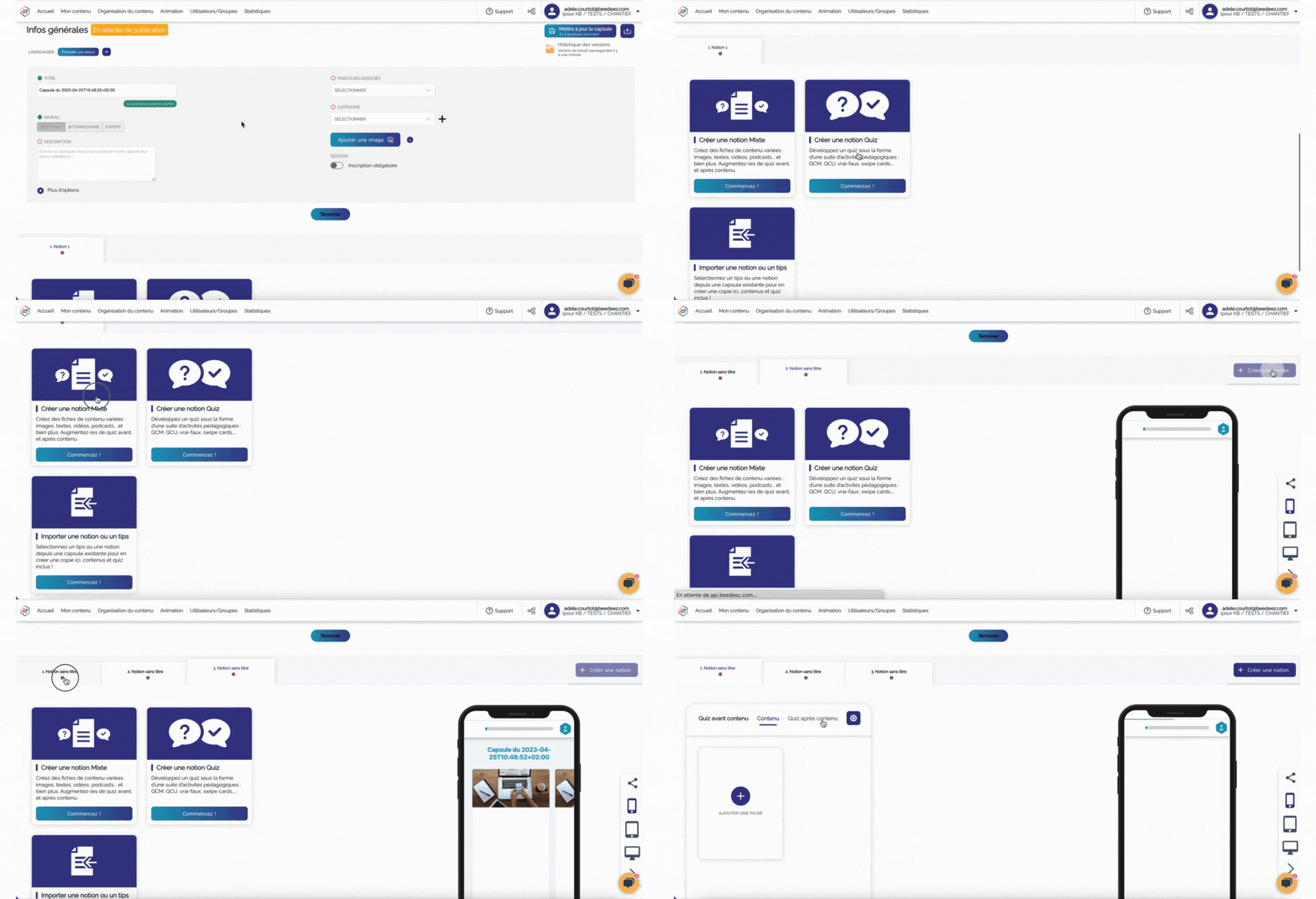
NEW AUTHOR TOOL
- From the “My content” tab in the back office, create a capsule or click on the capsule to which you want to add a notion.
- For a new capsule, give it a title, a description, a visual, a level and one or more categories, which can be temporary. You can skip these steps if you need to.
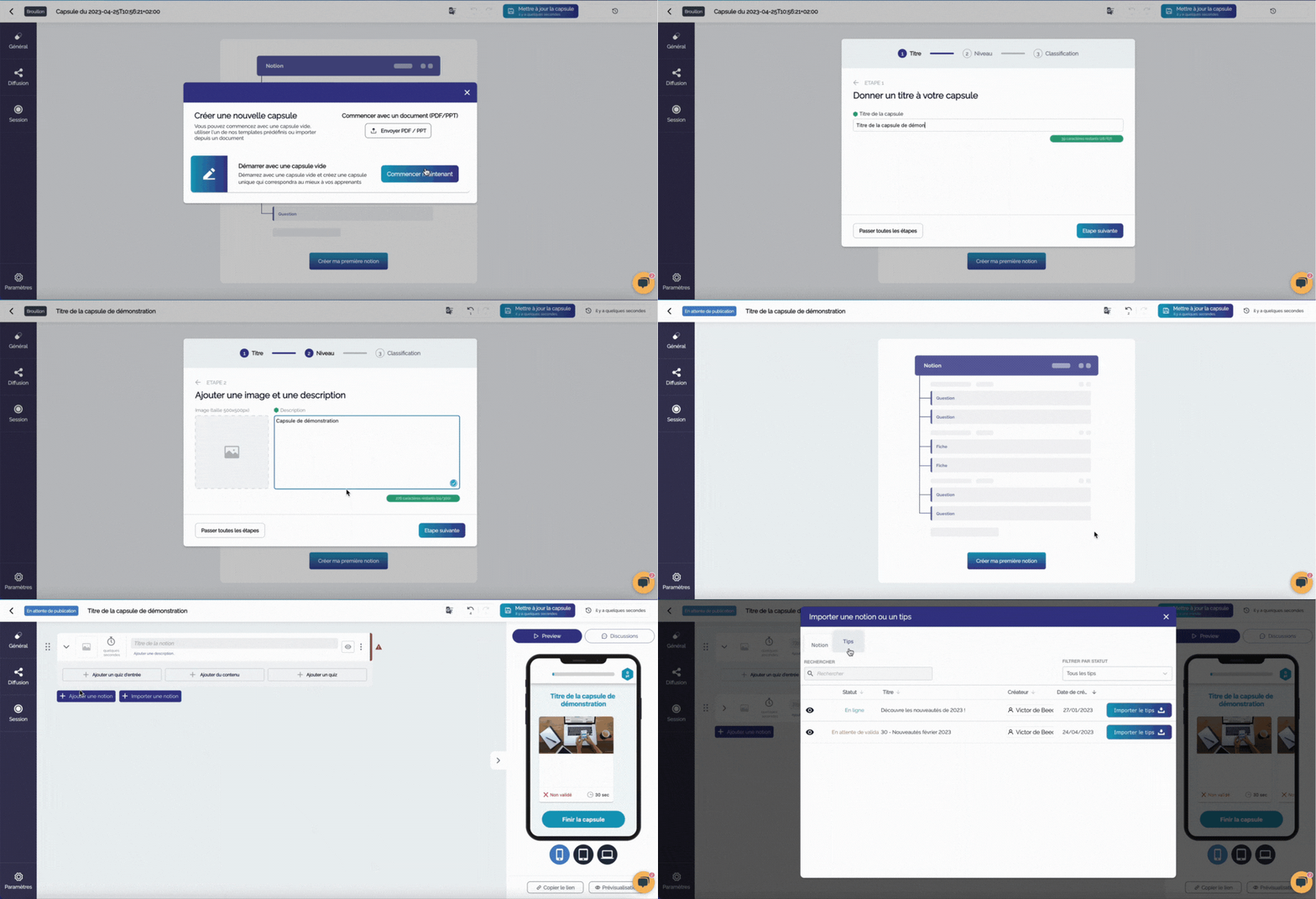
Click on “Create my first notion” if this is your first capsule, otherwise click on:
- “Add a notion”, for which you can add :
- One or more entry quiz
- One or more content cards
- One or more end quiz
- Import a notion or tips : this allows you to integrate your existing resources : an existing notion or a tip from the feed, directly into your capsule. You can then modify them without affecting the originals. To find out more, click here !
💡 You can add as many notions as you like to your capsules. However, to keep the format short, so that learners can consult them at any time, we recommend that you create between 2 and 6 notions per capsule.
Adding a card and types of card available
- Old author tool : click here
- New Author tool : Click here
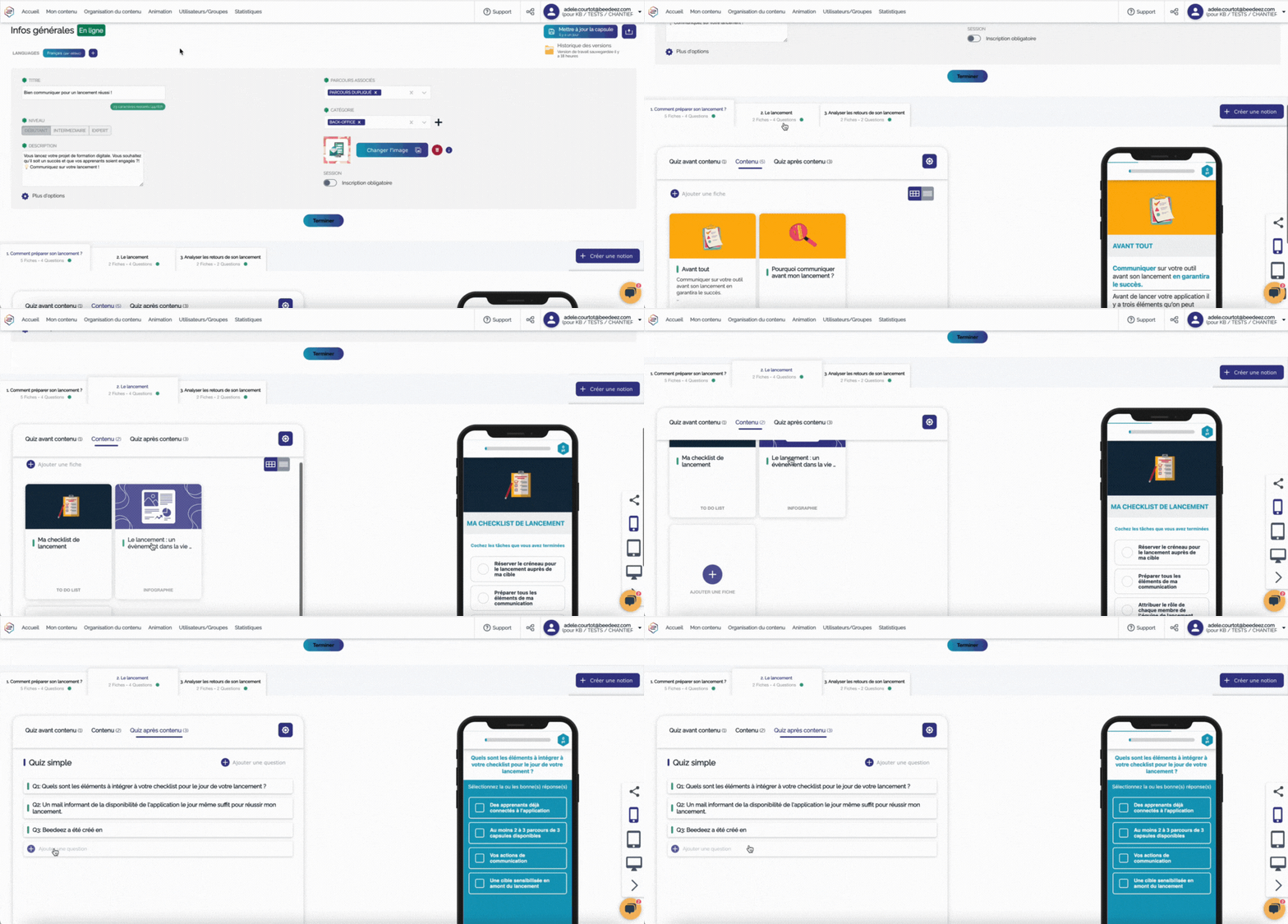
Mixed notions can be used to create a variety of content. There are 11 types of card in your authoring tool.
- Go to the notion you want to add a card to.
- Click on “Add an entry quiz”, “Add content” or “Add and end quiz”, depending on the type of card you want to add.
- Click on “Add a question” or “Add a card” : select the type of content/quiz you want to add.
- Click on “Add a question” or “Add a card” to add another card.
NEW AUTHOR TOOL :
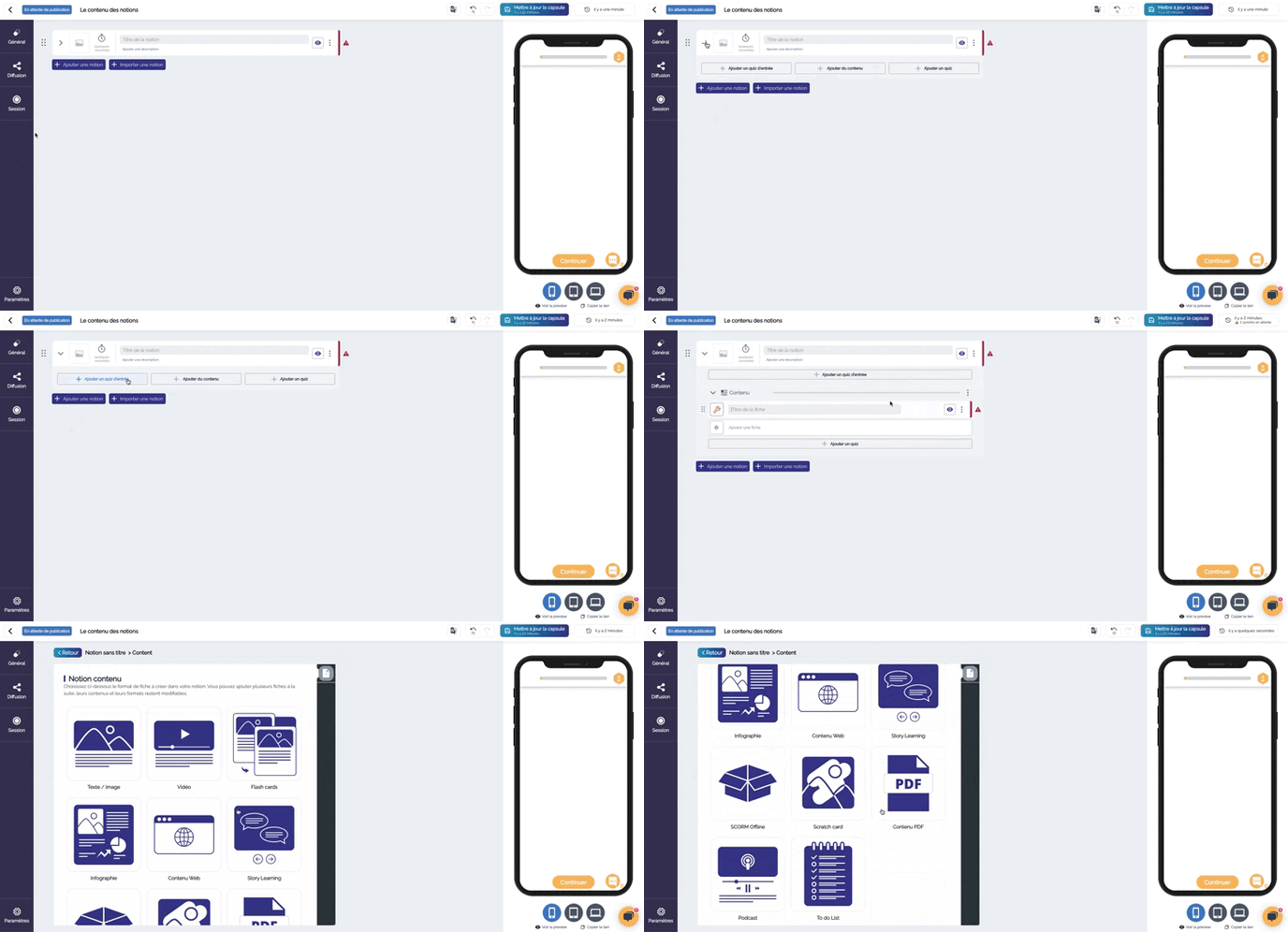
- Scroll down the notion to which you wish to add content and/or quizzes, by clicking on the arrow.

- Select “Add an entry quiz”, “Add content” or “Add an end quiz” depending on the type of card you wish to add.
- Click on “Edit”, and choose the type of card you want to add.
👉 To find out more about adding a Quiz, click here.
- Then click on “Add a quiz” if you are in a series of quizzes, or “Add content” if you are in content, to add new cards.
Types of content available
 Text/image :
Associate a visual with the text of your card. Text/image is the most classic format, and you can adapt all your content to it.
To find out more about this type of card, click here !
Video :
Vary your content by diffusing video content to your learners. To find out more about this type of card, click here !
💡 Use the text box on the video card to give your learners some context, or give them a brief summary of the key points to remember from the video they are watching.
Flash cards
Keep your learners active in their training. Based on the principle of study cards, flash cards once again allow you to diversify your content.
Ask an open-ended question on the front and give the answer on the back, for example. To find out more about this type of card, click here !
Infographics
Liven up your content and highlight important information in a single card. The infographic will also make it easier for your learners to understand.
To find out more about this type of card, click here !
**
 Web content**
Your learners will be able to access web content without leaving their application thanks to this type of card !
To find out more about this type of card, click here !
Story Learning
Bring your notions to life and engage your learners in their training with story learning. This format is ideal for conveying serious or touchy subjects.
To find out more about this type of card, click here !
 Offline SCORM
Diffuse your e-learning modules directly in a capsule. They will then be directly available on the learner platform.
To find out more about this type of card, click here !
Scratch cards
Stimulate your learners and add a touch of fun to your content. This format is based on the principle of scratch cards.
To find out more about this type of card, click here !
PDF content
With the “PDF content” card, you can use your existing resources and integrate them directly into your capsules.
To find out more about this type of card, click here !
Podcast
Broadcast podcasts to your learners so that they can listen to them even if they are outside the application and/or lock their phone.
To find out more about this type of card, click here !
 The To do List
Make your learners active participants in their training. Create a list of tasks to help anchor the knowledge acquired by your learners.
To find out more about this type of card, click here !
** **
**
H5P content
Take advantage of our integration with H5P to add even more variety to your content!
To find out more about this type of card, click here !
Types of quiz available
 UCQ - Unique-Choice Question
In text or images, your learners can choose just one answer – will they be able to find it ?
To find out more about this type of quiz, click here.
 MCQ - Multiple-Choice Question
You have the same options as for the UCQ, but this time you can tick several correct answers.
To find out more about this type of quiz, click here.
**

True / false**
A proposition : is it true or false ?
To find out more about this type of quiz, click here.
**
 **
**
Swipe Card
Your learners have to sort all the cards according to two suggestions. Ideal for highlighting the good and bad practices to adopt in a specific context !
To find out more about this type of card, click here.
**
Ranking question**
Your learners have to rank all the suggestions in the right order. Ideal for methodology !
To find out more about this type of card, click here.
**
 **
**
Gap fill
Challenge your learners on one or more key words or key figures !
To find out more about this type of card, click here.
** **
**
Image Zone
Your learners have to click on the correct answer(s). Will they be able to choose the right number from a cloud of numbers ? Can they find the location of the safety exit on a map ?
To find out more about this type of card, click here.
**
Question with a numerical answer**
Your learners will have to find a key figure within a defined margin of error !
To find out more about this type of card, click here.
** **
**
Label matching
Your learners have to match labels to image zones. Ideal for identifying equipment/products or finding your way around a map !
To find out more about this type of card, click here.
** **
**
Free text
Challenge your learners to come up with one or more answers !
To find out more about this type of card, click here.
**Deleting a notion
**
- Old author tool : click here
- New Author tool : click here
You can easily delete a notion. To do this, go to the “My content” tab in your back office :
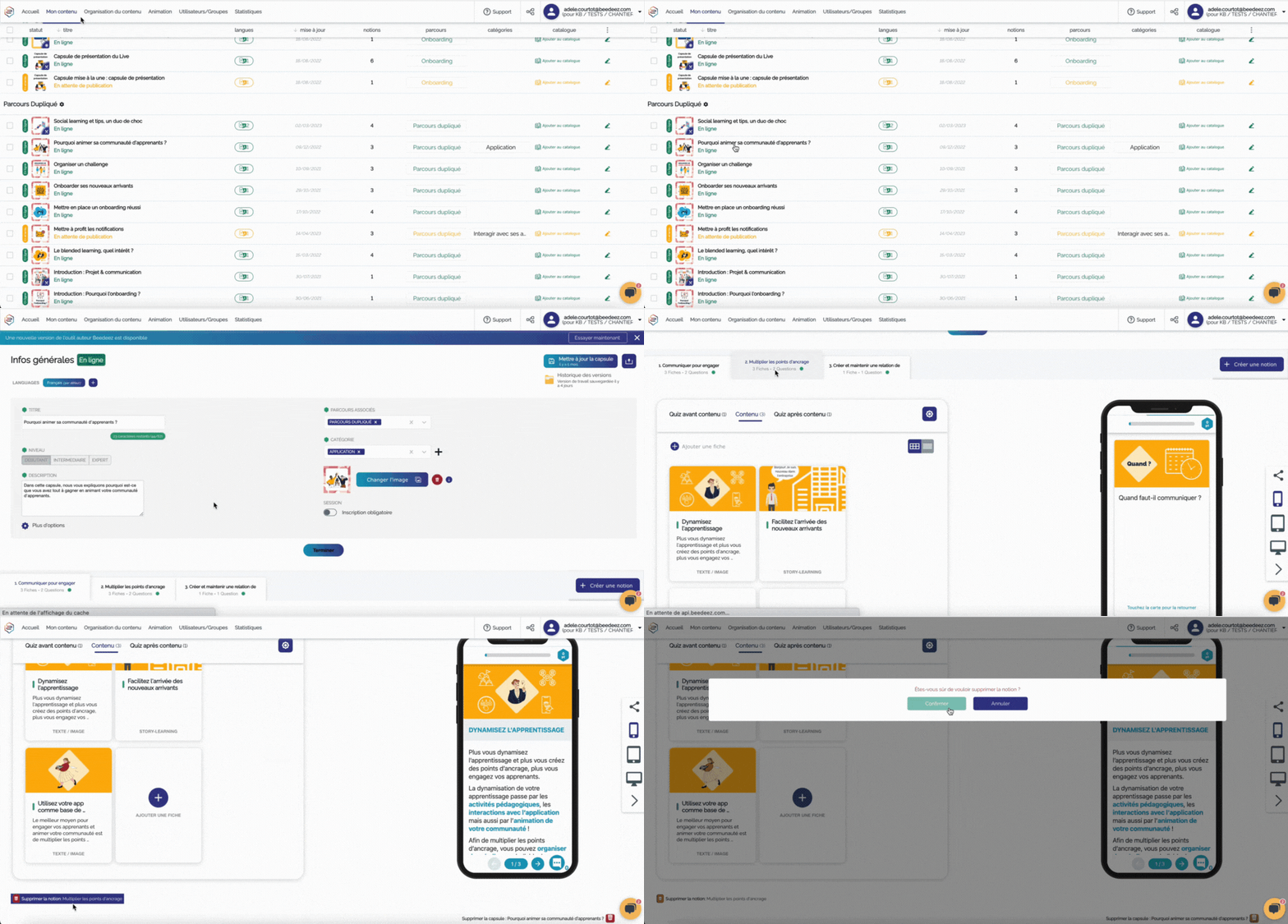
- Go to the capsule and then to the notion of the card you wish to delete
- Click on the red bin at the bottom left of the page
- Confirm the deletion using the confirmation pop-up
That is it, your notion has been deleted !
NEW AUTHOR TOOL
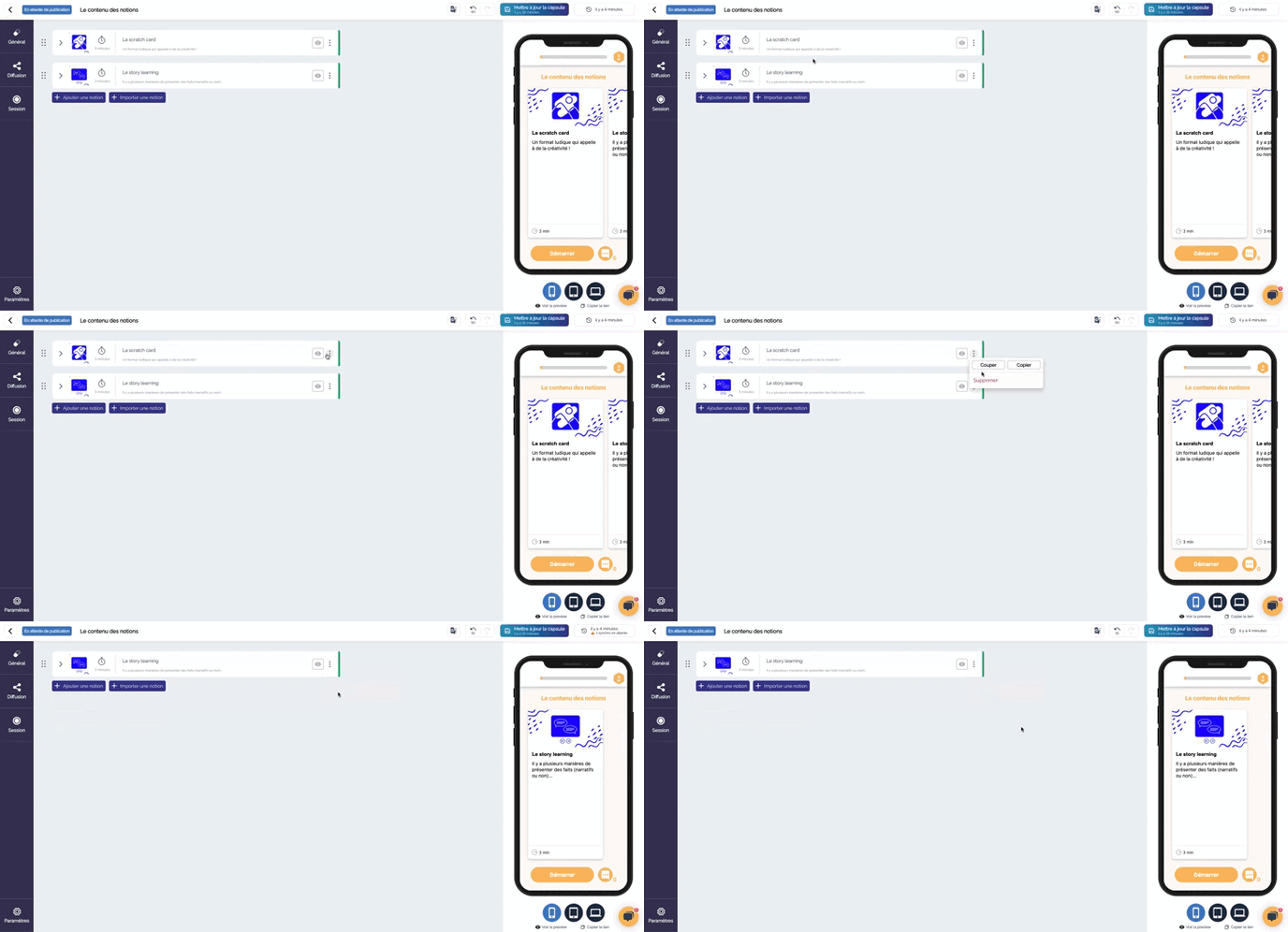
You can easily delete a notion. To do this, go to the “My content” tab in your back office :
- Go to the capsule
- Click on the three vertical dots to the right of the notion you want to delete
- Click on “Delete”.
That is it, your notion has been deleted
⚠️ : If your capsule contains only one notion, it will not be possible to delete it, as this would be tantamount to deleting the capsule.
Deleting a card
- Old author tool : click here
- New Author tool : click here
You can easily delete a card. To do this, go to the “My content” tab in your back office :
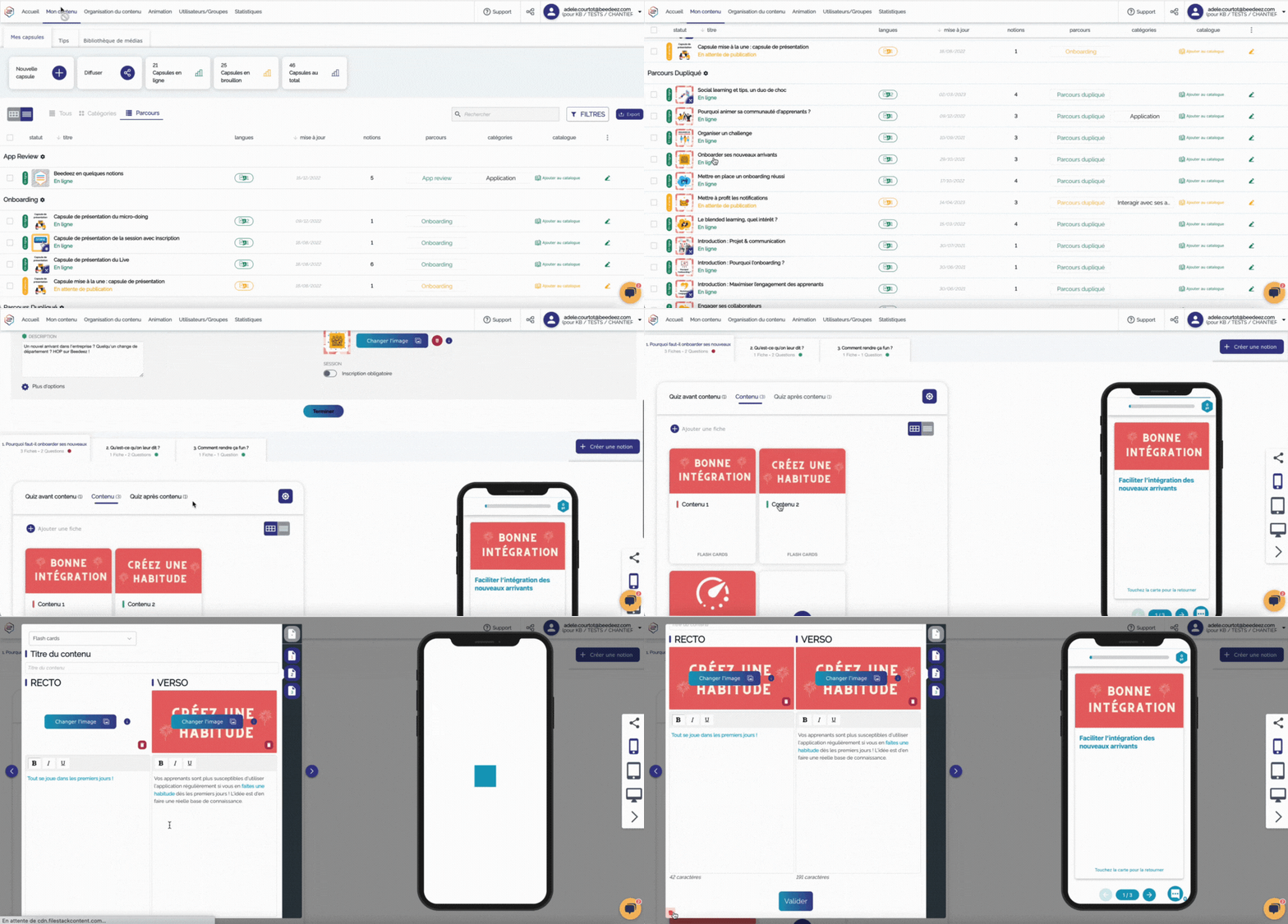
- Go to the capsule and then to the notion of the card you want to delete
- Click on the card you wish to delete
- Click on the red bin at the bottom left of the card
- Confirm the deletion using the confirmation pop-up.
That is it, your card has been deleted !
NEW AUTHOR TOOL
** **
**
You can easily delete a notion. To do this, go to the “My content” tab in your back office :
- Go to the capsule and then to the notion of the card you want to delete
- Go to the card you wish to delete
- Click on the three vertical dots on the right, and click on “Delete”.
Your card has now been deleted.
💡 Remember to save your content regularly by clicking on “Update capsule”. This will allow you to retrieve an earlier version of your capsule if you wish to recover a deleted notion or card.
Now it’s up to you !